Template Settings
Template Settings allow you to control the header and footer layout of system-generated documents (such as policy letters, payslips, offer letters, and other official documents) across your organization.
From this section, you can:
- Configure what appears in the Header (left and right sections)
- Configure what appears in the Footer (left, center, and right sections)
- Choose background colors for the header and footer
- Show or hide specific company details (Logo, GST, Page Number, etc.)
- Control whether the Generated At timestamp appears in the footer
Template Settings ensure all generated documents follow your organization's branding and formatting standards.
Template Settings only control the header and footer layout.
They do not modify or control the main document content (body text, letter content, policy details, etc.).
Navigation — Where to Find Template Settings
- Log in to CloudHR.
- From the left-hand menu, click Organizations.
- At the top of the Organizations page, click Document.
- In the Document submenu, click Template Settings.
You will now see the list of available templates
(e.g., Executive, Standard Reverse, Executive Reverse).
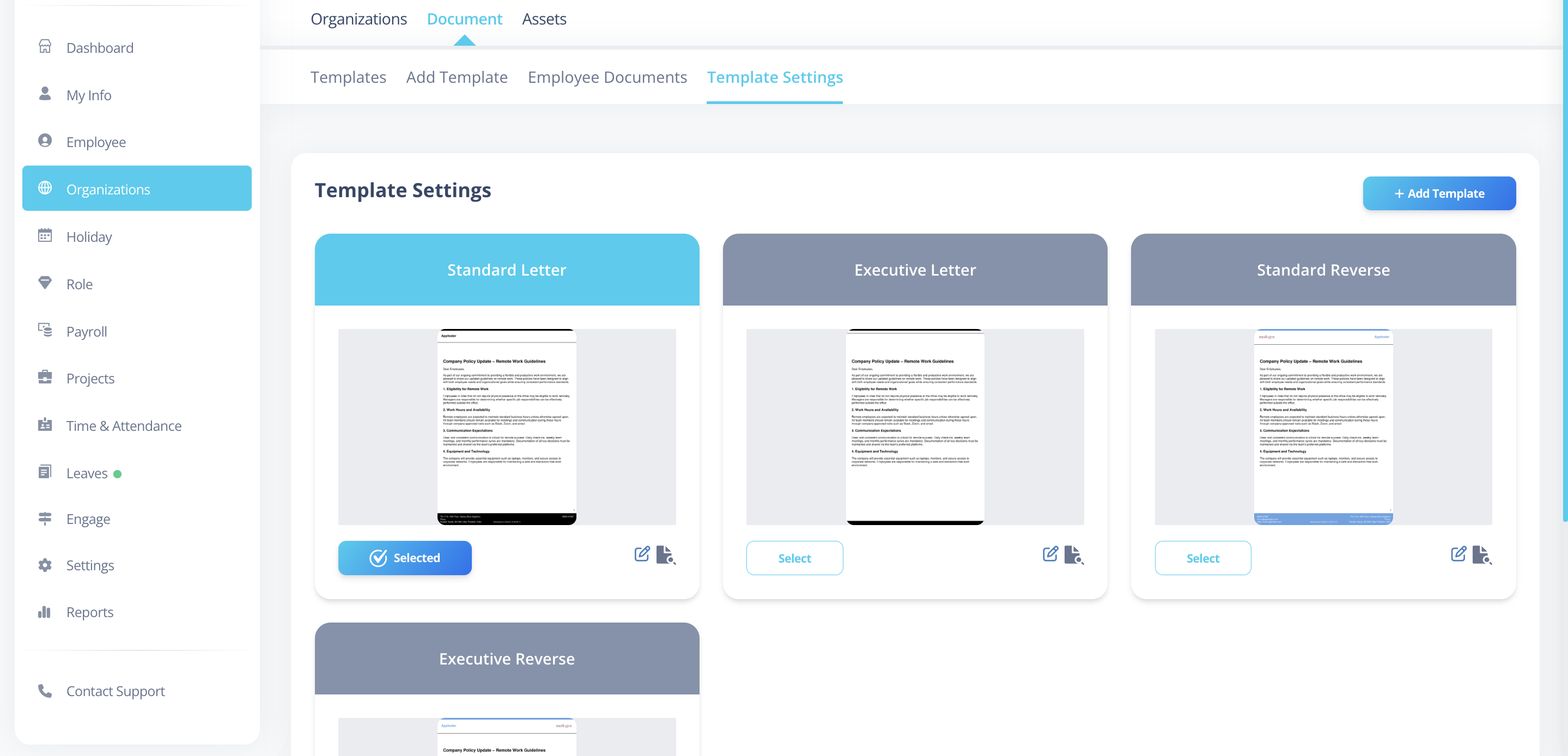
Template Settings Screen Overview
On this screen, you will see:
- Template Thumbnails — Visual preview of each template layout.
- Select Button — Choose a template to be used for document generation.
- Edit () Icon — Modify an existing template.
- Preview Icon — View a live rendered example.
Add Template— Create a new template from scratch.
Use the preview option before selecting a template to ensure header and footer placement appear as expected.
Add a New Template — Step-by-Step
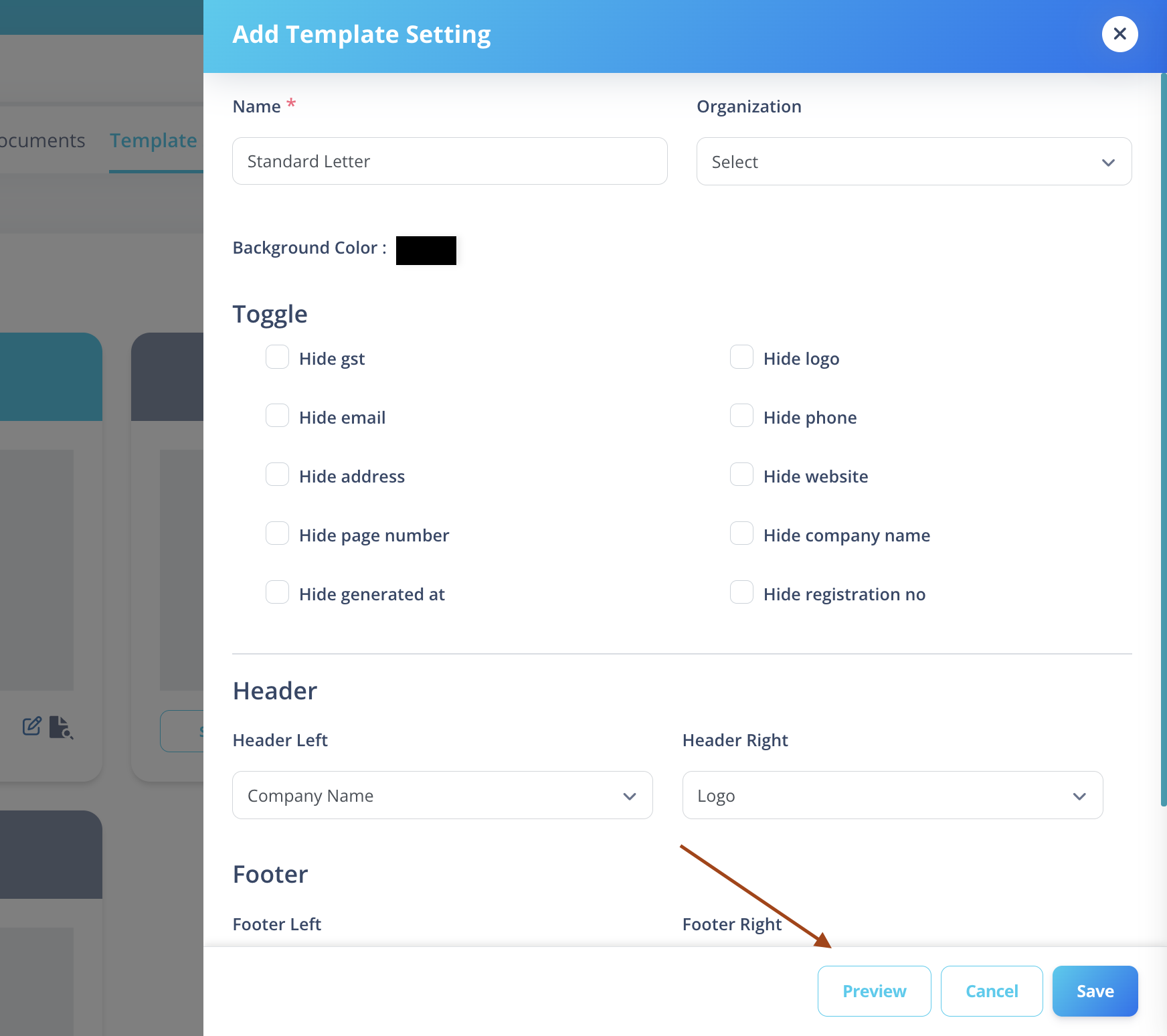
- Click
Add Template(top-right). - A side form titled Add Template Setting will open.
- Fill in the required fields:
Name
Enter a meaningful template name
(e.g., “Payslip Header Layout”, “Offer Letter Footer Layout”).
Organization
Select the organization this template should apply to.
Documents generated for the selected organization will use this template (when selected).
Background Color
Choose the color used for the header and footer bands.
Toggle Options (Hide / Show Fields)
Use the checkboxes to hide specific elements from the header or footer.
If a checkbox is enabled, that element will not appear in the final document.
Available options:
- Hide Logo
- Hide Address
- Hide Phone
- Hide Generated At (timestamp – footer center)
- Hide Registration Number
- Hide Header Separator
- Hide Company Name
- Hide Email
- Hide Website
- Hide GST
- Hide Page Number
If certain information is missing in preview, check whether it has been hidden using the toggle options.
Configure Header
-
Header Left (Dropdown) — Choose what appears on the left side of the header
(e.g., Company Name, Logo, Address, Contact Details, Nothing). -
Header Right (Dropdown) — Choose what appears on the right side of the header.
These settings control only the header layout and positioning.
Configure Footer
- Footer Left (Dropdown) — Select content for the left footer section.
- Footer Center — Displays the Generated At timestamp (if not hidden).
- Footer Right (Dropdown) — Select content for the right footer section.
These settings control only the footer layout and positioning.
Preview & Save
- Click Preview to open a live rendered example using sample data.
- Click Save to create the template.
- Click Cancel to discard changes.
Field & Option Definitions
Name
The internal name used to identify the template in lists and generation dialogs.
Organization
Determines which organization this template applies to.
Background Color
Color applied to the header and footer sections.
Toggle Options
Control which company details appear in the header or footer.
Header / Footer Dropdowns
Define what content appears in the left and right sections of the header and footer.
Preview
Displays a rendered example to validate layout and positioning.
Save
Stores the template configuration for future document generation.
Edit an Existing Template
- Locate the template on the Template Settings screen.
- Click the Edit () Icon.
- The same configuration side form will open (pre-filled with current values).
- Modify required fields.
- Preview changes if needed.
- Click Save to update the template.
Select a Template (Set as Active)
Click the Select button under a template thumbnail to choose it for document generation.
Selecting a template sets it as the active header and footer layout for document generation within the selected organization.
Preview & Validation Tips
- Always preview after modifying header or footer settings.
- Verify alignment and spacing before saving.
- If logo or company details are missing, confirm they are uploaded in the Organization settings and not hidden.
Template Settings help maintain consistent header and footer branding across all generated documents.