Document Generation
CloudHR Document Generation module allows HR teams to generate official documents for multiple employees at once using predefined templates.
Instead of manually preparing documents one by one, you can apply filters and generate documents in bulk — saving time and ensuring consistency.
How to Access Document Generation
- Log in to the CloudHR Admin Dashboard.
- From the left sidebar, click Organizations.
- From the top menu, navigate to Document → Templates.
- In the Templates list, locate the required template and click the Generate button in the Actions column.
The Generate Documents screen will open.
Step-by-Step Guide
1️⃣ Select a Template
At the top of the page, use the search bar to:
- Search for a specific template
- Select the template you want to generate documents from
Only saved templates will appear in the search results.
2️⃣ Apply Filters
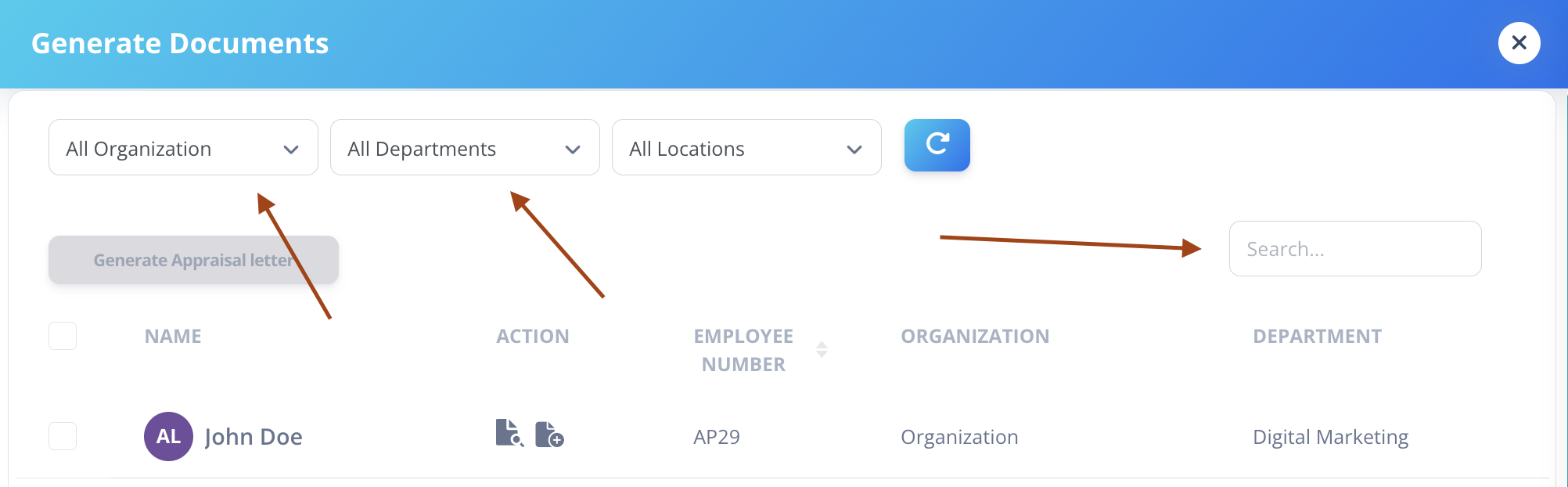
Click on Generate Documents.
A pop-up will appear with filtering options to help you select employees.
Available filters:
- Organization
- Department
- Location
These filters allow you to narrow down employees based on your requirement.
If needed, click Reset to clear all applied filters.
3️⃣ View Employee List
After applying filters, a list of employees will appear.
The table includes the following columns:
- Name
- Actions
- Employee Number
- Organization
- Department
You can now choose which employees you want to generate documents for.
4️⃣ Preview or Generate
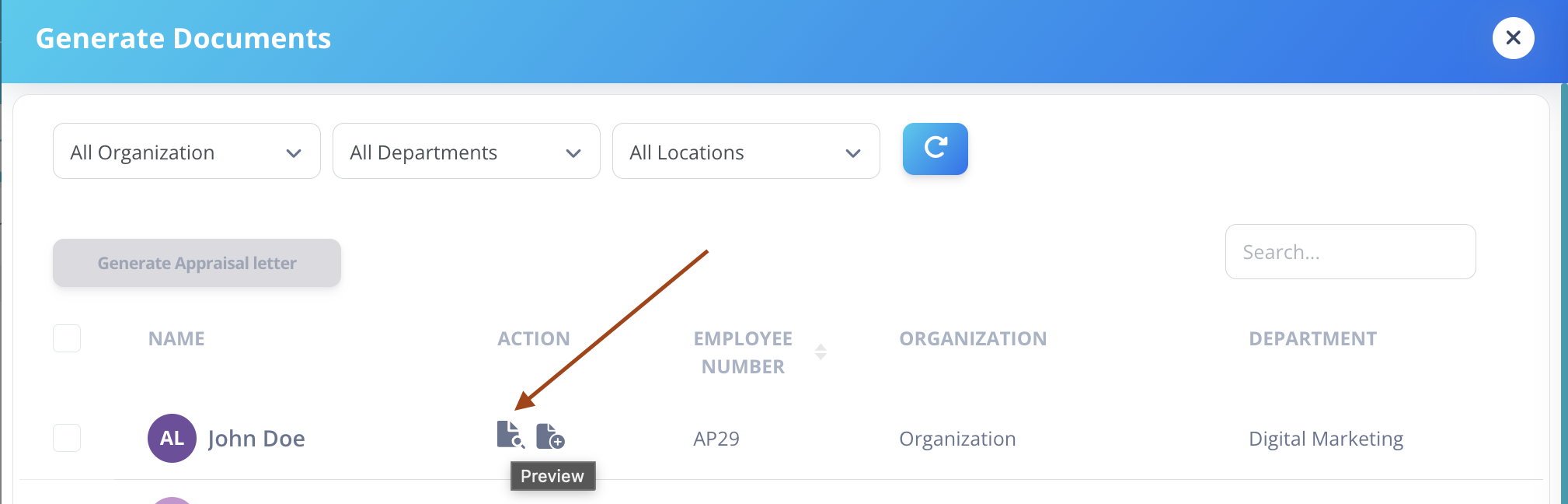
Under the Actions column, you will see two options:
Preview
- Click Preview to review how the final document will look with employee data populated.
Generate
- Click Generate to create the final document for that employee.
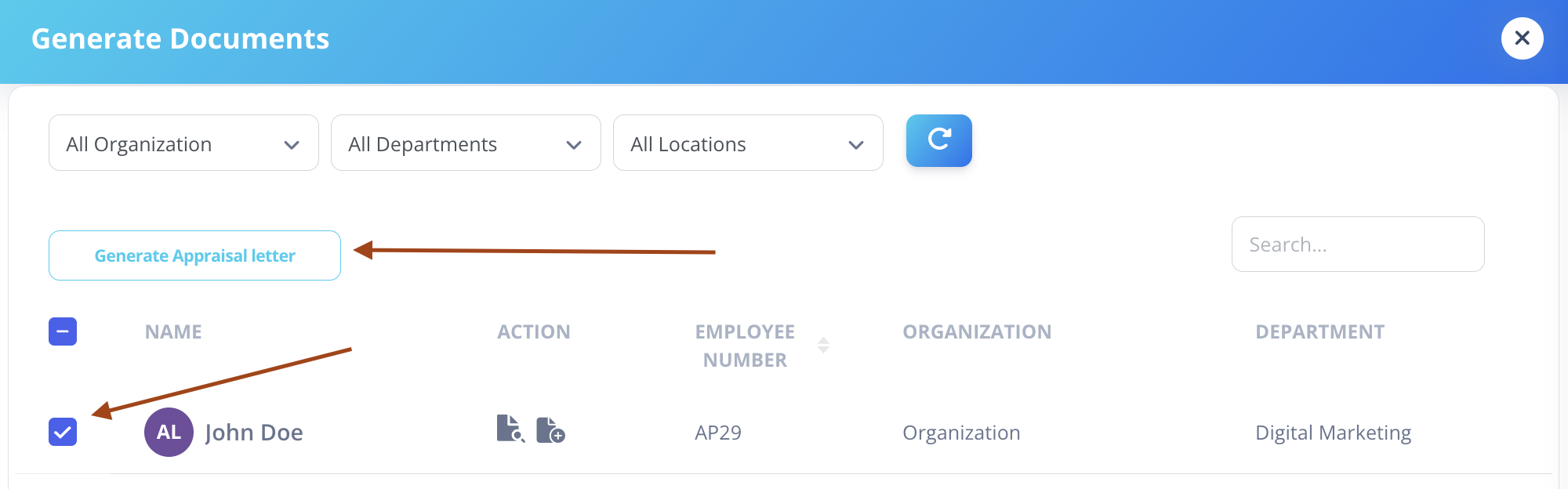
You may select multiple employees for bulk generation.
5️⃣ Finalize Generation
After selecting the required employees:
- Click on Generate Official Template.
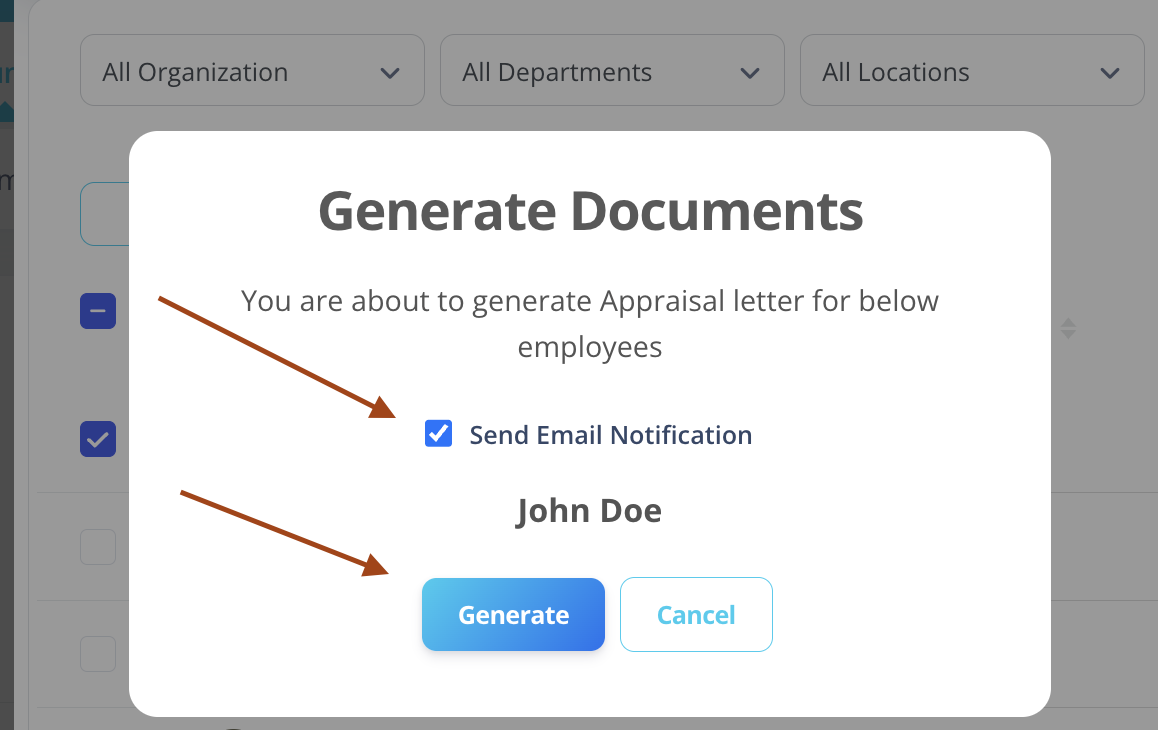
- The system will generate documents for all selected employees.
- Generated documents will be sent to employees via email.
Where Generated Documents Appear
Once a document is generated:
- It is automatically sent to the selected employees via email.
- It is also stored in the employee’s profile.
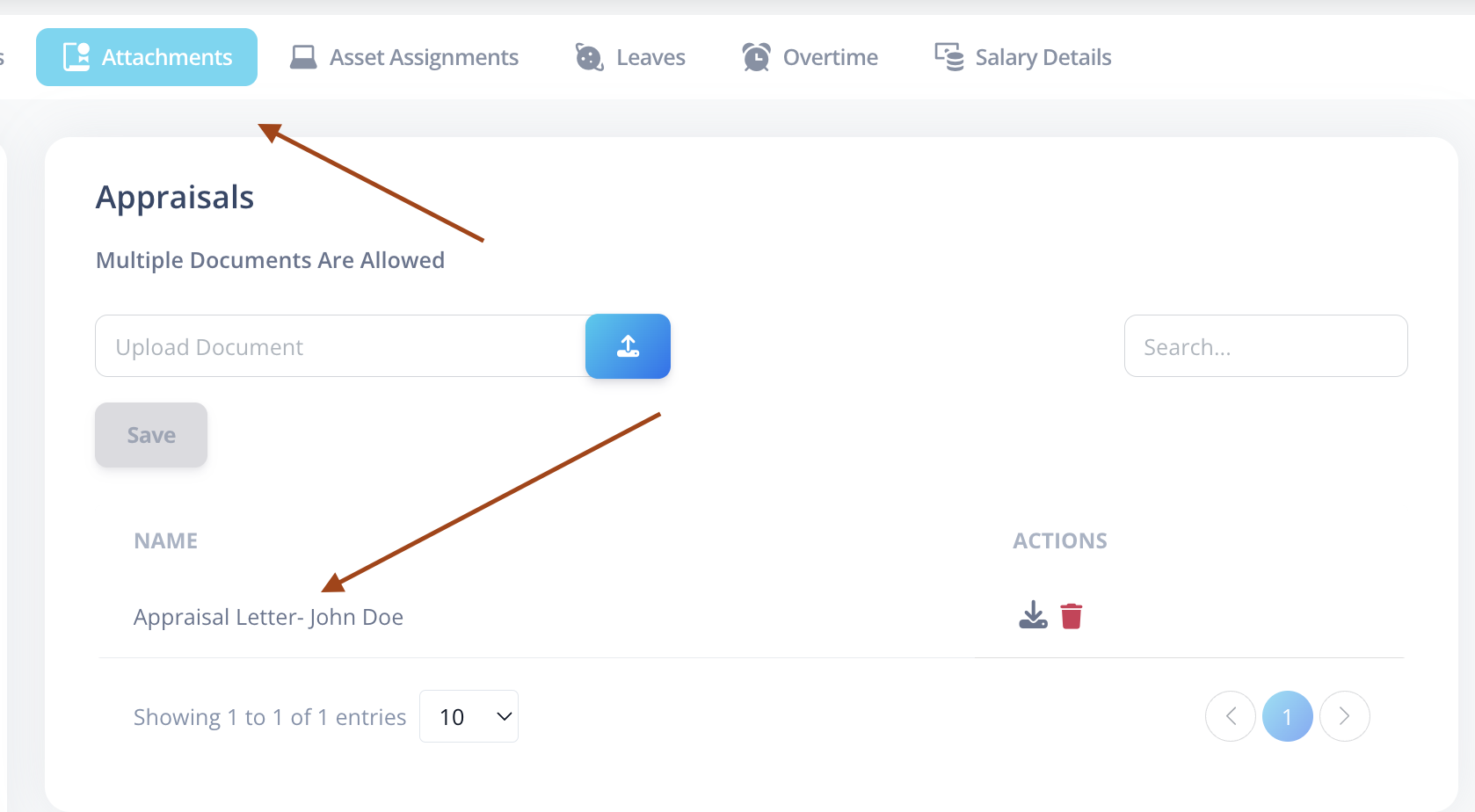
Employees can access the document by navigating to:
My Info → Attachments → Selected Folder
The document will appear inside the folder chosen during the generation process.
Key Benefits of Document Generation
- Bulk document creation
- Filter-based employee selection
- Reduced manual effort
- Accurate auto-filled employee data
- Faster HR operations
- Professional and consistent documentation
Best Practices
- Always preview before generating official documents.
- Ensure employee data is updated before bulk generation.
- Use filters carefully to avoid sending documents to unintended employees.