Modules
The Modules section in CloudHR allows administrators to enable or disable plan-specific features for the organization.
Modules determine which advanced functionalities are available to employees based on the assigned plan.
Available Modules
Below are the modules currently supported:
-
AI Enabled
Enables AI-powered features and intelligent insights within the application. -
Payrolls
Activates payroll management capabilities for employees. -
Project Management
Enables project and task tracking, including:- Task start and end times
- Break tracking
- Task-level time monitoring
-
Geo-Fencing
Enables location-based attendance restrictions and check-in validation.
Modules are plan-specific. A module must be enabled here before it becomes available in related settings (e.g., Geo-Fencing in Attendance Settings).
All modules are enabled by default unless restricted by the subscription plan.
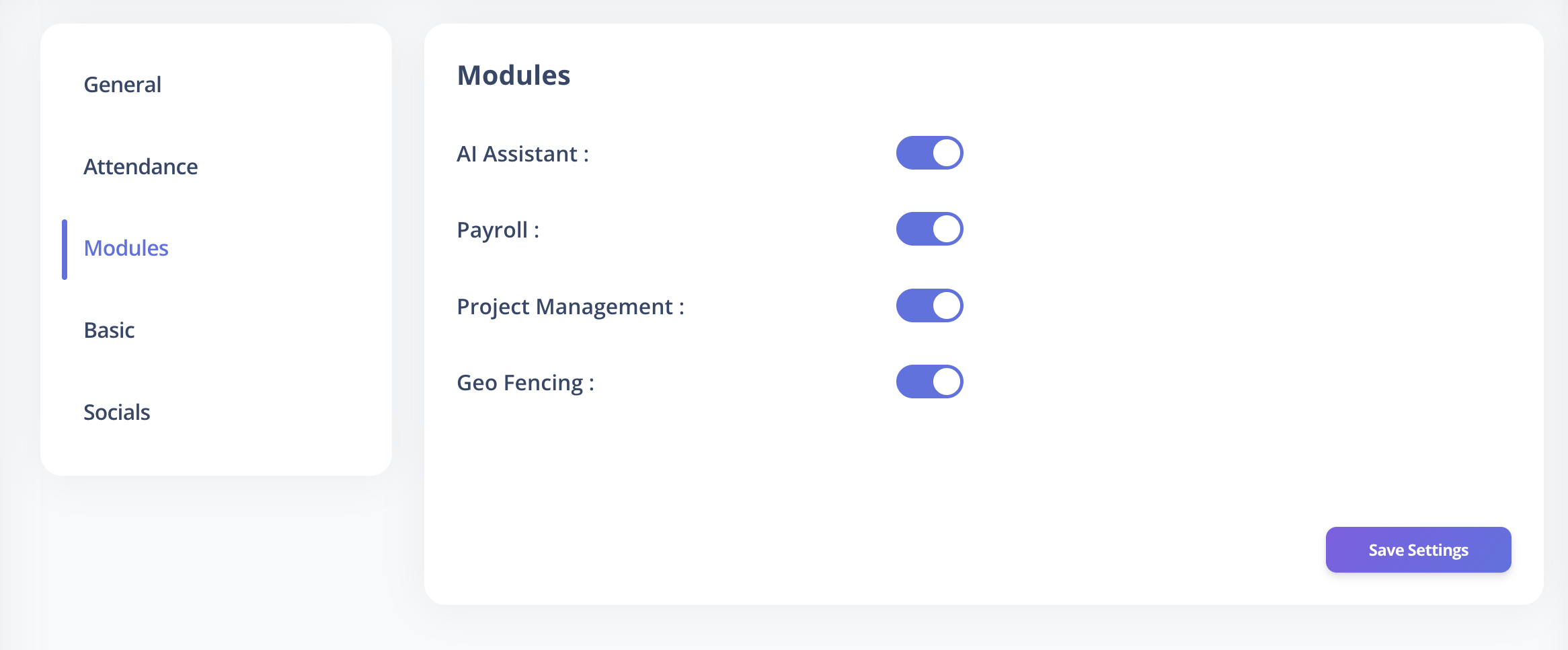
How to Enable or Disable Modules
- Log in to CloudHR as an Admin.
- Navigate to Settings → Modules.
- Toggle the required modules On or Off.
- Click Save to apply changes.
Changes take effect immediately after saving.
Impact of Disabling a Module
- Disabled modules will no longer appear in related configuration pages.
- Existing configurations related to that module will not function until re-enabled.
- Employees will lose access to associated features.
Disabling a module may impact workflows that depend on it (e.g., disabling Project Management will stop task-level tracking in Attendance).
Best Practices
- Enable only modules relevant to your organization’s operational needs.
- Keep Geo-Fencing enabled only where location validation is required.
- Review enabled modules periodically to ensure alignment with subscription plans and usage.
- Avoid disabling modules without assessing workflow dependencies.