Attendance Settings
The Attendance Settings section in CloudHR defines the tracking policies and default behavior for employee attendance.
Only tracking policies enabled in your subscription plan will be available.
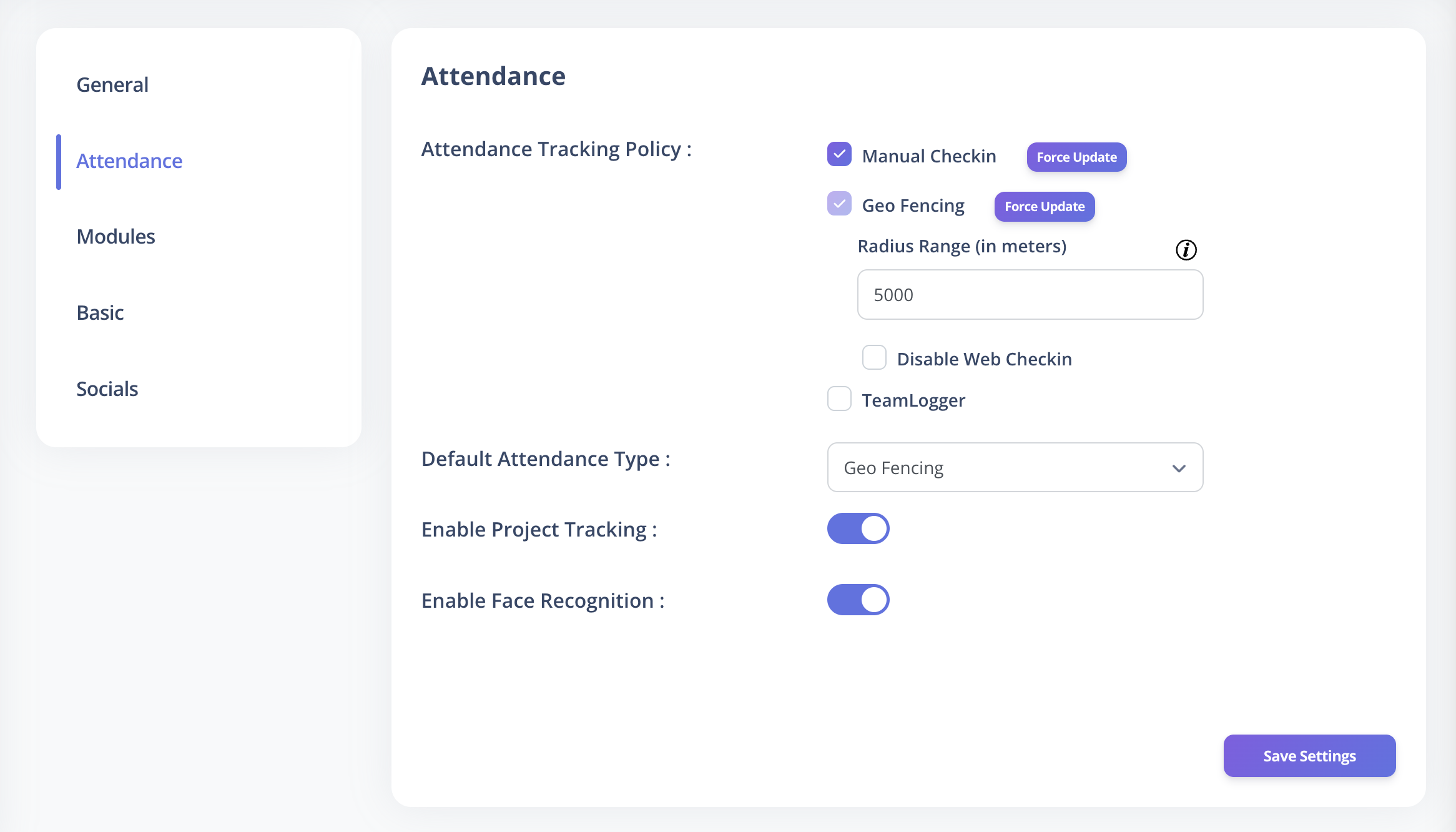
Attendance Tracking Policy
You can configure how attendance is captured across your organization.
The Default Attendance Type dropdown only displays tracking policies enabled in your plan.
1️⃣ Manual Check-in
Provides a web-based check-in bar on the dashboard where employees can:
- Check in
- Check out
- Switch between tasks
If the Project Management module is enabled:
- Project and task dropdowns appear automatically.
If the module is not enabled:
- Employees must manually enter project and task names.
2️⃣ TeamLogger
A third-party attendance tracking tool.
When TeamLogger is selected:
- You must enter the API key provided by TeamLogger.
- Employees check in and check out through the TeamLogger app.
- Attendance data syncs automatically to the Attendance Listing page.
- CloudHR supports TeamLogger integration.
All attendance records captured through TeamLogger are displayed and evaluated within CloudHR.
3️⃣ Geo-Fencing
Geo-Fencing works similarly to Manual Check-in but restricts attendance outside a defined geographic range.
Features:
- Blocks check-in if the employee is outside the defined radius.
- Allows configuration of a Radius Range (in meters).
- Option to Disable Web Check-in, restricting attendance to mobile devices only.
- Displays check-in and check-out locations in the Attendance Listing page.
- Clicking the location icon opens a popup map showing the exact location.
Geo-Fencing must first be enabled from
Modules → Available Modules
before it can be configured in Attendance Settings.
Force Update
After configuring or changing the tracking policy, you can use Force Update.
- Applies the selected tracking policy to all employees.
- Ensures consistency across the organization.
Use Force Update after switching policies to avoid mixed tracking behavior among employees.
Enable Project Tracking
When enabled:
- Project and task time is tracked automatically.
- Detailed task information can be viewed from the Attendance Listing page using the icon.
- Works alongside Manual Check-in or Geo-Fencing.
Project Tracking requires the Project Management module to be enabled.
How to Update Attendance Settings
- Log in to CloudHR as an Admin.
- Navigate to Settings → Attendance.
- Select the desired Tracking Policy.
- Configure additional options (Geo-Fencing, API keys, etc.).
- Enable Project Tracking if required.
- Click Save.
Best Practices
- Select tracking policies aligned with your operational requirements.
- Enable Geo-Fencing only where location control is needed.
- Use Project Tracking to monitor task-level effort and improve reporting.
- Review default attendance types regularly to ensure consistency across plans.