Language and Translations
Language Translations allow administrators to manage system labels and enable multiple languages within the platform.
You can access this feature from:
Settings → Translations
Overview
On the Translations page, you will see:
- A large card on the left showing Active Languages
- A language dropdown card to add new languages
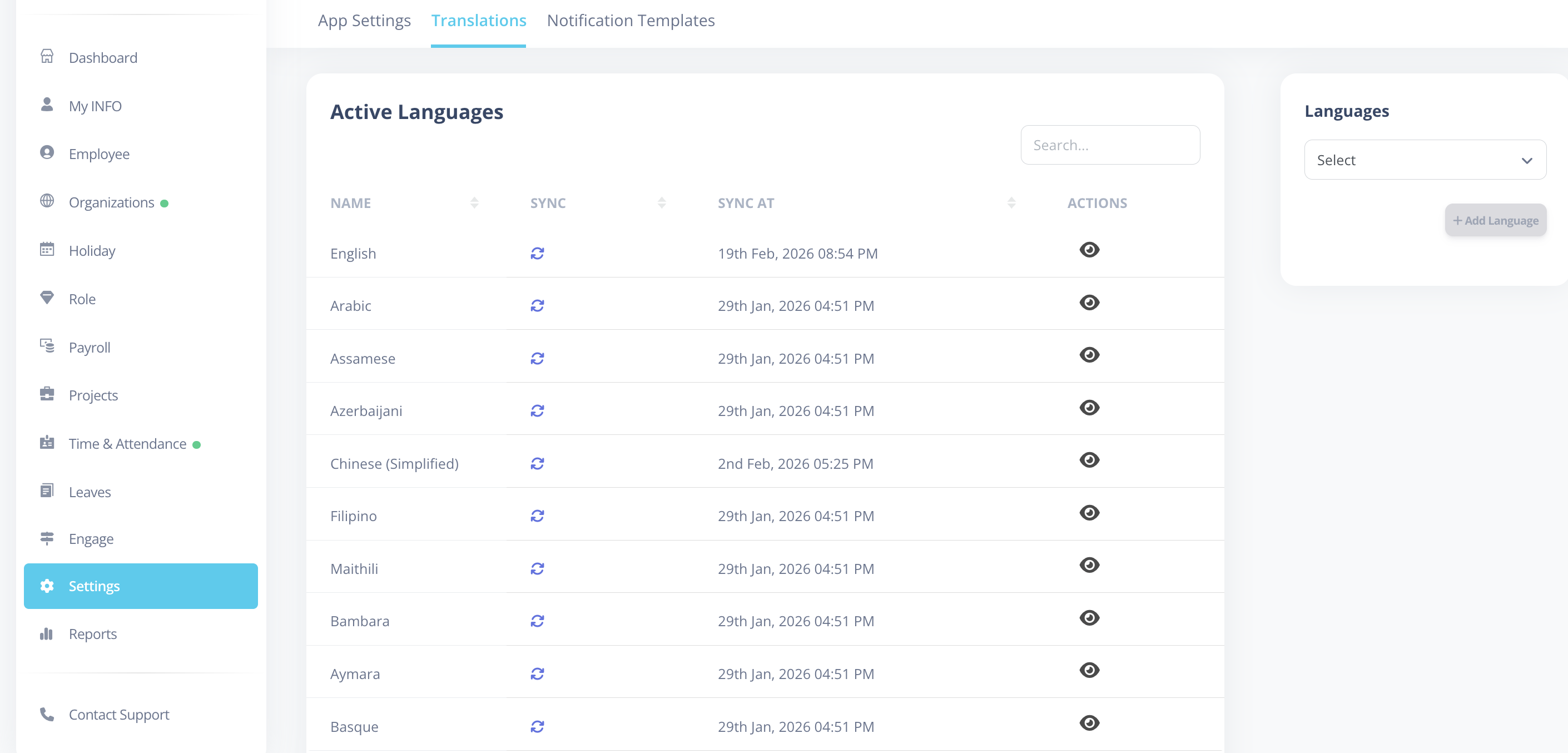
Active Languages Card
The Active Languages section displays all currently enabled languages.
Each language row contains:
- Language Name
- Synced At
- Sync Status
- Actions
Sync Status Indicators
- Red Sync Icon → Not Synced
- Blue Sync Icon → Synced
Hovering over the sync icon will display a tooltip showing the current status.
How to Add a New Language
To add a new language:
- Use the Language Dropdown Card
- Select the language you want to add
- Click Add Language
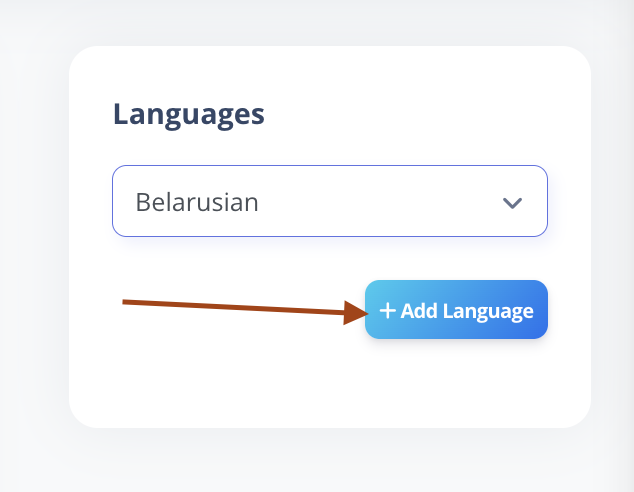
The selected language will now appear in the Active Languages list.
Syncing a Language
After adding a language:
- The sync icon will appear red
- Status will show Not Synced
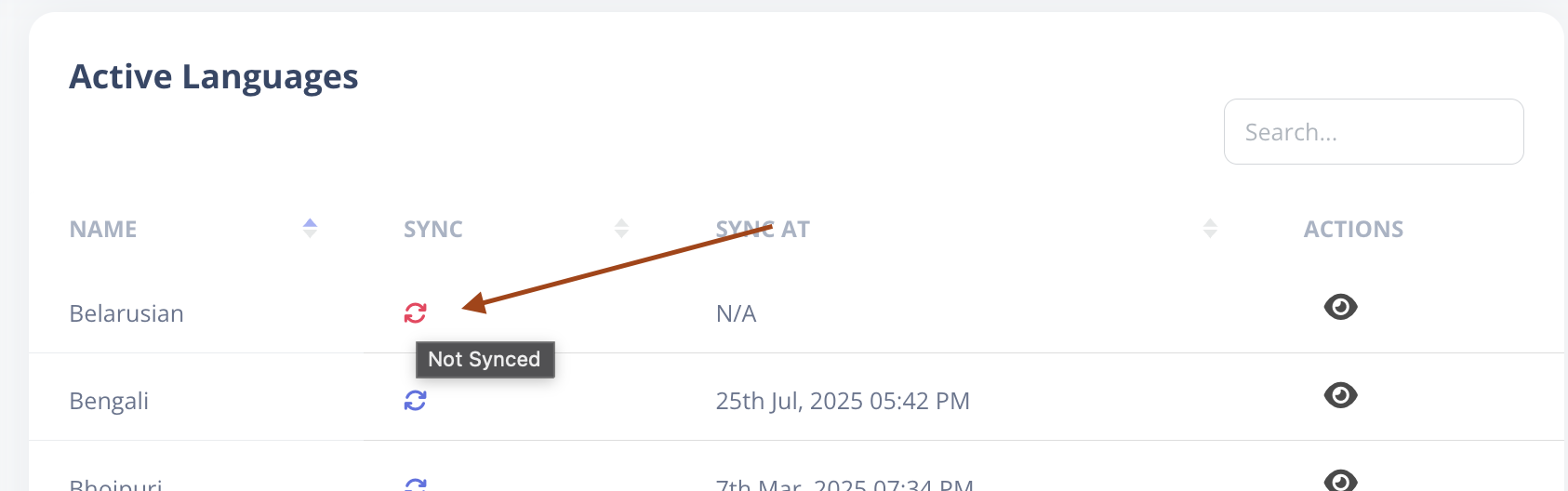
Step 1: Click the Sync Icon
Click the sync icon beside the language.
You will see a toast message:
Language sync in progress.
Step 2: Wait for Sync to Complete
The system will begin syncing the language.
Language syncing may take a few minutes depending on system load and language size.
Once completed:
- The sync icon will turn blue
- The Synced At column will be populated
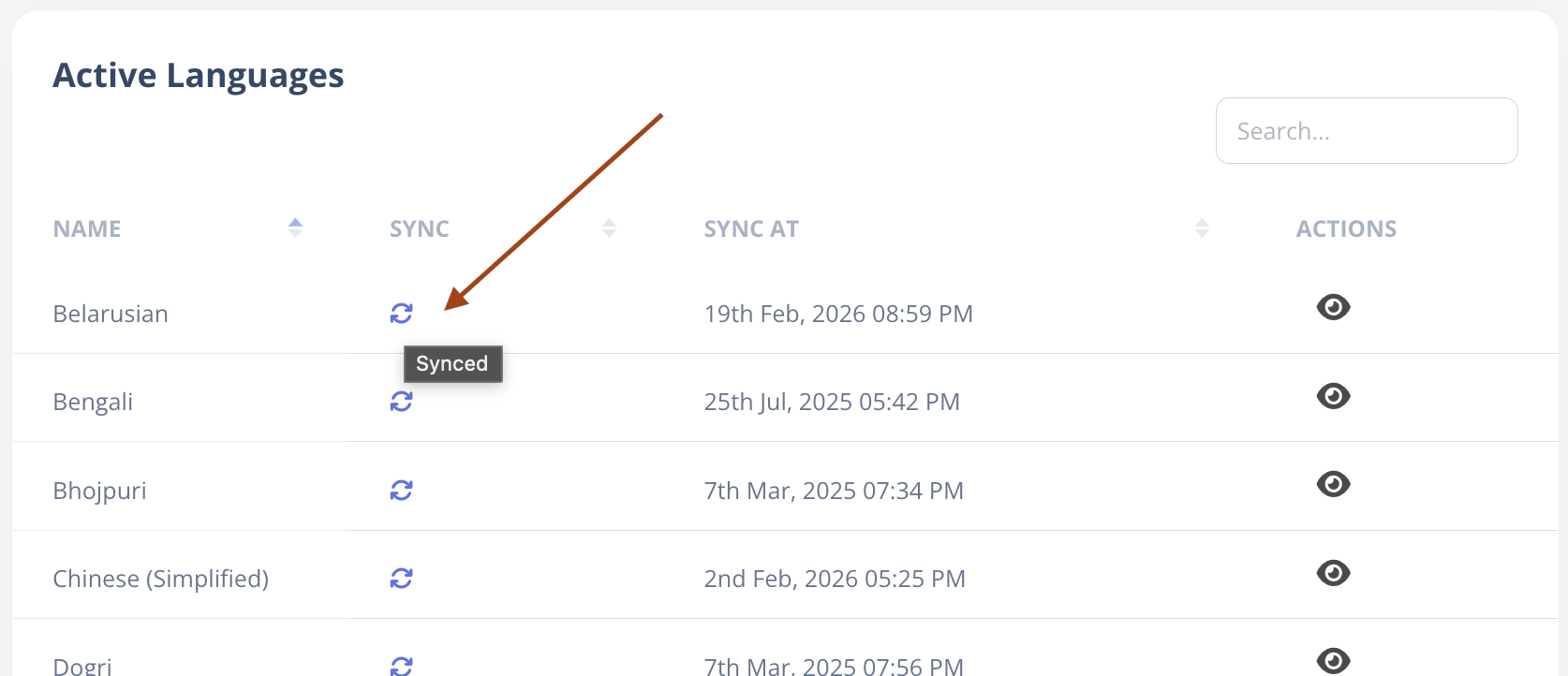
If the sync icon does not turn blue after a few minutes, refresh the page once to update the status.
Where Are These Languages Used?
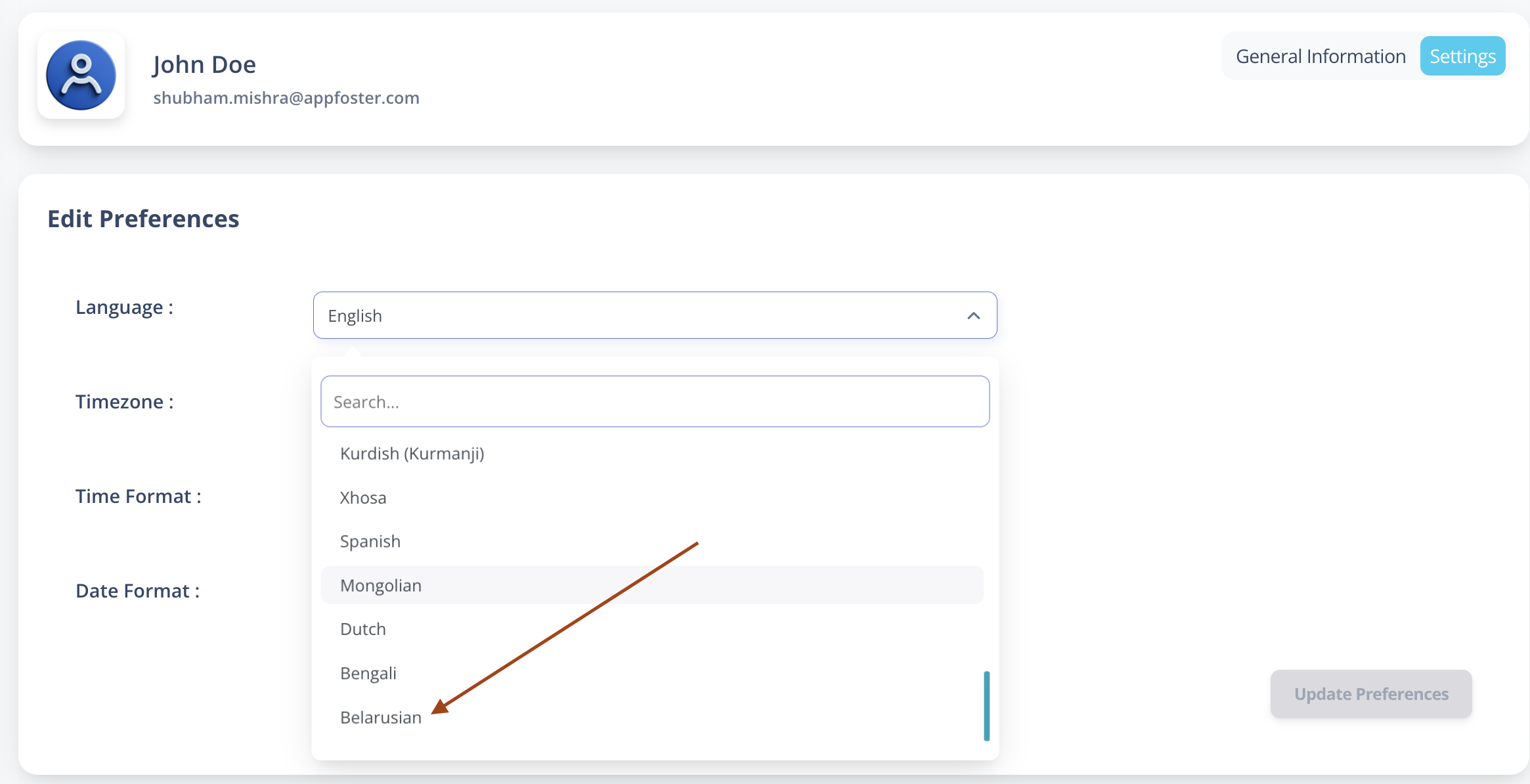
Languages added here become available in:
My Profile → Settings → Language Dropdown
Users can then select from the active languages.
How to View & Update Translations
To update labels for a language:
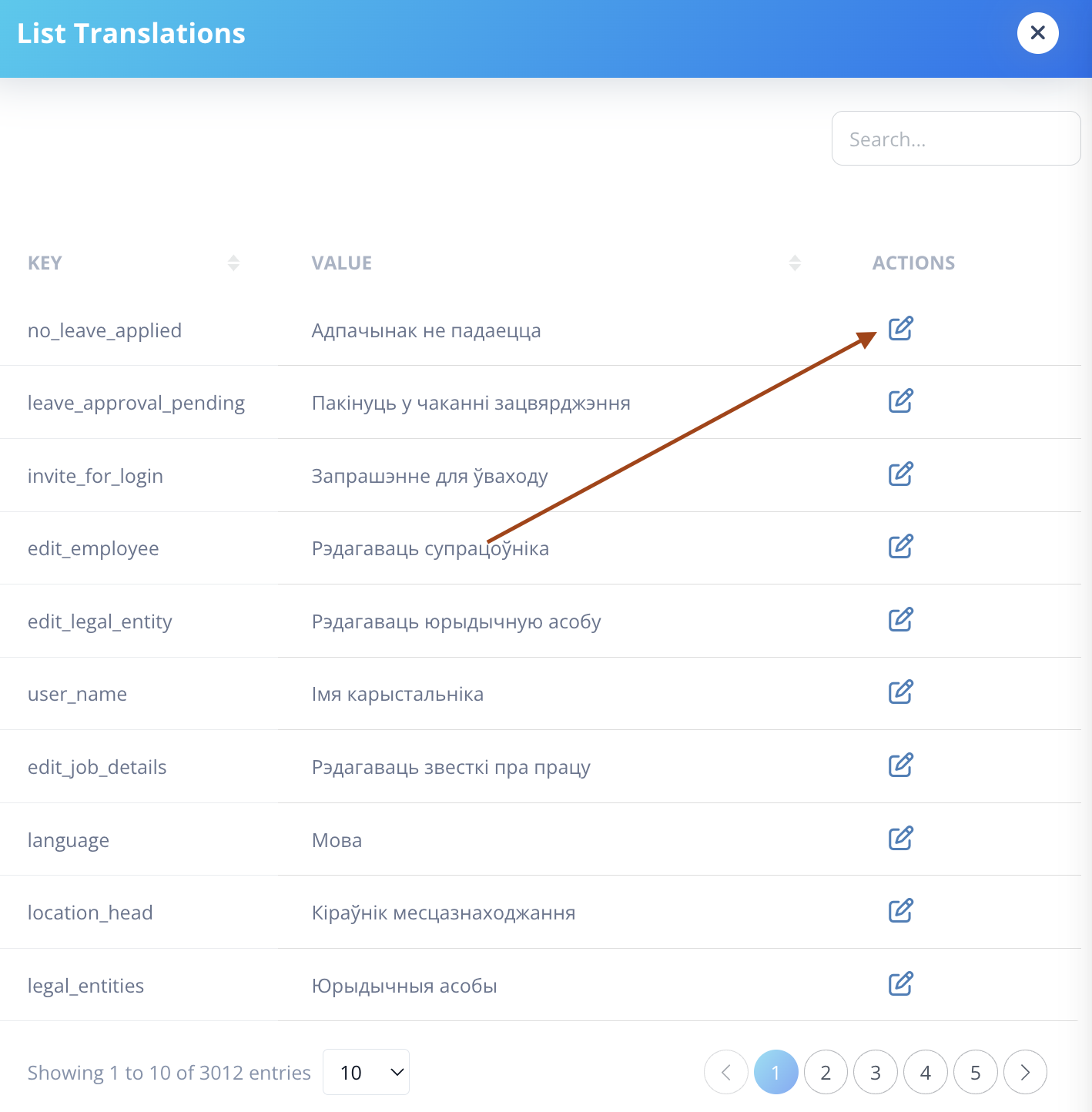
- Click the View (Eye) icon in the Actions column.
- You will see a list of all translation labels for that language.
Searching for a Label
You can use the Search Bar at the top to quickly find a specific label.
This is useful when updating particular terms.
How to Update a Label
Step 1: Click the Edit Icon
Click the Edit icon beside the label you want to modify.
Step 2: Update the Label
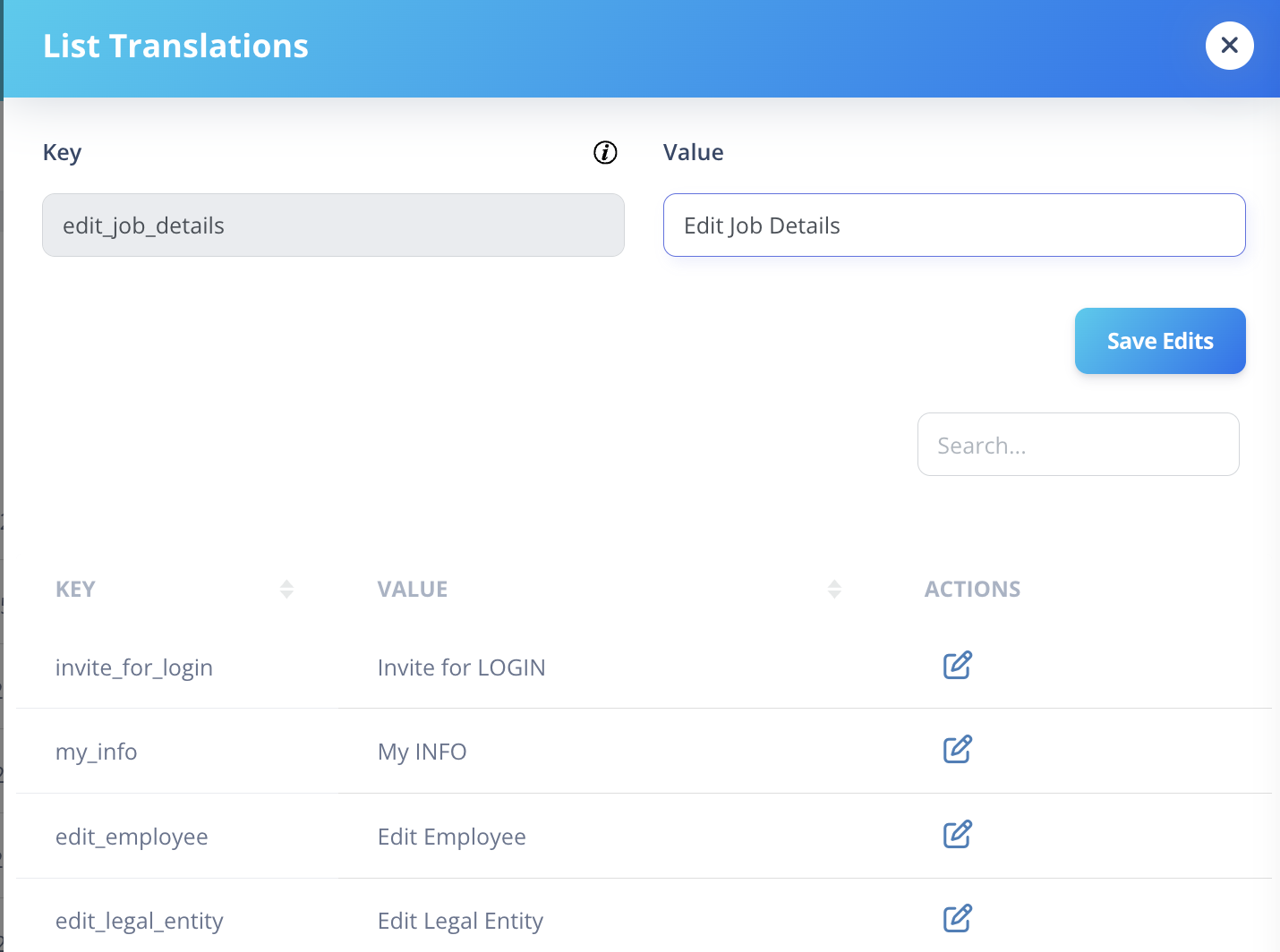
You will see a form with:
- Key (Not Editable)
- Label (Editable)
The Key cannot be modified.
You can update only the Label.
After updating:
- Click Save Edits
What Happens After Updating?
- The updated label will be saved.
- The change will be synced across all supported languages.
Updated labels are synchronized across languages to ensure consistency in meaning throughout the system.
Best Practices for Translation Management
- Keep label meanings consistent across languages.
- Avoid overly long translations.
- Test changes in the UI after updating.
- Sync newly added languages before editing labels.