Locations
Locations represent the physical or operational offices of your organization within CloudHR.
Each employee must be assigned to a Location for proper attendance tracking, timezone management, and policy configuration.
What is a Location?
A Location can represent:
- Corporate Office
- Branch Office
- Regional Office
- Remote Hub
- Warehouse or Facility
Locations are always linked to a Legal Entity.
Before You Create a Location
Make sure:
- A Legal Entity is already created.
- Business Units are configured (recommended).
- You know the timezone of the location.
How to Create a Location
- Log in to CloudHR.
- Navigate to Organization.
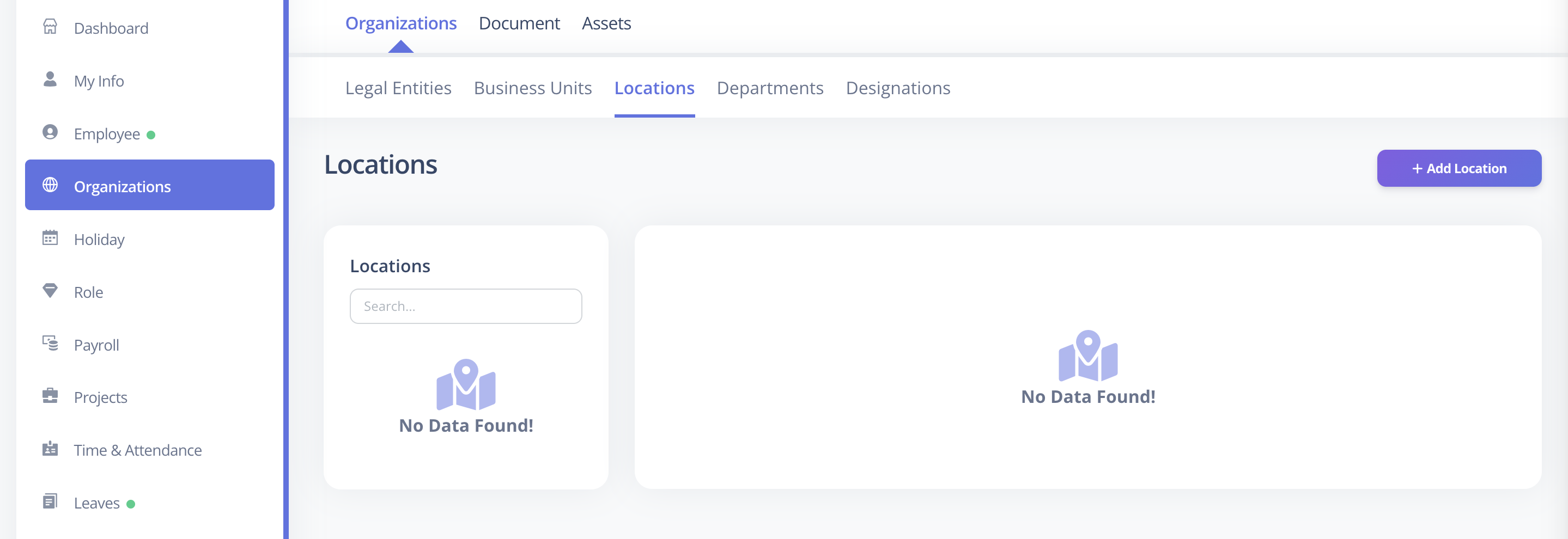
- Click Locations.
- Click Add Location.
- Fill in the required details.
- Click Save.
Required Fields
The following fields are mandatory:
| Field | Description |
|---|---|
| Name | Must be unique within the same Legal Entity |
| Official email address for the location | |
| Phone Code | Country dialing code |
| Phone Number | Contact number (8–12 digits) |
| Timezone | Timezone applicable to this location |
| Legal Entity (Organization) | Select the associated Legal Entity |
| Address Line 1 | Primary street address |
| Country | Country of the location |
| State | State or province |
| City | City name |
| Zip Code | Postal/ZIP code |
Optional Fields
These fields can be configured now or updated later:
| Field | Description |
|---|---|
| Location Head | Assigned head of the location |
| Description | Additional information about the location |
| Address Line 2 | Secondary address details (apartment, suite, etc.) |
Important Rules
- Location name must be unique within the same Legal Entity.
- Timezone is required for accurate attendance calculations.
- Address Line 1 is mandatory.
Best Practices
- Use clear naming (e.g., “Mumbai HQ”, “Dubai Branch”).
- Always set the correct timezone.
- Assign a Location Head for operational clarity.