Request Overtime
Employees can request overtime directly from the Leave section in CloudHR.
The Request Overtime button appears next to the Apply Leave button.
The Request Overtime option is enabled only if the employee is assigned an Overtime Policy.
How to Request Overtime
- Log in to CloudHR.
- Navigate to Leaves.
- Click Request Overtime
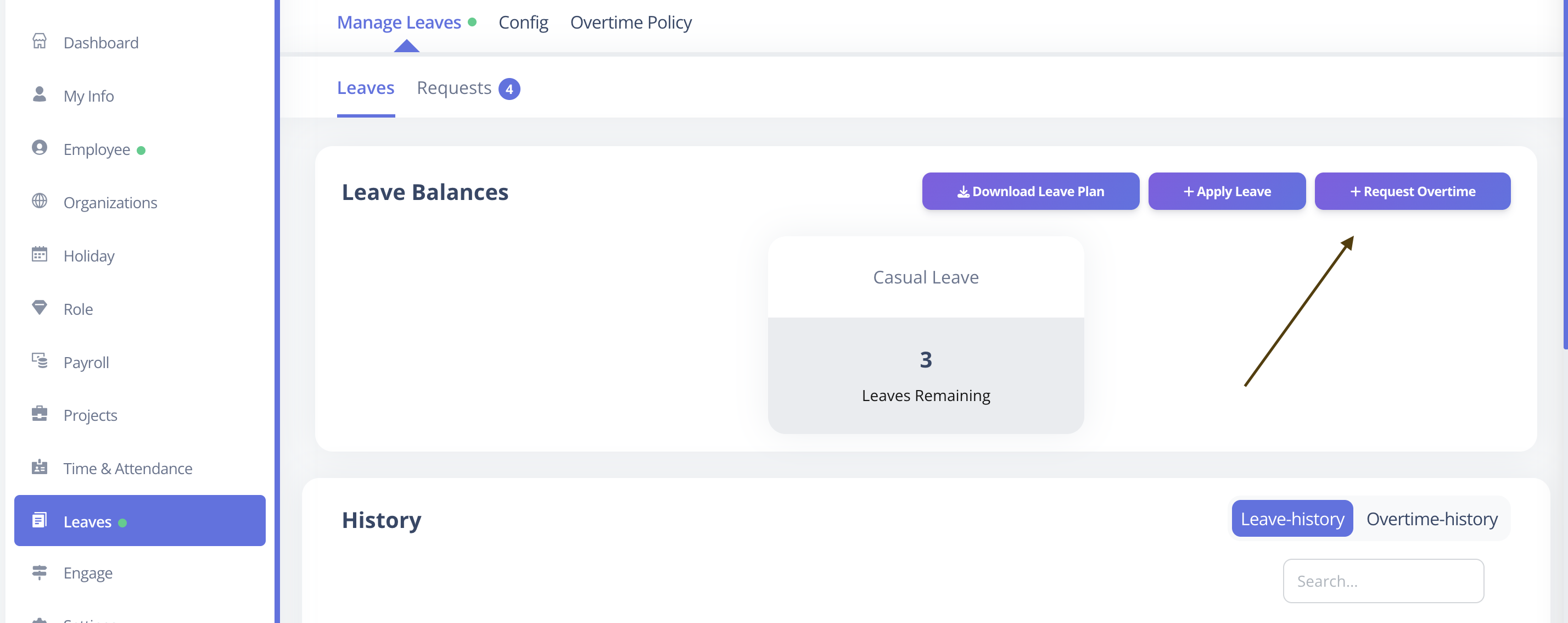
Request Overtime
- Enter overtime details.
- Submit the request.
Fields
| Field | Description |
|---|---|
| Title | Short description of overtime |
| Start Date | Overtime start date |
| End Date | Must be same or after Start Date |
| Total Hours | Total overtime hours (must be greater than 0) |
| Details | Breakdown of hours per date (used when multiple dates are selected) |
| Reason | Detailed explanation |
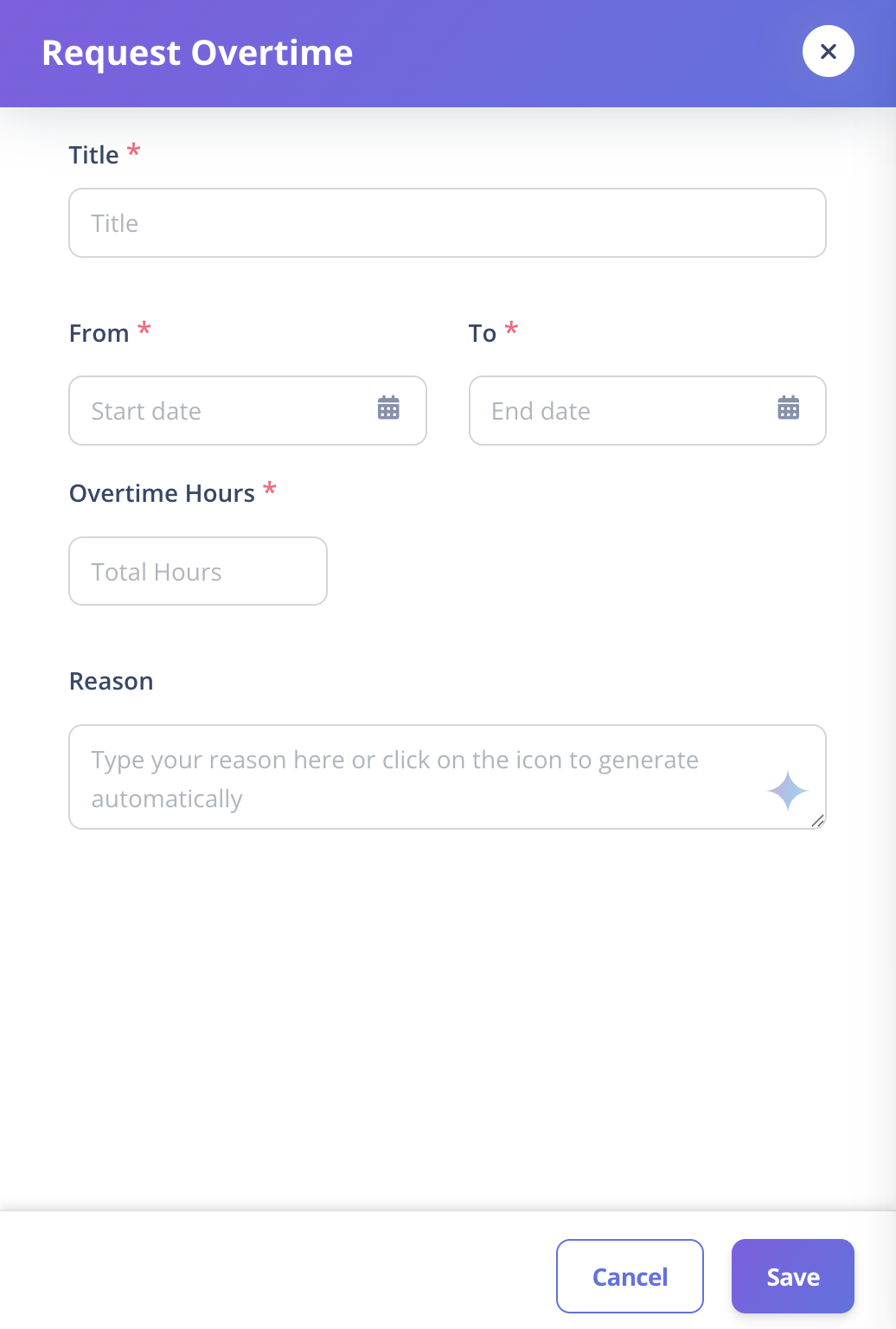
Request Overtime
Overtime Details (Multiple Dates)
If overtime spans multiple days:
- The system allows specifying how many hours were worked on each date.
- The
Detailsfield stores date-wise hour breakdown.
Example
If overtime is requested from:
- March 10 – March 12
The breakdown may look like:
| Date | Hours |
|---|---|
| March 10 | 2 |
| March 11 | 3 |
| March 12 | 1 |
Total Hours = 6
Total Hours must match the individual day hours sum.
Status Lifecycle
Typical statuses:
- Pending
- Approved
- Rejected
Important Notes
- Overtime can only be requested if an Overtime Policy is assigned.
- Approval rules depend on system configuration.
- Notifications are triggered at:
- Submission
- Each approval stage
- Final approval
- Rejection
- Bulk actions