Apply Leave
Employees can apply for leave directly from the Leave section in CloudHR.
Leave eligibility, sandwich rules, notice period restrictions, and approval workflow are automatically enforced based on the configured Leave Type.
How to Apply for Leave
- Log in to CloudHR.
- Navigate to Leaves.
- Click Apply Leave
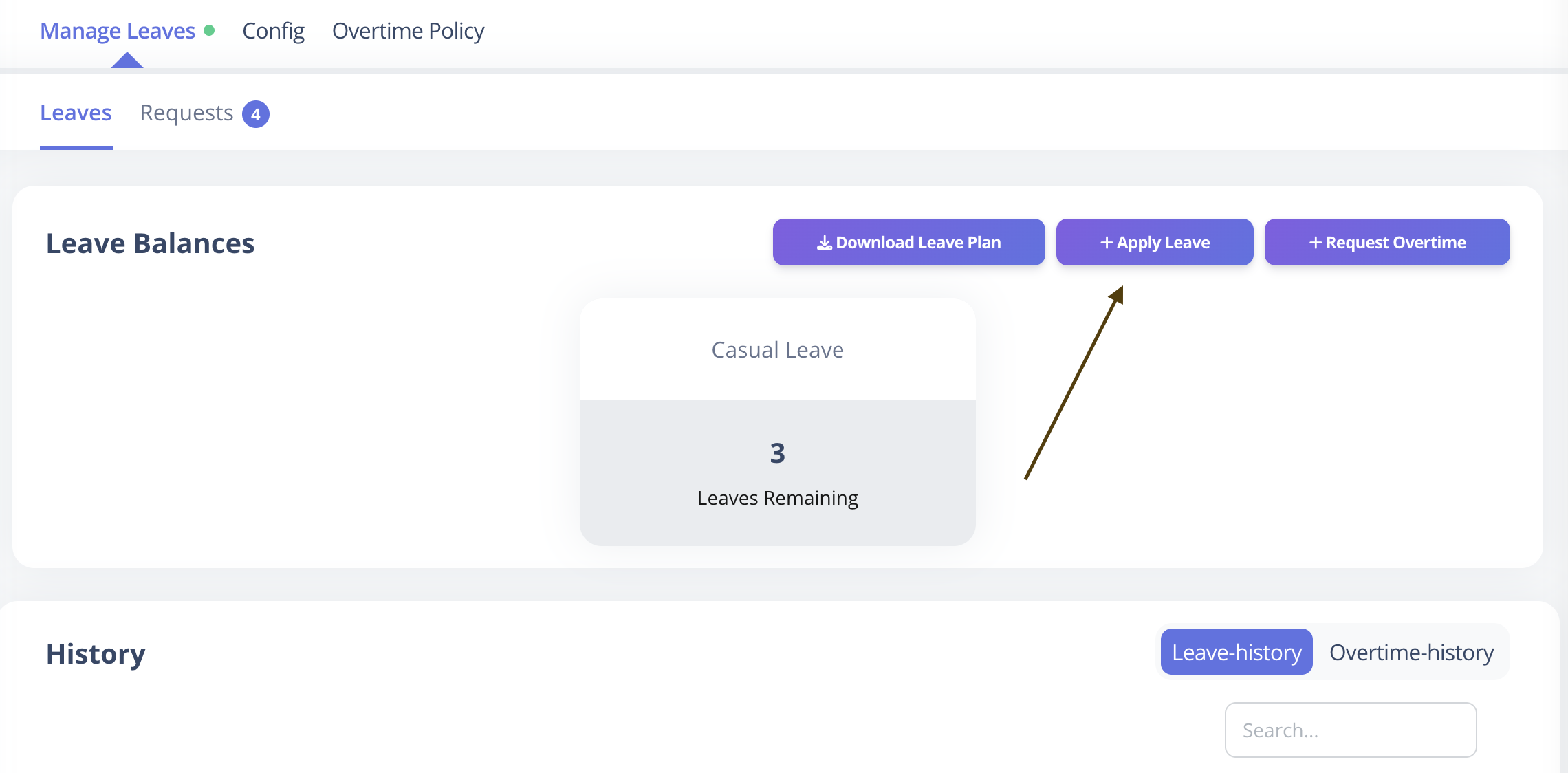
Apply leave
- Select Leave Type.
- Enter leave details.
- Click Submit.
Fields
| Field | Description |
|---|---|
| Leave Type | Must be selected |
| Title | Short title for leave request |
| Start Date | Leave start date |
| End Date | Leave end date (must be same or after start date) |
| Reason | Detailed explanation for leave |
| Half Day | Mark if leave is for half day |
| Session | Required if Half Day is selected (First Half / Second Half) |
| Emergency | Marks leave as emergency |
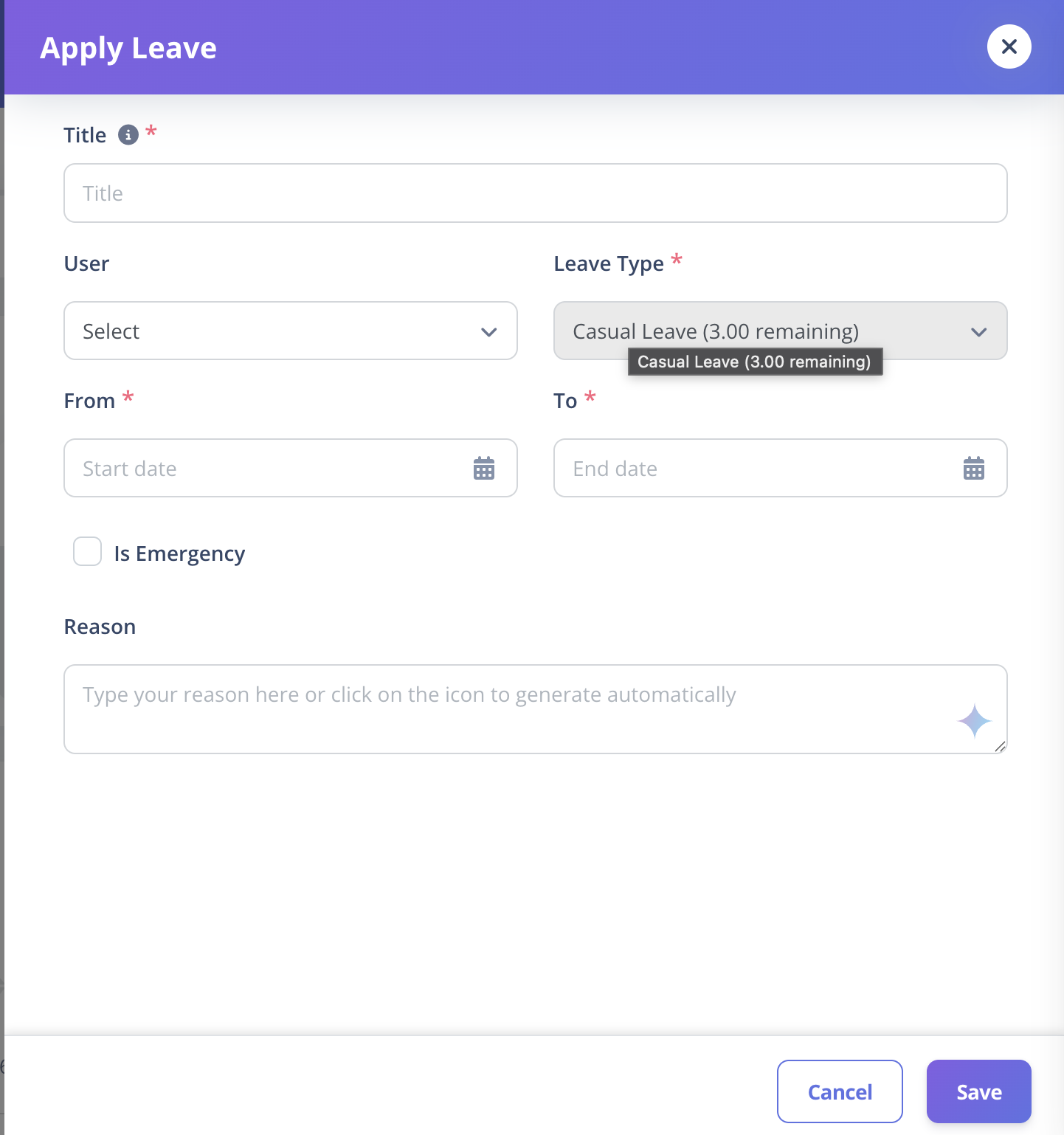
Apply leave form
Sandwich Leave Rule
If the selected Leave Type has Is Sandwich enabled:
- Holidays or weekly offs between two leave dates
- Will be automatically counted as leave days.
If disabled:
- Only selected working days are counted.
For more details, see:
👉 Leave Types Configuration
Notice Period & Probation Restrictions
Whether leave is allowed during:
- Notice Period
- Probation
Depends entirely on the selected Leave Type configuration.
If restricted, the system will prevent submission.
Approval Workflow
Approval behavior depends on the Leave Type's Approval Strategy:
all→ All approvers must approve.level→ Specific level approval required.count→ Defined number of approvals required.
Admin or HR approval overrides normal approval chains.
Best Practices
- Apply leave in advance whenever possible.
- Check leave balance before applying.
- Use Emergency flag only for urgent cases.