Assign Leave Plans to Employees
You can assign Leave Plans to employees in CloudHR to ensure correct leave balances and policies are applied.
How to Assign a Leave Plan
- Log in to CloudHR.
- Navigate to Employees
- Search the employee table and click the View ( ) icon (in the actions column) for the desired employee.
- Go to Job Details
- Click the Edit ( ) icon.
- Scroll down to the Time and Attendance section.
- Locate the Leave Plan dropdown.
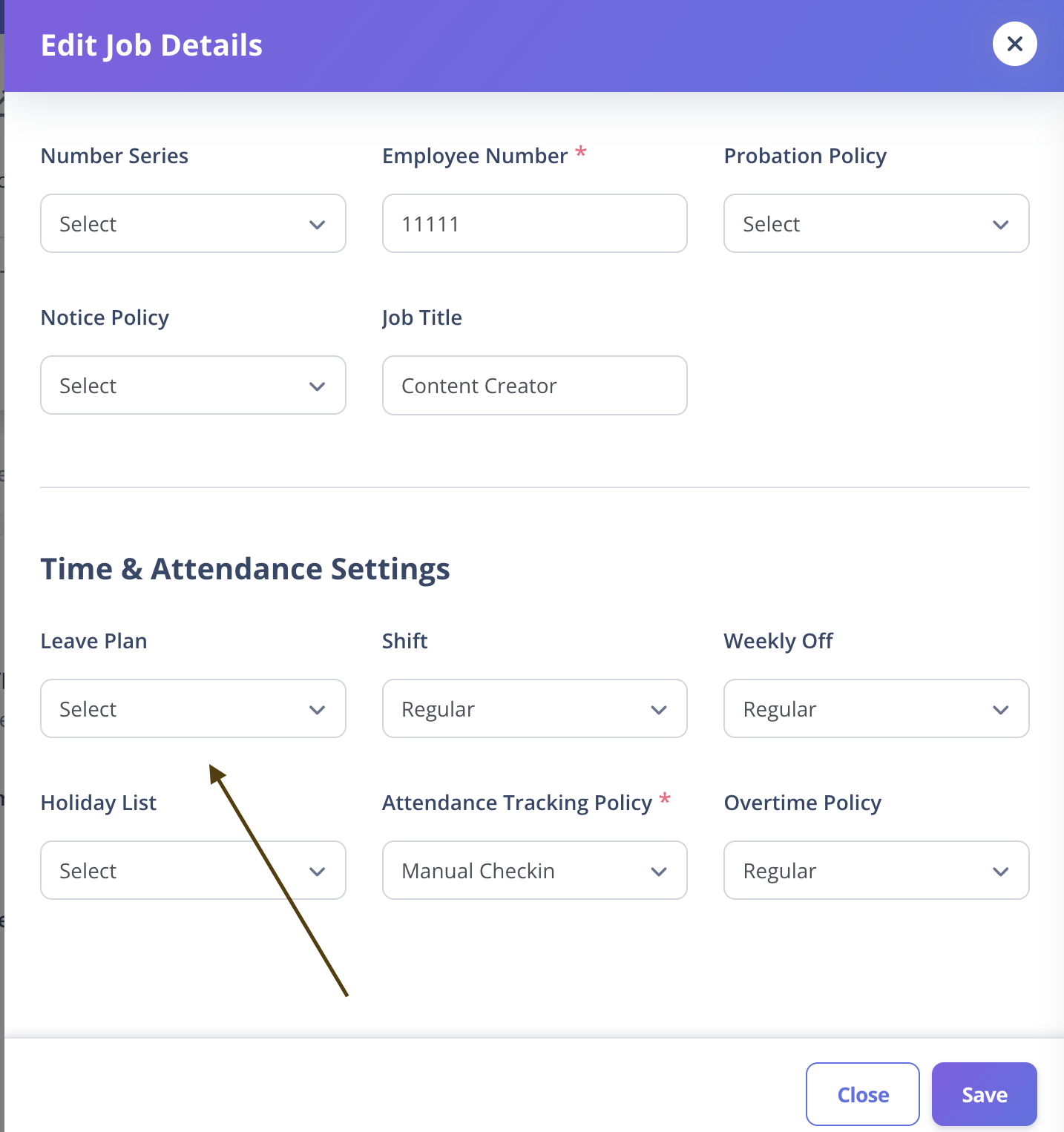
- Select the desired active leave plan from the list.
- Click Save to assign the plan.
Important Notes
- Only active leave plans will appear in the dropdown.
- Assigning a leave plan automatically applies its leave types, balance rules, and accruals to the employee.
- Updating the leave plan later does not retroactively change balances for past periods.
- If eligible for sync, the employee will start receiving leaves from the next cycle.
Best Practices
- Always assign leave plans that match the employee’s role and eligibility.
- For new joiners, assign the plan based on joining date or probation completion.