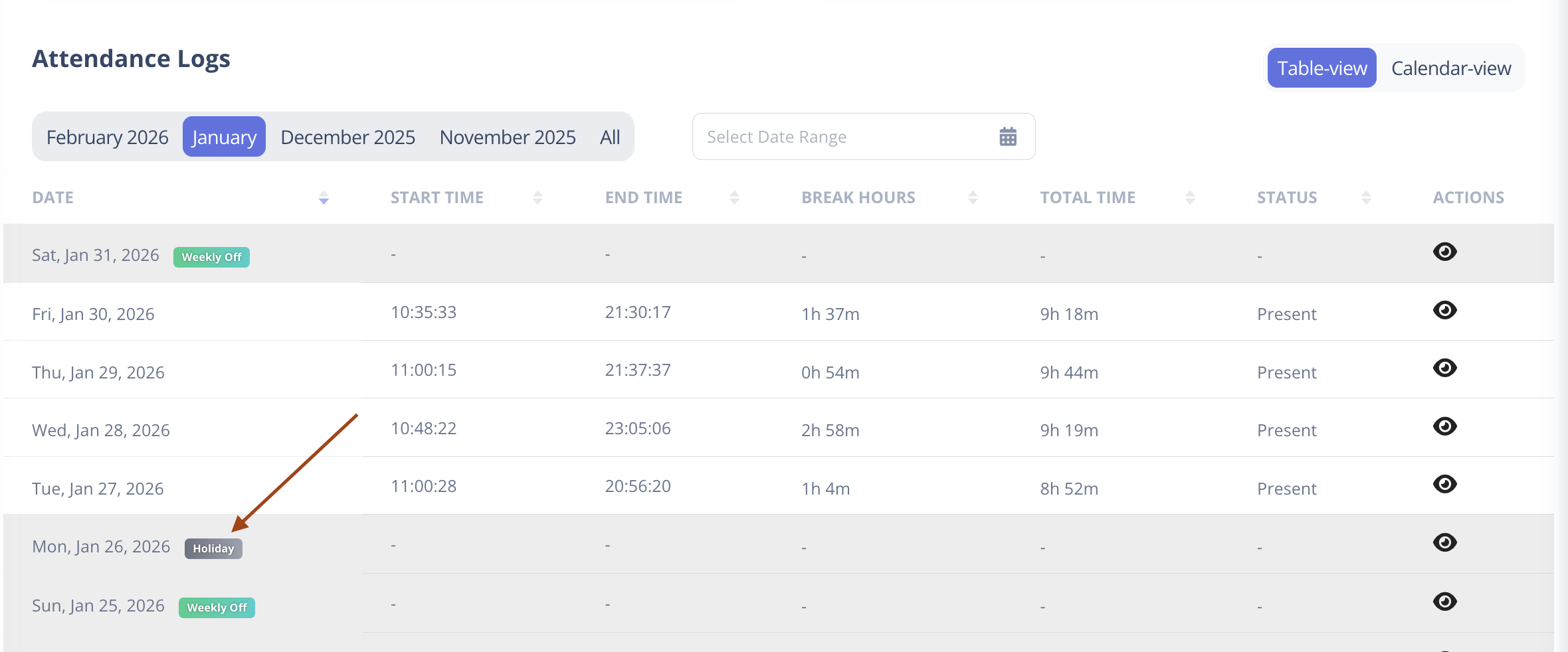
Holidays
Holidays are created inside a Holiday Plan.
From the Holiday Plan details page, you can:
- Add a new holiday
- Edit existing holiday
- Delete holiday
Holidays are displayed year-wise with a year selector.
By default, the current year is selected.
Fields
| Field | Description |
|---|---|
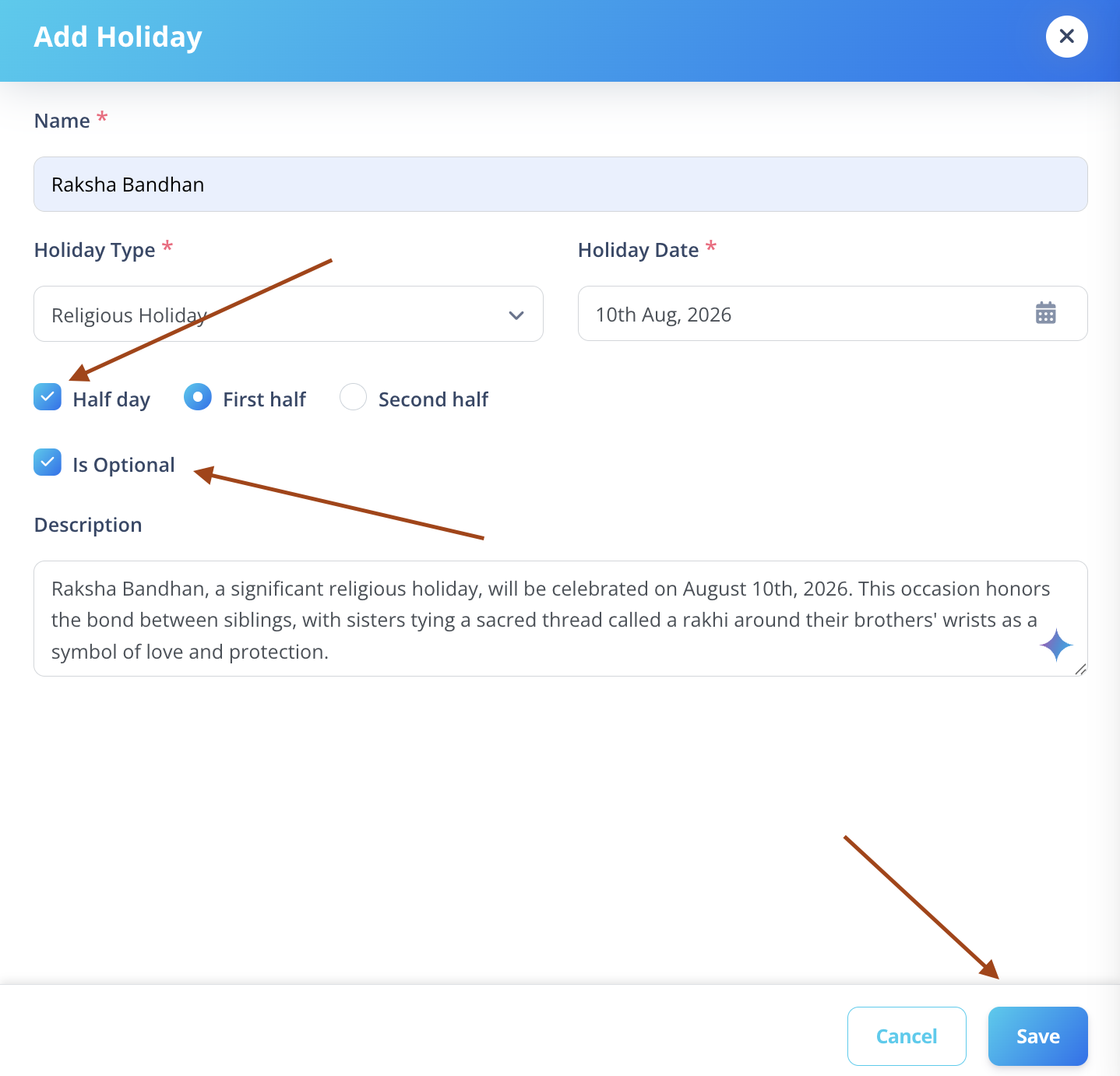
| Name | Holiday name (unique per plan and date) |
| Description | Optional description |
| Date | Holiday date |
| Holiday Type | Public, Religious, or Others |
| Is Optional | Marks the holiday as optional |
| Half Day | First Half or Second Half (if applicable) |
WARNING
If a holiday date is in the past:
- The date cannot be modified.
- This prevents attendance and opt-in calculations from becoming inconsistent.
Other fields (like name or description) can still be updated.
Holiday Type
- Public → National / company-wide holiday
- Religious → Religion-based holiday
- Others → Custom category
Half Day Holidays
If a holiday is marked as Half Day:
- First Half → First half of working day is holiday
- Second Half → Second half of working day is holiday
Optional Holidays & Opt-In
If a holiday is marked as optional:
- Employees must opt in to avail it.
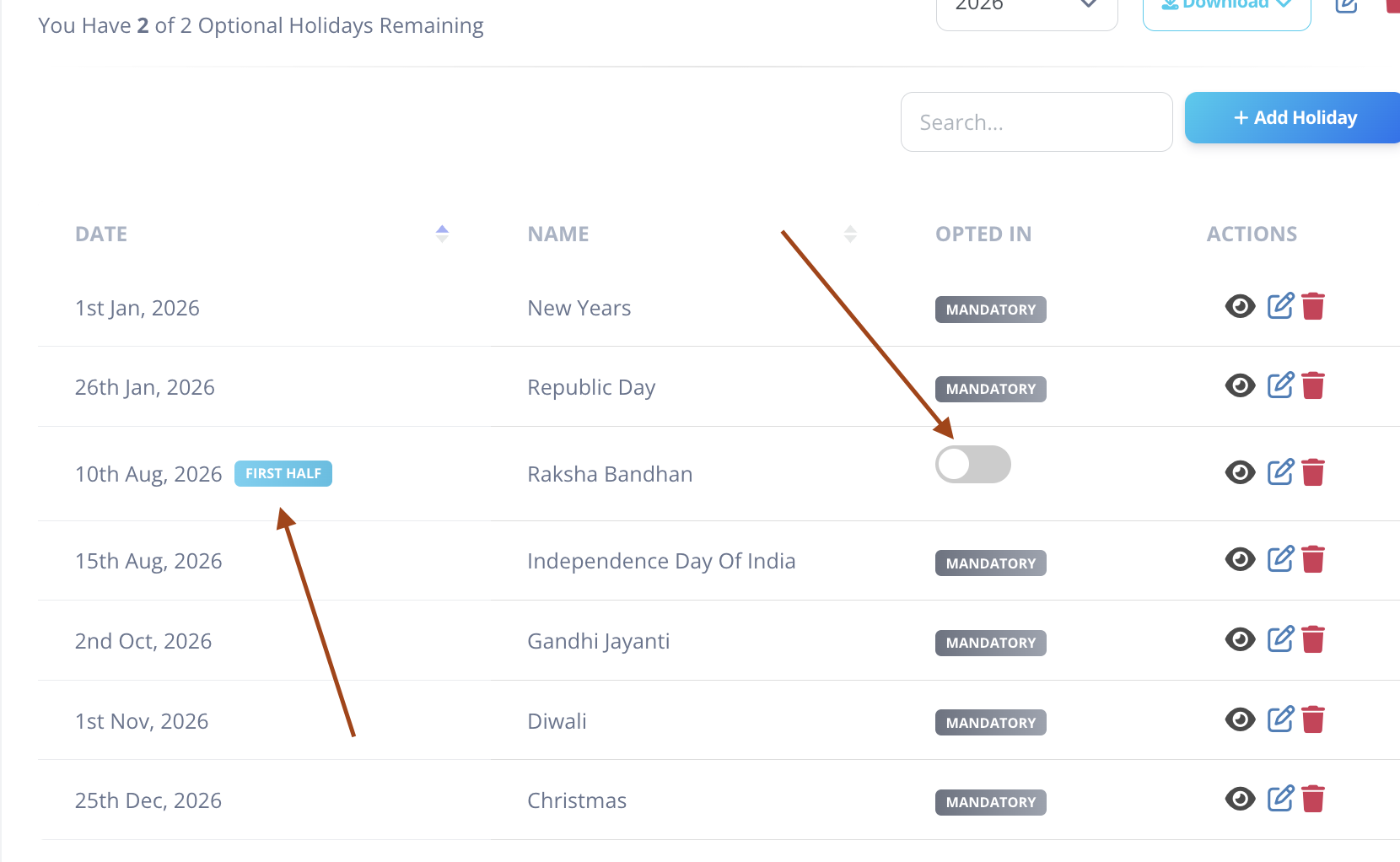
- Users can toggle the Opted In column on the holidays page.
Below the Plan name, users see:
You Have 2 of 2 Optional Holidays Remaining
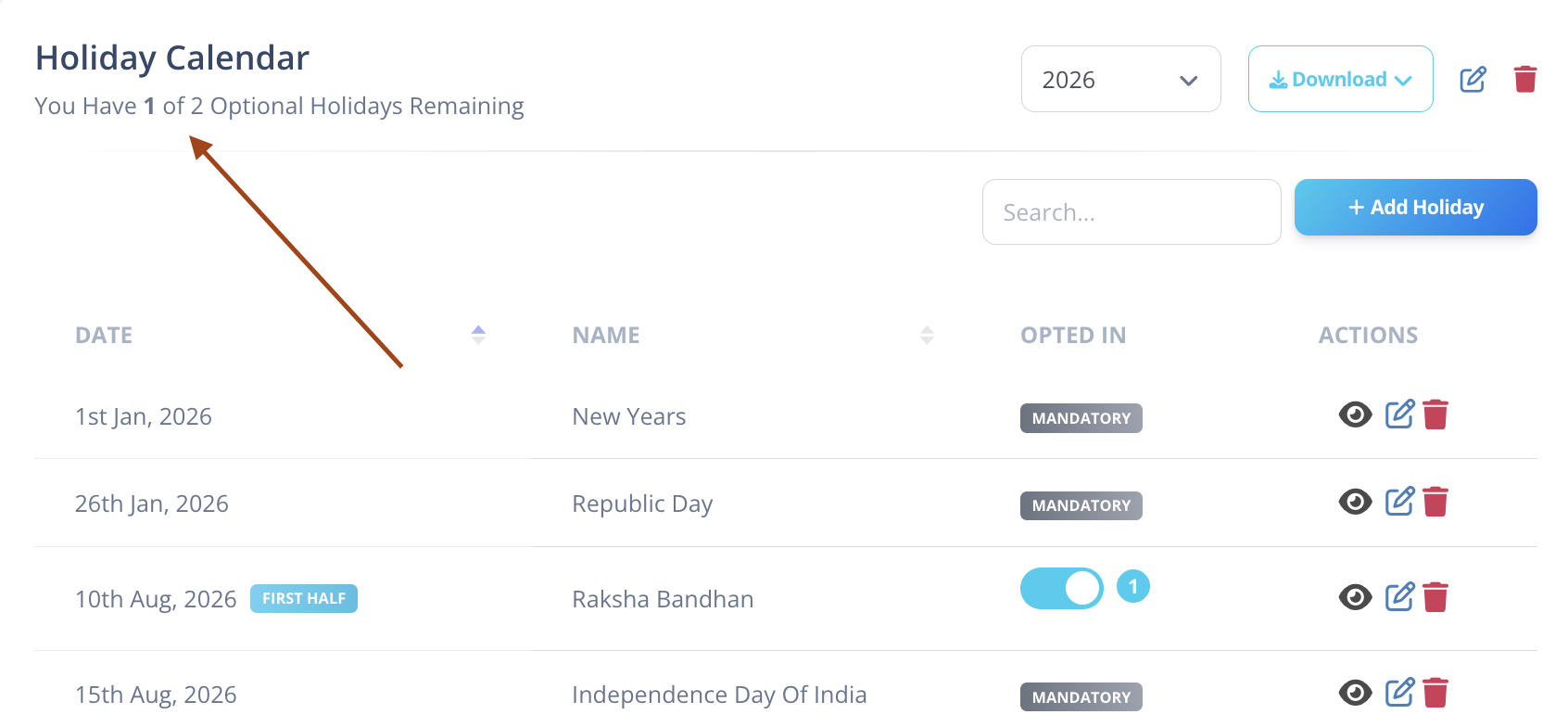
This shows:
- How many optional holidays they have selected
- How many they can still select
Opted-In Users Count
In the holidays table:
- The Opted In column shows how many users have opted for that holiday.
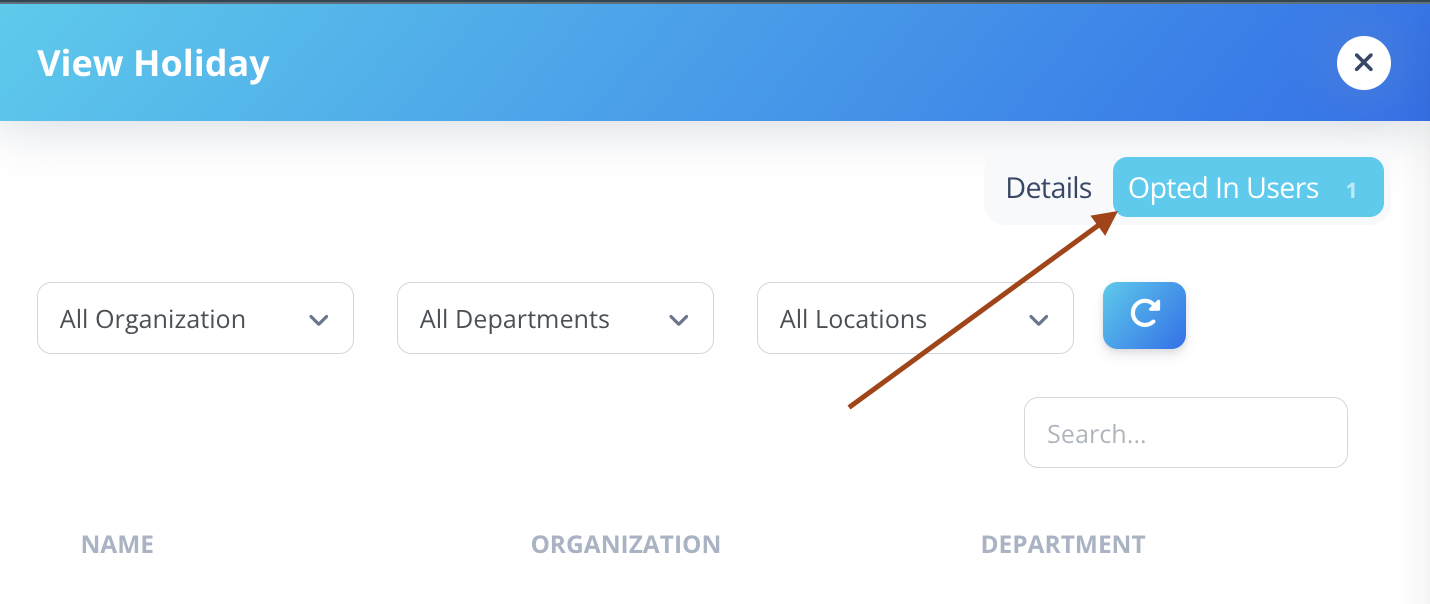
To view user list:
- Click the Eye icon in the Actions column.
- On the View Holiday page, see the Opted-In Users section (top right).
Attendance Synchronization
When attendance is synced:
- Holidays are automatically applied.
- Optional holidays are included only if the user has opted in (or auto opt-in applies).
INFO
Holiday selections directly impact attendance calculations.