Assign Holiday Plans
Holiday Plans must be assigned to employees for holidays to apply.
Each employee can have one active Holiday Plan at a time.
There are two ways to assign or update a Holiday Plan.
1️⃣ Update via Employee Job Details
You can update a user’s Holiday Plan from the Employee section.
Steps:
- Go to Employees.
- Select a user.
- Open the Job Details tab.
- Click the Edit ( ) icon.
- Update the Holiday Plan dropdown.
- Save changes.
This method is useful when updating a single employee.
2️⃣ Bulk Update from Holiday Section (Recommended)
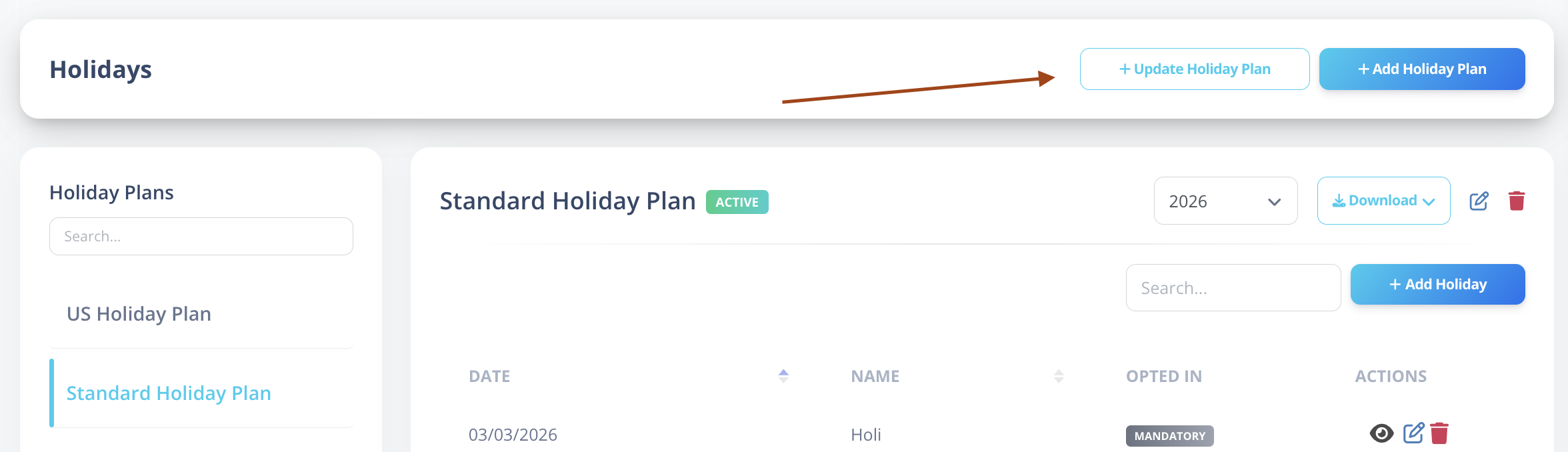
The recommended approach is to update Holiday Plans directly from the Holiday Management section.
- Navigate to Holiday Management.
- Click Update Holiday Plans (top right, beside the Add Holiday button).
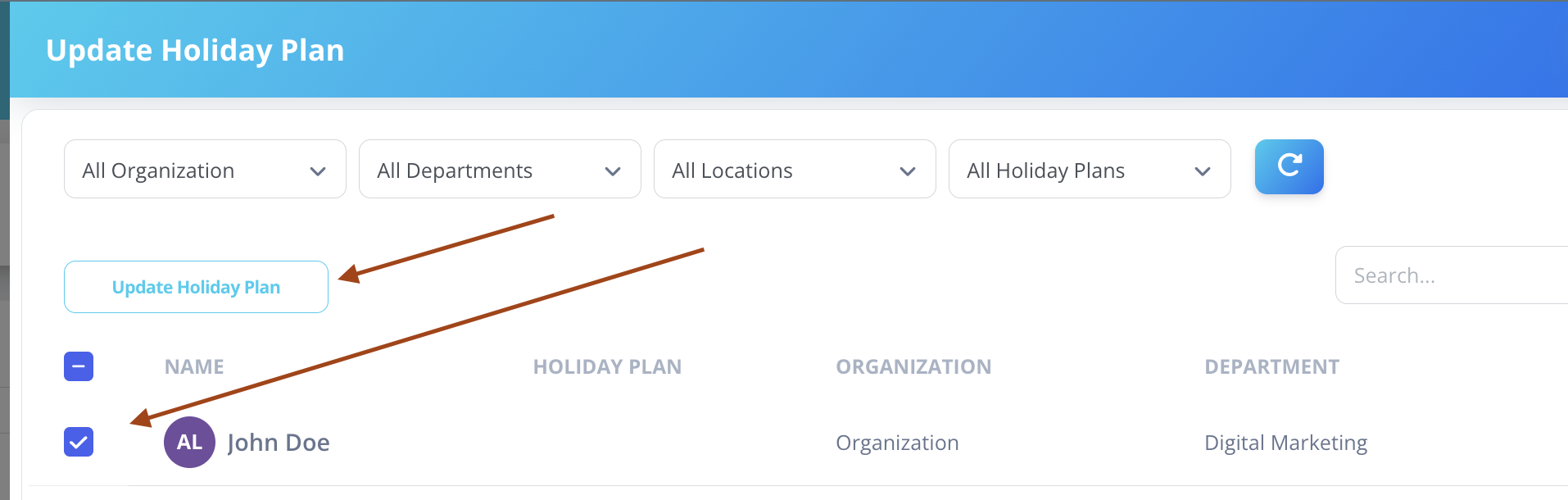
- A user listing page opens.
Available Filters
You can filter users by:
- Organization
- Holiday Plan
- Location
- Department
- Search by user name
Bulk Selection
- Use checkboxes to select one or multiple users.
- After selecting users, click the Update Holiday Plan button (above the table header on the left side).
Update Modal
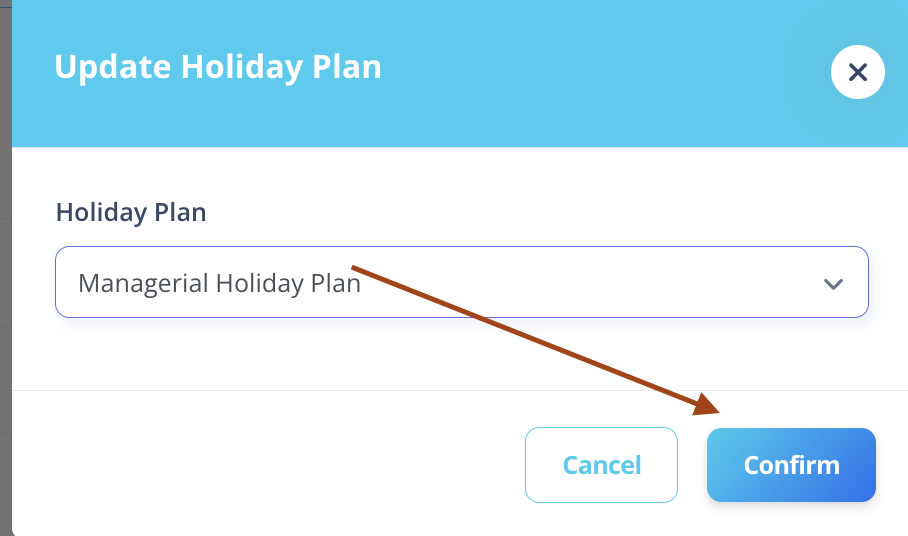
A confirmation modal opens containing:
- Holiday Plan dropdown
Select the desired Holiday Plan and confirm.
What Happens After Update
- The selected users’ Holiday Plan is updated.
- If the user previously had no Holiday Plan → It is assigned.
- If the user already had a Holiday Plan → It is updated.
- The user receives a notification informing them of the assignment or update.
NOTE
- Only Active Holiday Plans can be assigned.
- Changing a user’s Holiday Plan affects future attendance calculations.
- Optional holiday eligibility is recalculated based on:
- New plan configuration
- Optional holiday limits
- Auto opt-in rules
- User opt-in status
Best Practice
Use the Bulk Update method when:
- Assigning plans to new hires
- Changing holiday structure for departments
- Migrating users to a new holiday calendar
Use the Employee Job Details method only for individual updates.