Report Schedules
Report Schedules allow you to automatically generate and send attendance reports at defined intervals.
Currently, reports are attendance-based.
Navigation
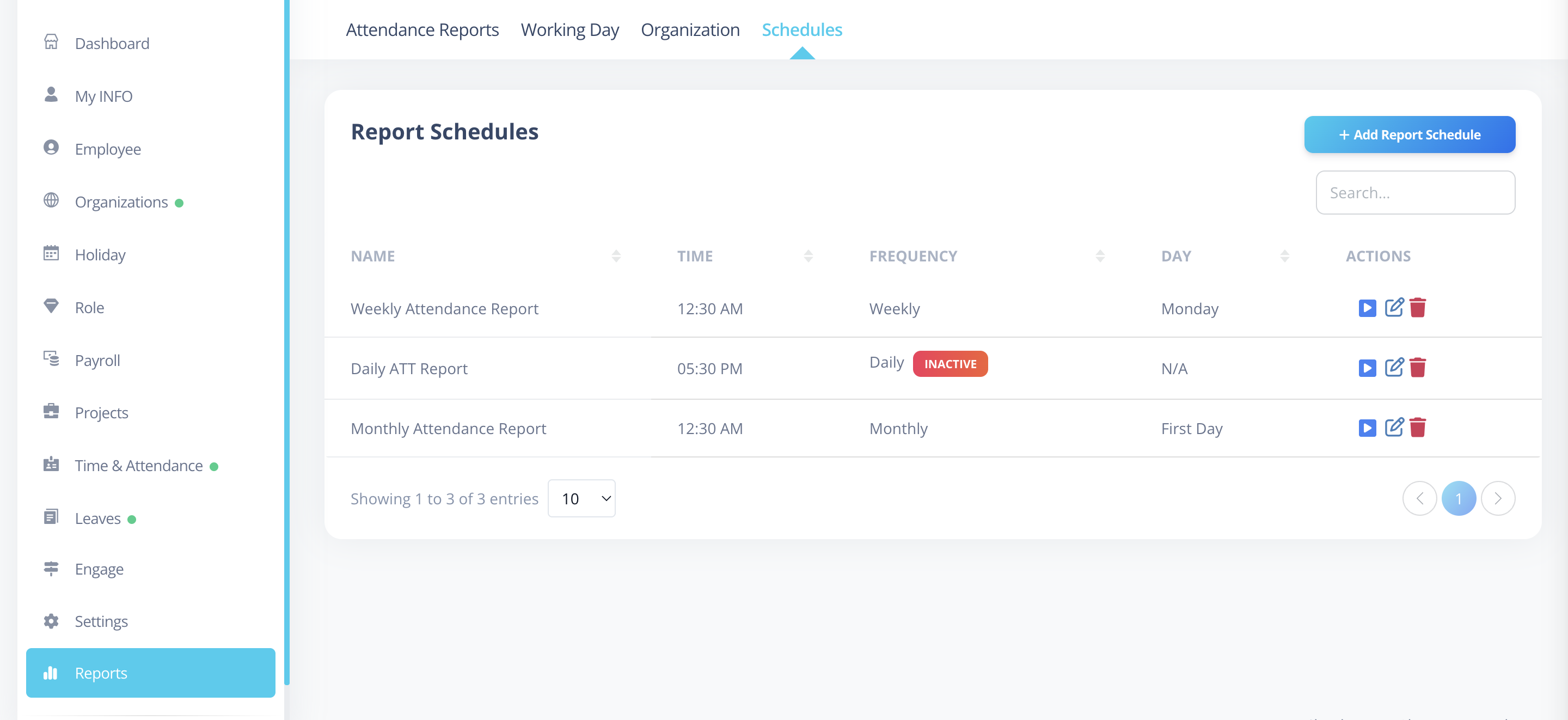
- Go to Reports from the main menu.
- Click on Schedules to open the Report Schedules listing page.
Listing Page
The listing page displays all created report schedules.
Columns
- Name
- Run Time
- Frequency
- Status Badge
- Shows Inactive badge if disabled
- No badge if active
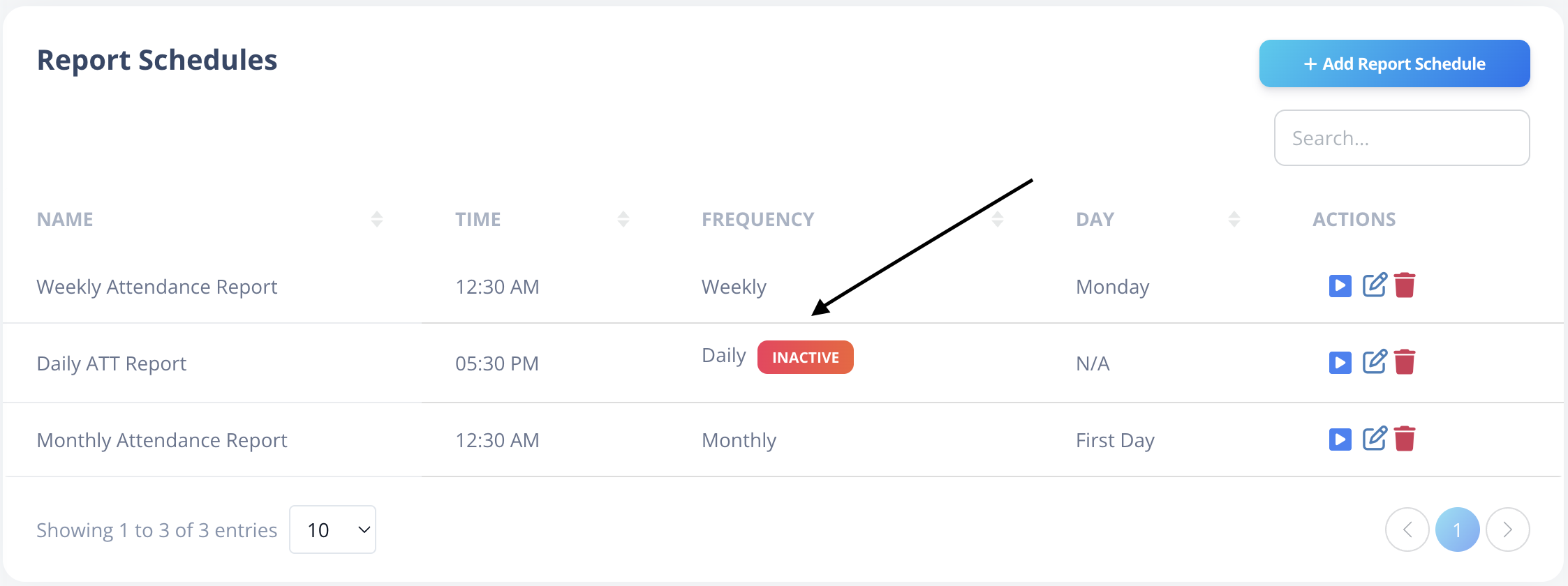
- Actions
- Execute
- Edit
- Delete
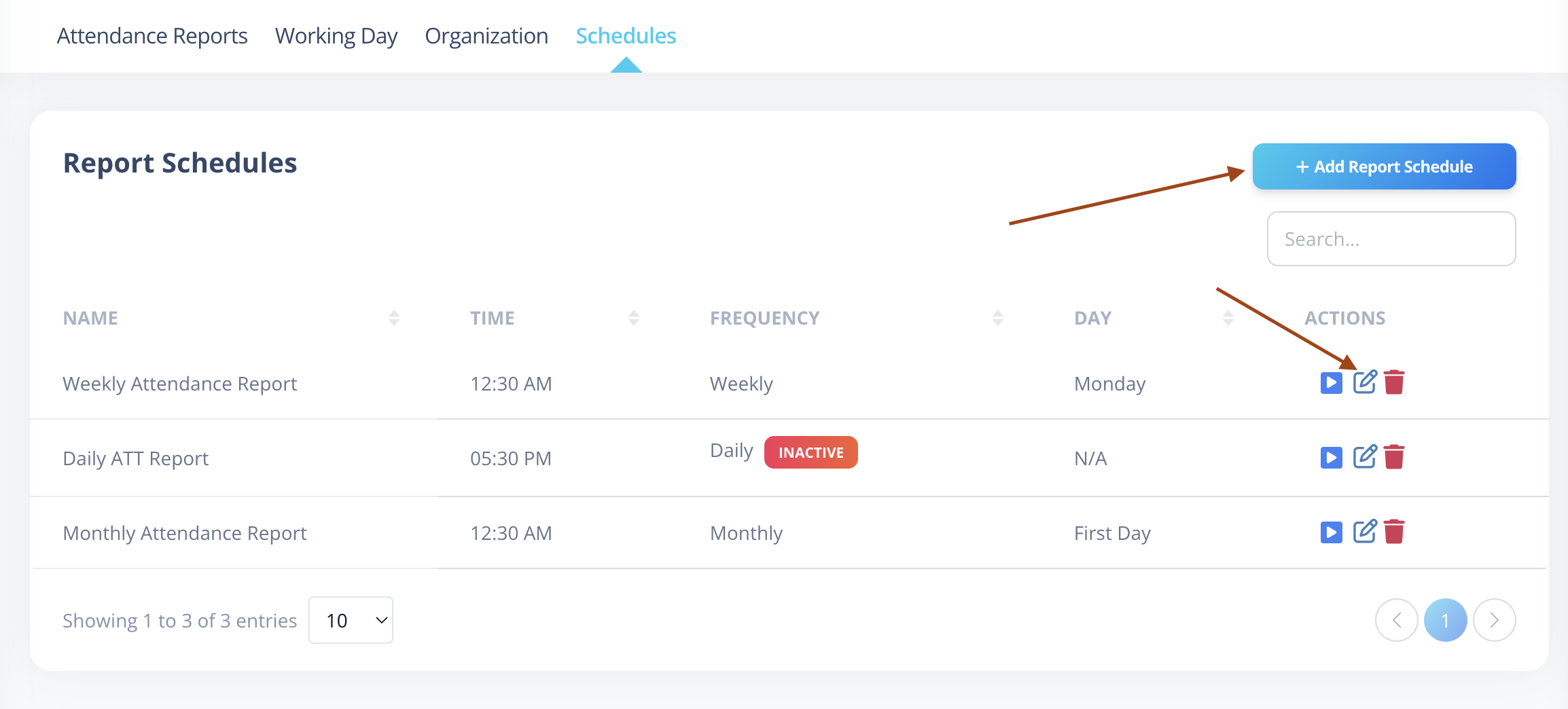
Top Right
- Add Schedule button
Add / Edit Schedule
Click Add or Edit to open the schedule form.
All fields are displayed in a single page form.
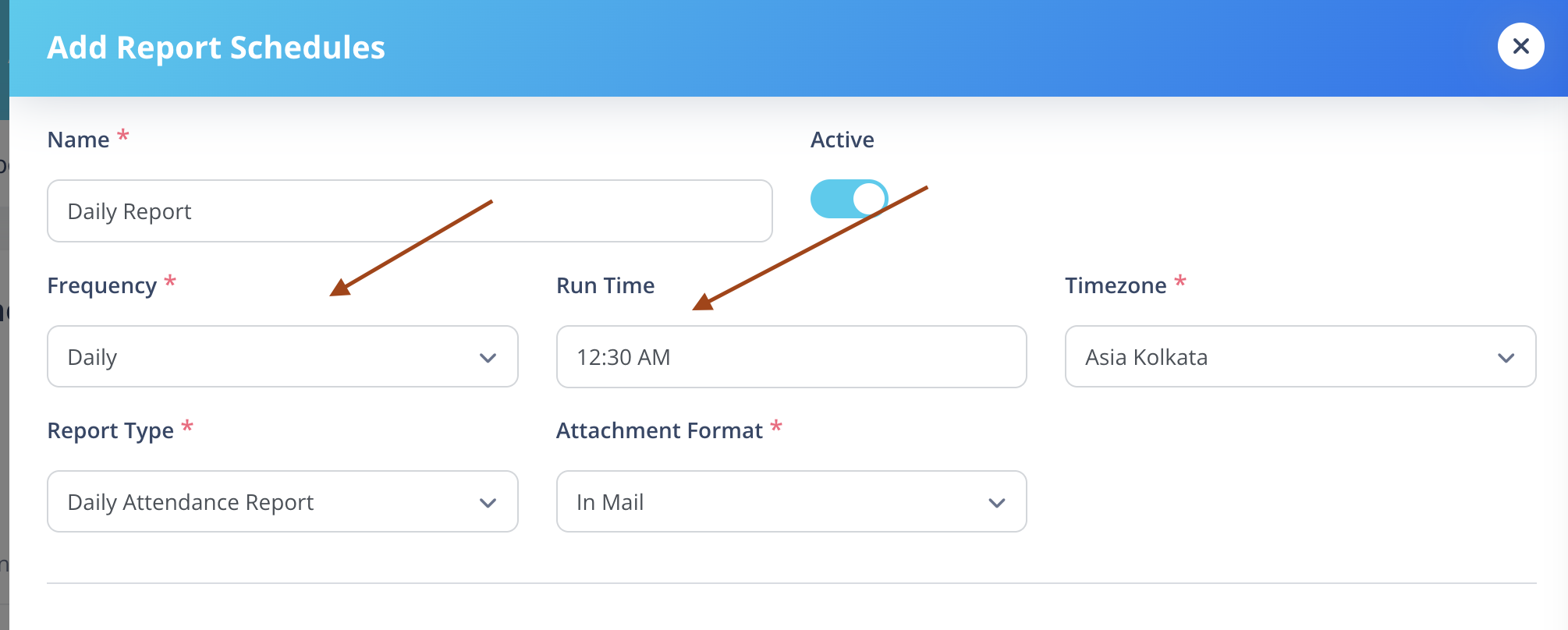
General Configuration
Fields
- Name (required)
- Report Type (currently Attendance)
- Frequency
- Daily
- Weekly
- Monthly
- Frequency Day
- Required only for:
- Weekly → Select weekday (Monday–Sunday)
- Monthly → First Day / Last Day
- Required only for:
- Run Time (required)
- Timezone (required, default: Asia/Kolkata)
- Active Toggle
Frequency Logic
Daily
- Default run time: 12:30 AM
- If left as 12:30 AM:
- Sends previous day's attendance
- If changed (allowed between 5:30 PM – 12:00 AM):
- Sends today’s attendance up to selected time
Example:
- Run Time = 6:00 PM
→ Sends today’s attendance till 6:00 PM
Weekly
- Requires selecting a weekday.
If set to Monday:
- On scheduled Monday:
- Fetches attendance from:
- Current week Monday → Sunday
- Monday is inclusive
- Current date is excluded
- Fetches attendance from:
- If created mid-week:
- First run waits until next configured weekday.
Execute Behavior (Weekly)
If today is NOT the configured weekday:
- It fetches previous week's full data
- Example:
- Today: Wednesday (20th)
- Configured: Monday
- Execute:
- Fetches previous Monday → Sunday
Monthly
Two options:
First Day
- Sends previous month's full data
- Example:
- 1st March → Fetches Feb 1–28
Last Day
- Sends current month's data
- If run on actual last day:
- Sends complete month
- If manually executed before last day:
- Sends full current month
- Future dates marked as Absent
Example:
- Today = 15th
- Execute
- Sends 1st → 30/31
- Remaining future days marked Absent
For better accuracy, it is recommended to schedule reports late at night, after most employee shifts are completed.
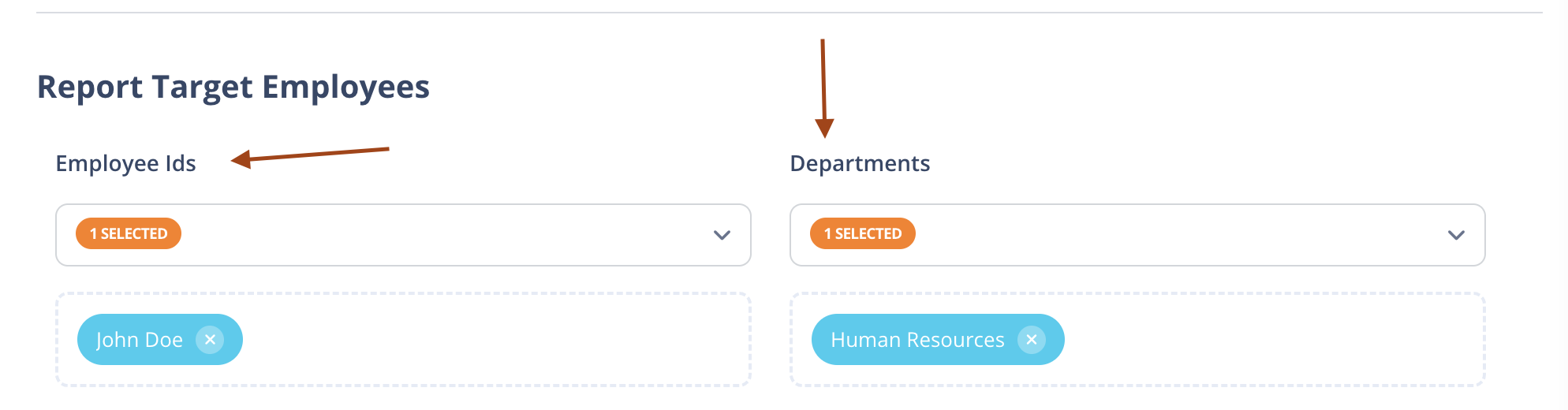
2️Report Target
Define whose attendance will be included.
Options:
- Employees (multi-select)
- Departments (multi-select)
You can select:
- Only employees
- Only departments
- Both
If both selected:
- System unions results
- Duplicate users automatically removed
Only active employees are considered. Exited employees automatically excluded.
Report Recipients
Define who receives the email.
Supports:
- Employees
- Roles
- Custom Email Addresses
Sections
TO (Always Visible)
- Employee dropdown (multi-select)
- Role dropdown (multi-select)
- Custom email input (multiple allowed)
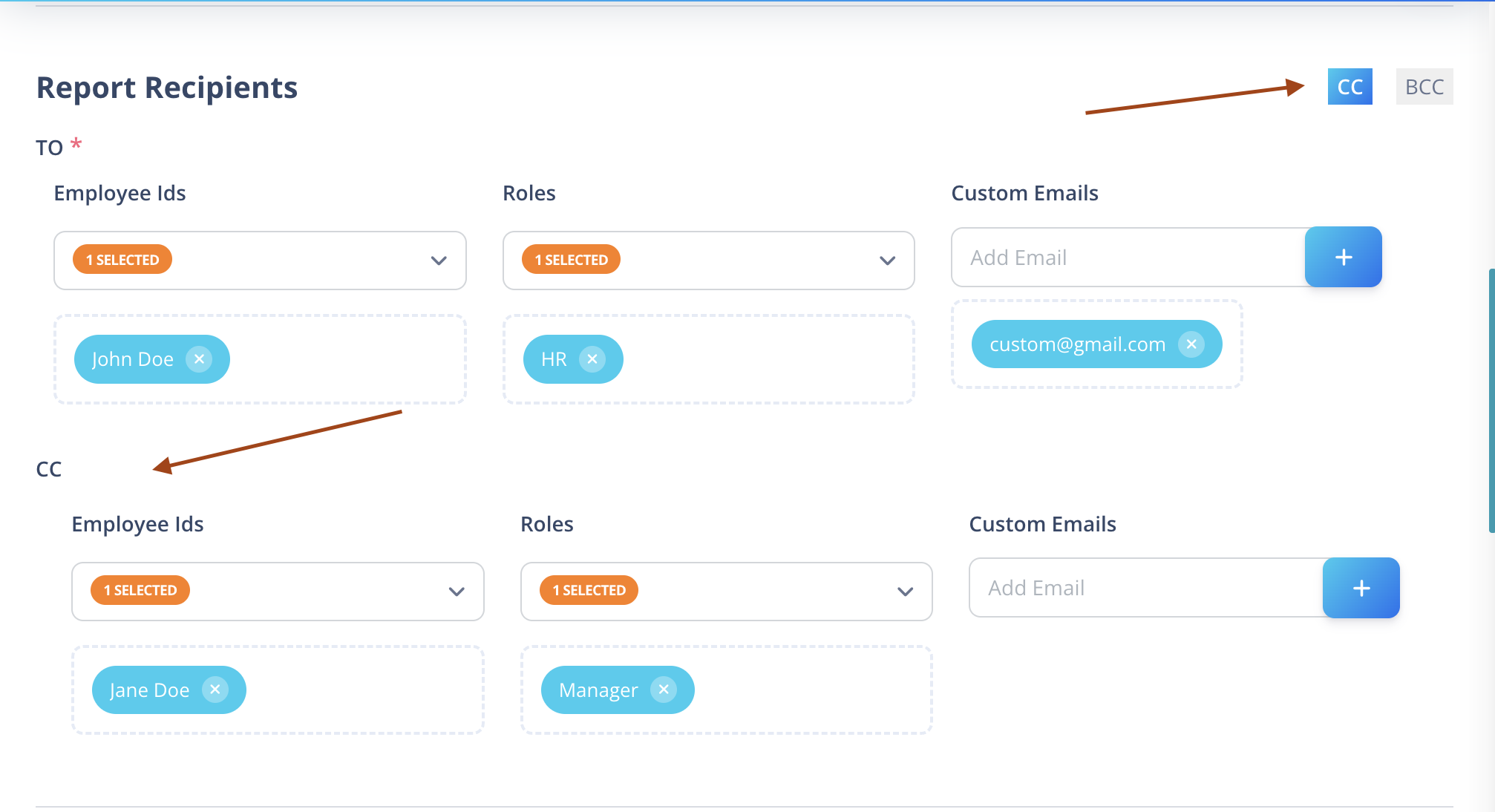
CC / BCC
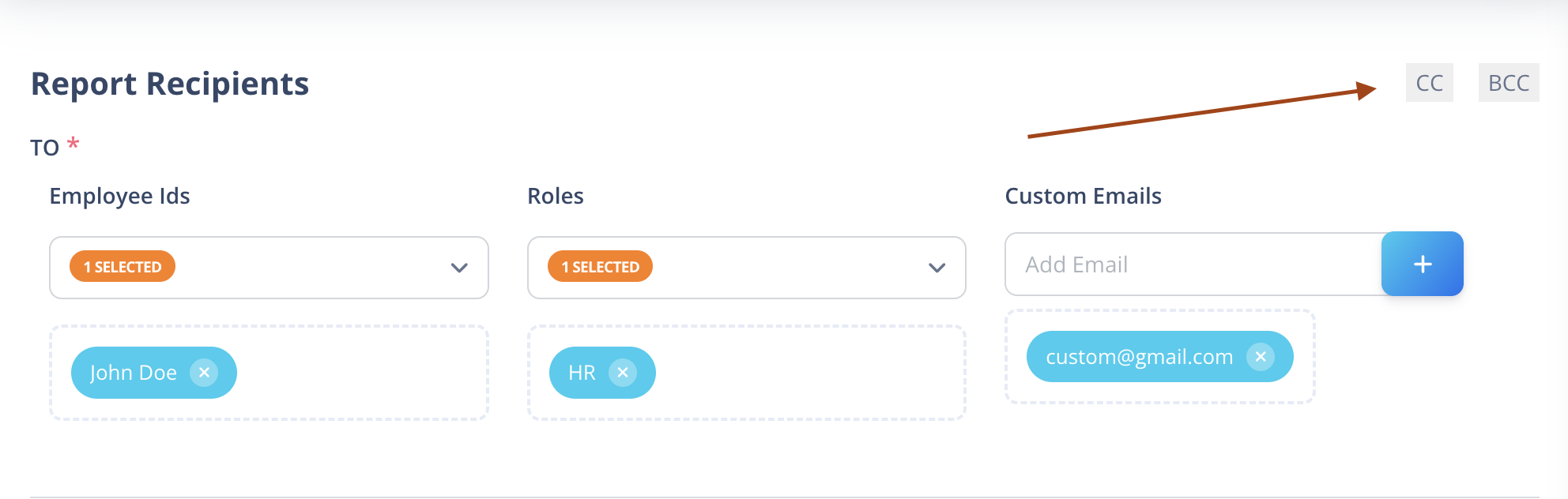
Top-right toggle button inside Recipients section.
When enabled:
- CC and BCC sections appear
- Each supports:
- Employees
- Roles
- Custom emails
Duplicate recipients are automatically handled.
If an employee exits and becomes inactive, they will no longer receive reports.
Attachment Format
Choose one:
- Excel (.xlsx)
- CSV
- In Mail
Only one format can be selected.
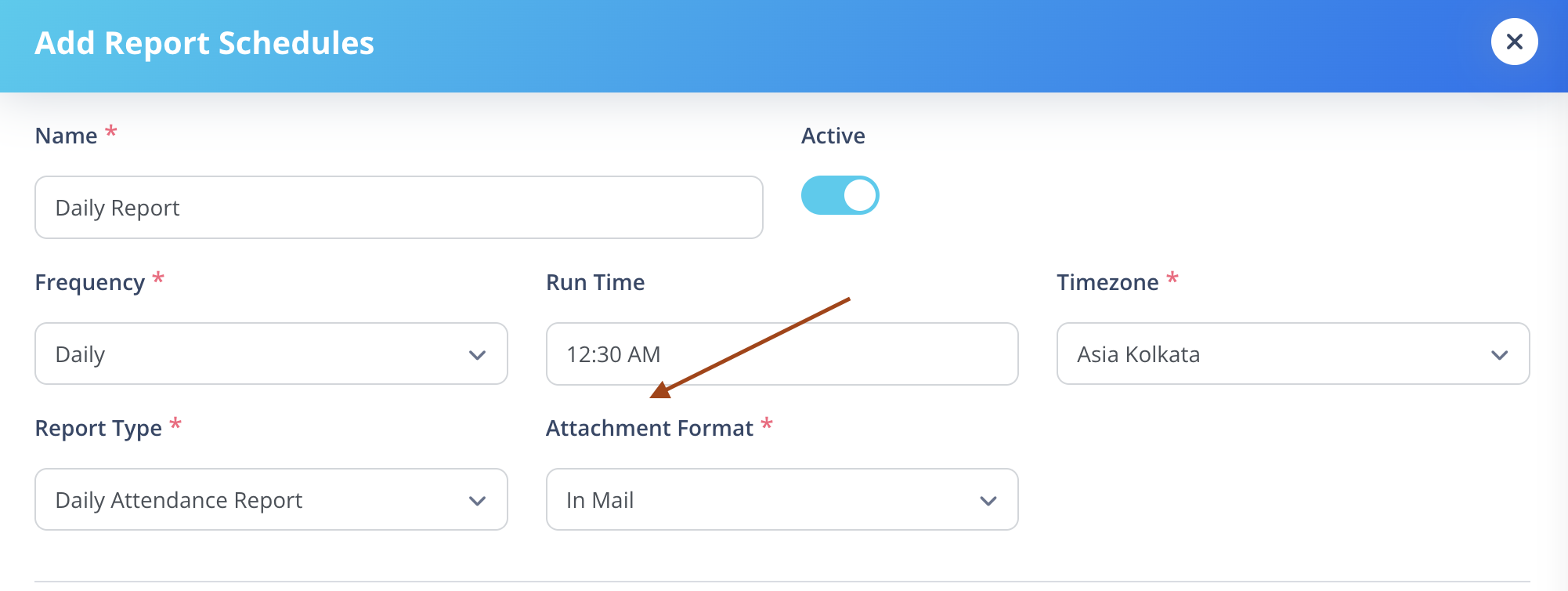
In Mail
- Report table is appended at the bottom of the email body.
- No file attachment is sent.
Other formats:
- Sent as downloadable file attachment.
Mail Content
Subject (required)
Plain text input.
Body (required)
Rich text editor (TinyMCE).
If In Mail is selected:
- The report table will automatically be appended below the body content.
Execute Action
Clicking Execute:
- Immediately generates report
- Sends email to configured recipients
- Uses same logic as scheduled frequency
If schedule is inactive:
- Execute still works
- But cron will not process it automatically
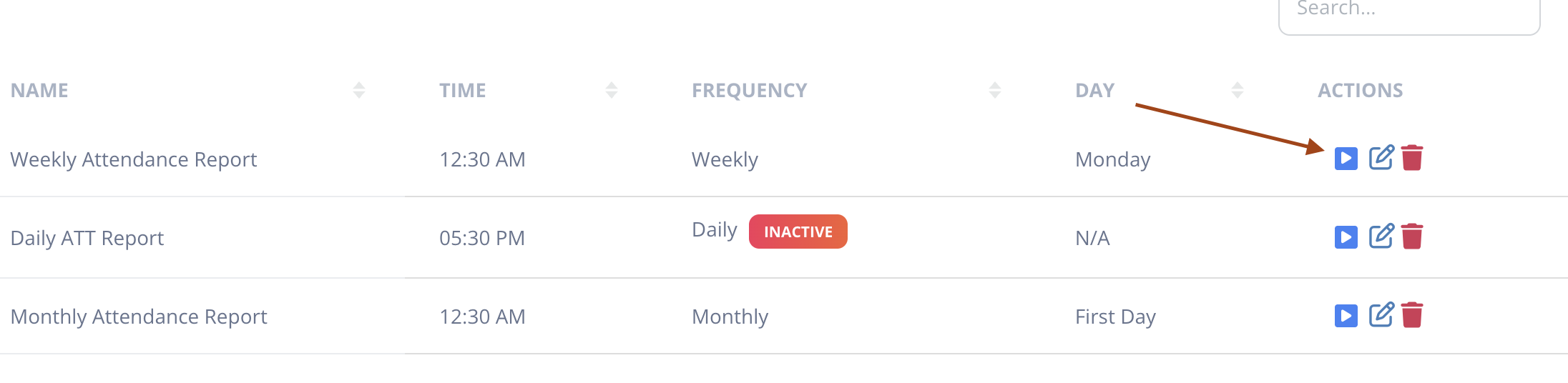
Delete
- Can be deleted anytime.
- No restriction.
Status Handling
- Active → Cron processes at scheduled time
- Inactive → Not processed automatically
Time Rules Summary
- Daily:
- Default 12:30 AM → Sends previous day
- Custom time (5:30 PM – 12:00 AM) → Sends same day till selected time
- Weekly:
- Fetches full completed week
- Monthly:
- First Day → Previous month
- Last Day → Current month (future days absent if executed early)
When manually executing Monthly (Last Day) before month ends, future dates are marked as Absent.