Reports
The Reports section provides insights into workforce trends and asset management data.
It consists of two main areas:
- Organization Dashboard — Workforce analytics and growth trends
- Assets Dashboard — Asset tracking and inventory overview
Organization Dashboard
The Organization Dashboard provides analytical insights based on employee data.
Filters
At the top of the dashboard, you can filter data using:
- Organization
- Department
- Location
A Reset button is available to clear all applied filters.
All charts and metrics update dynamically based on selected filters.
Growth Rate Cards
Three summary cards are displayed side by side:
- Headcount Growth Rate
- Employee Addition Growth Rate
- Employee Attrition Growth Rate
Each card displays:
- Current Month comparison
- Year-over-Year (YOY) comparison
- Employee count
- Growth percentage
These cards provide a quick snapshot of workforce changes.
Trend Charts
Two bar charts display workforce movement trends over the last 6 months:
- Employee Addition Trend
- Employee Attrition Trend
The X-axis represents the last 6 months.
The charts help identify hiring and attrition patterns over time.
Distribution Charts
The dashboard also includes distribution-based circular charts:
- Top 10 Departments
- Top 10 Locations
- Age Distribution (e.g., 25–30, 36–40, etc.)
- Gender Distribution (Male, Female)
- Experience Distribution
These charts help visualize workforce composition across different dimensions.
Assets Dashboard
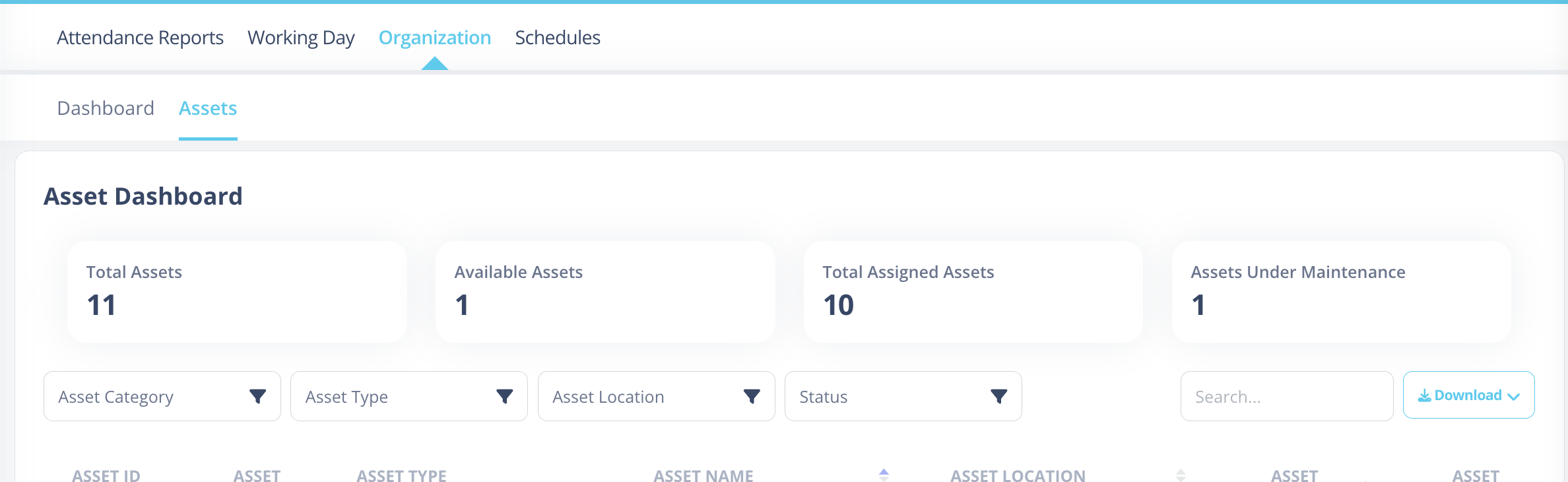
The Assets Dashboard provides an overview of organizational asset data and tracking.
Summary Cards
The first row contains four summary cards:
- Total Assets
- Available Assets
- Total Assigned Assets
- Assets Under Maintenance
Each card displays the total count based on current records.
Filters & Search
Below the summary cards:
Left Side Filters
- Asset Category
- Asset Type
- Asset Location
- Asset Status
Right Side Controls
- Search Box
- Download Button (PDF)
The Download button exports the asset list as a PDF, respecting all applied filters and search criteria.
Asset Table
The asset table displays detailed records with the following columns:
- Asset ID
- Category
- Type
- Name
- Location
- Condition Type
- Asset Status
- Assigned To
This table updates dynamically based on applied filters and search input.
The Reports module provides centralized visibility into workforce trends and asset management, helping organizations make informed operational decisions.