Initiate Exit
This guide explains how to initiate an employee exit request.
An exit request starts the formal separation workflow.
Step-by-Step Process
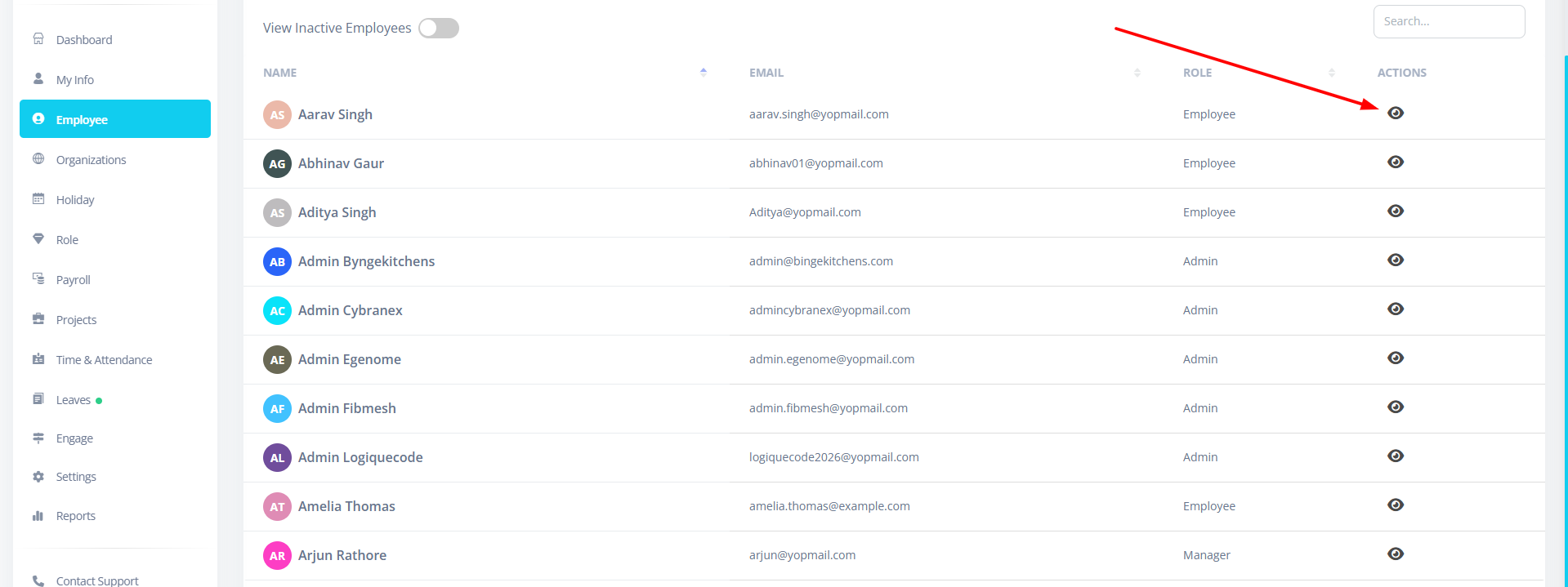
Step 1: Navigate to Employee Tab → Click on 👁 View Icon
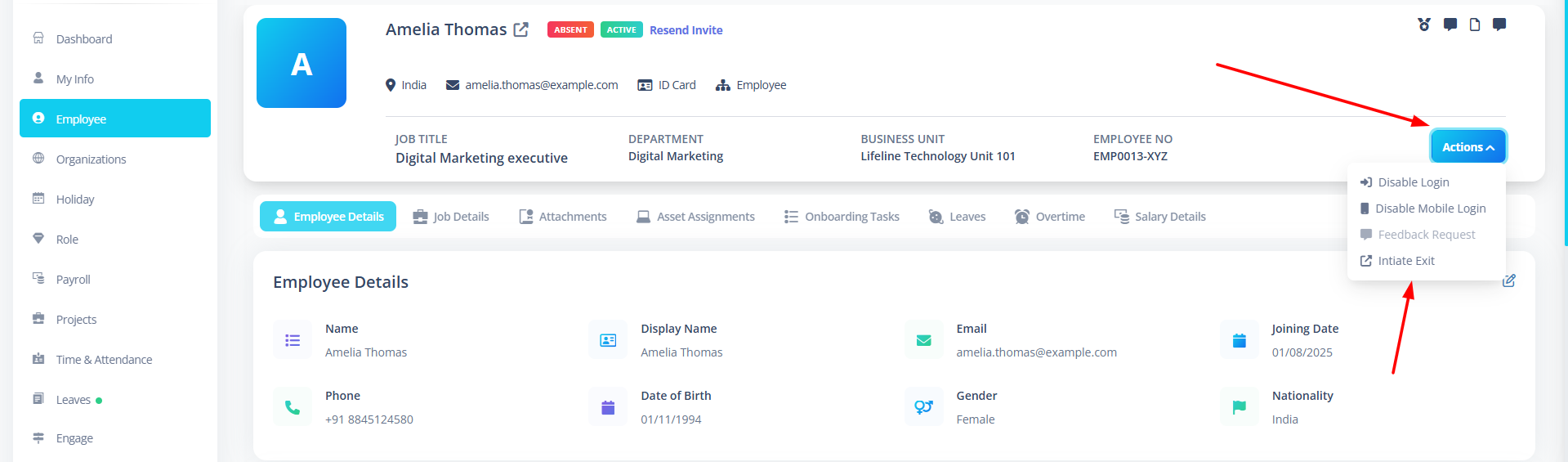
Step 2: Click on Actions button then click Initate Exit
Step 3: Fill Exit Details
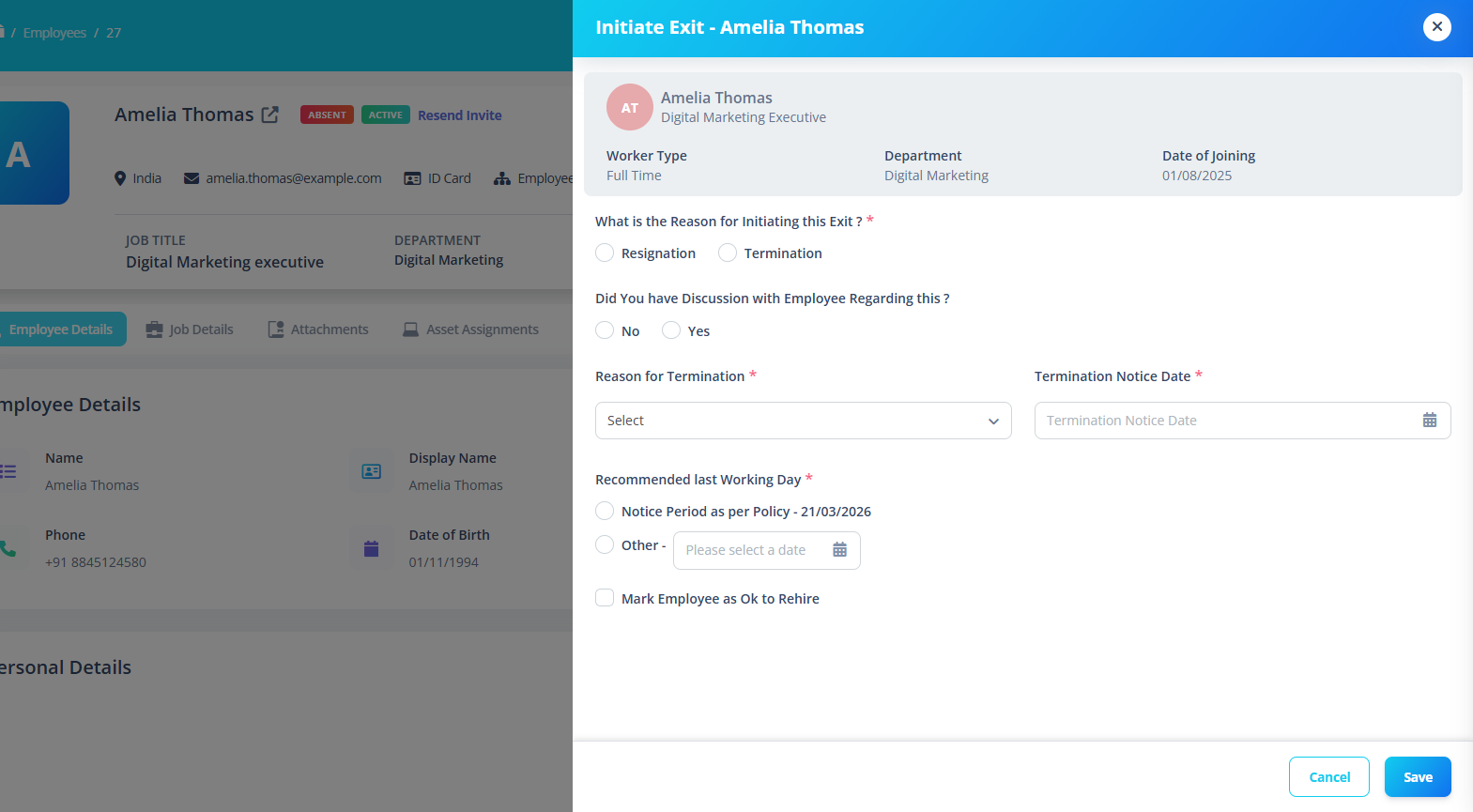
1️⃣ Exit Type
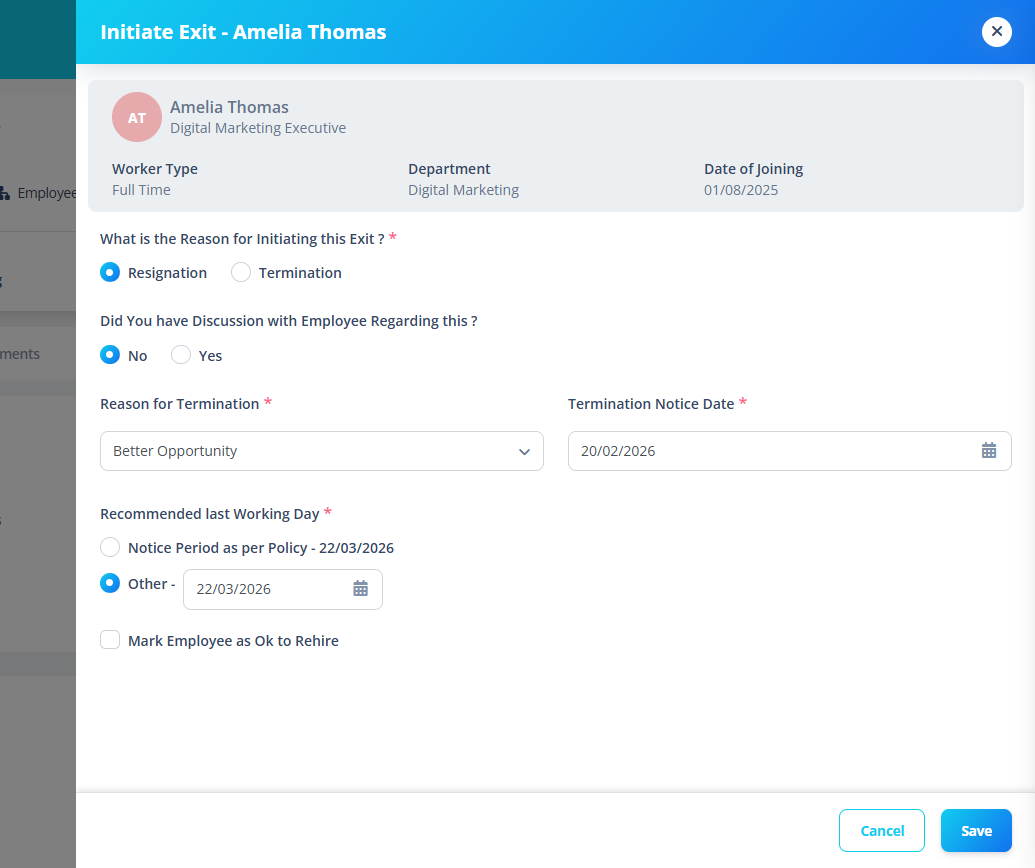
Choose one:
- Resignation
- Termination
2️⃣ Discussion with Employee
Question:
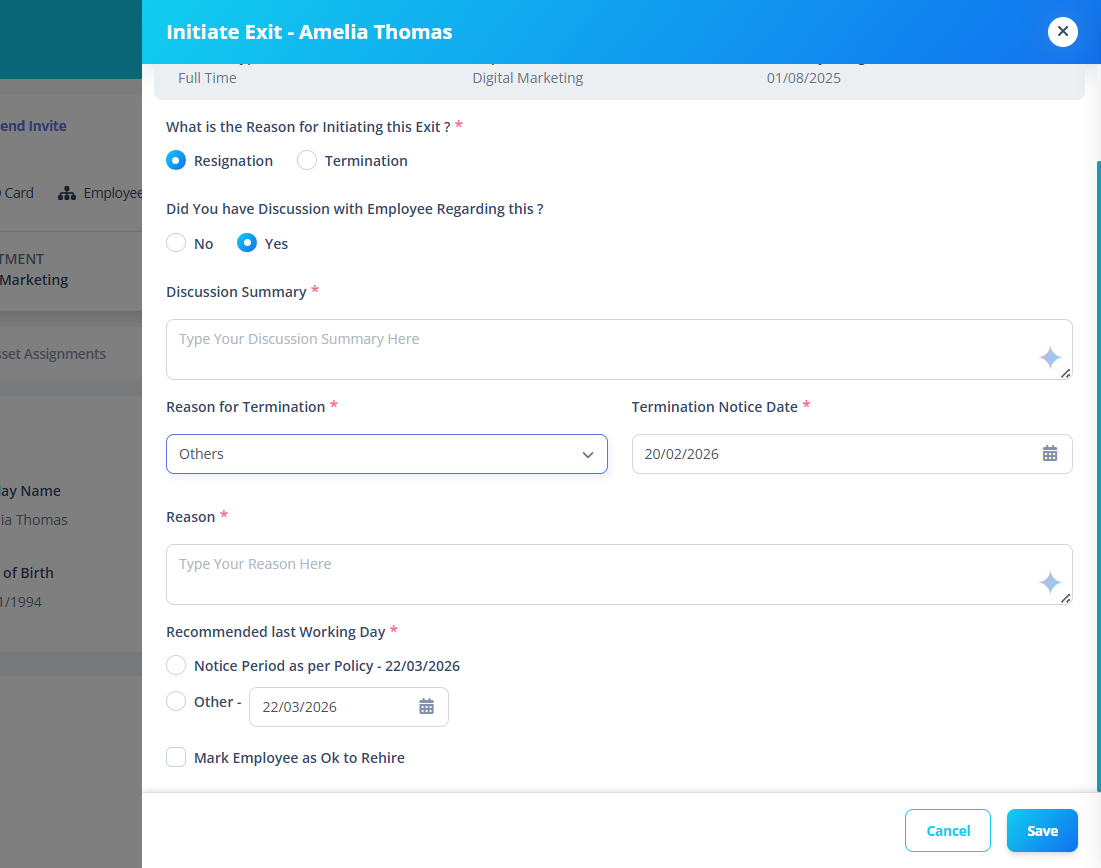
Did you have discussion with employee regarding this?
Options:
- Yes
- No
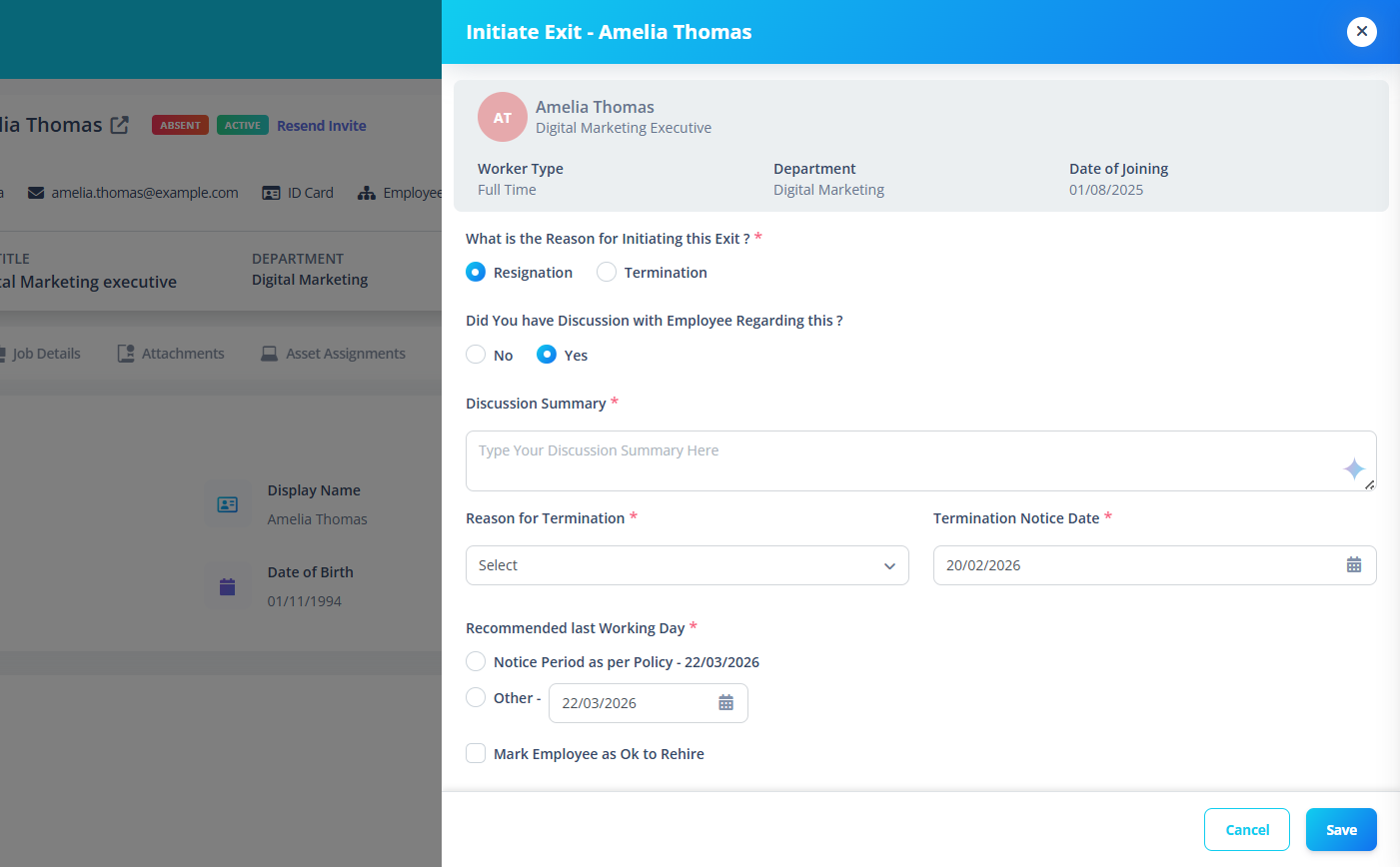
If "Yes" is selected:
A Discussion Summary field appears.
This field:
- Is required
- Supports AI-assisted content generation
- Allows summary refinement
3️⃣ Termination Reason
Select a reason from dropdown.
If Reason = "Others"
An additional Reason Text Area appears.
Termination Notice Date
Select the notice start date.
This date is used to:
- Calculate notice period completion
- Auto-generate last working day
Notice Period Logic
The system calculates notice completion date using:
- Notice duration
- Duration type (days / weeks / months)
- Notice start date
If no notice policy exists:
- Default 30 days applied
- System marks last date as auto-generated
Last Working Day
Two options:
Option 1: Notice Period as Per Policy
Auto-calculated based on:
- Notice start date
- Notice duration
Displays:
Notice Period as per policy - [Calculated Date]
Option 2: Custom Date
User selects a manual last working date.
If manually edited:
- Auto calculation stops
- System respects manual override
Rehire Eligibility
Checkbox:
Mark employee as OK to rehire
Step 4: Submit Request
Click:
Save
What Happens Next?
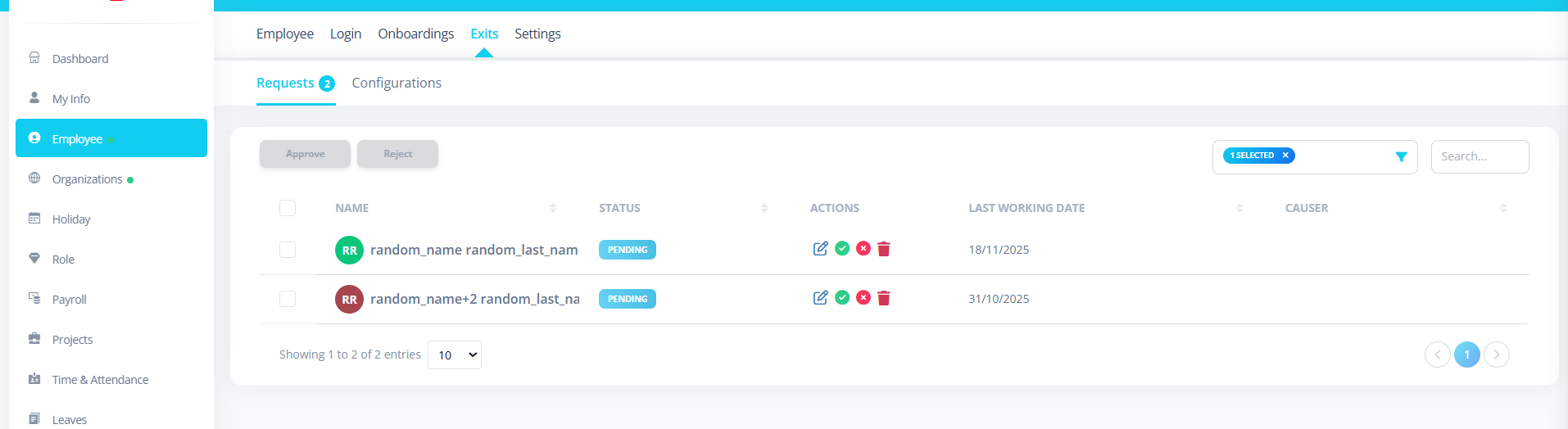
- Exit request enters approval chain
- First approver receives notification
- Approval workflow begins
- Status updates automatically
Notifications
System sends:
- Notification to approvers and to the employee whose exit is initiated
- Update notification on approval/rejection
Approval Chain Behavior
Exit approval follows configuration order:
Example:
- Admin/HR always receives
- Reporting Manager
- Departmental Head
Important Notes
- Exit configuration must exist before initiating.
- Only one active configuration allowed.
- Last working date should follow notice policy.
- Approved exit cannot be edited.
Cancelling Exit
If status is still Pending:
- Exit may be cancelled
After approval:
- Cannot cancel directly
- Requires admin action
Best Practices
- Validate last working date
- Confirm handover completion
- Check pending assets
- Verify payroll settlement
- Communicate clearly with employee
Summary
Initiating an exit:
- Starts formal separation workflow
- Triggers approval chain
- Ensures structured process
- Maintains compliance and audit trail