Process an Exit Request
Once an employee exit is initiated, it moves into the approval workflow.
Step 1: Open the Exit Request
- Go to:
Employees → Exits → Requests
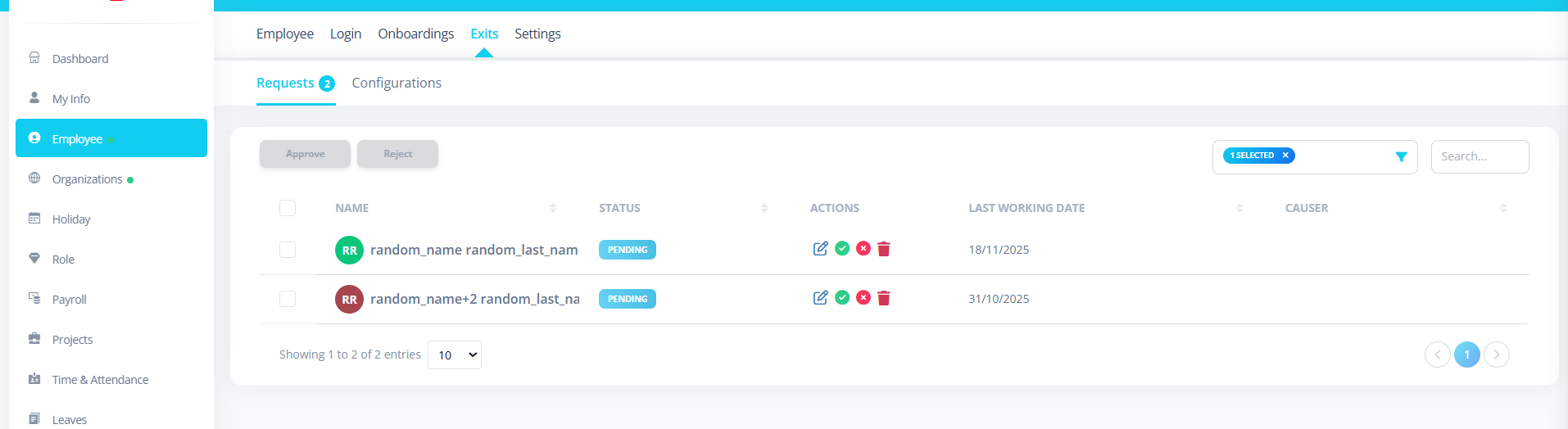
- Click on the .
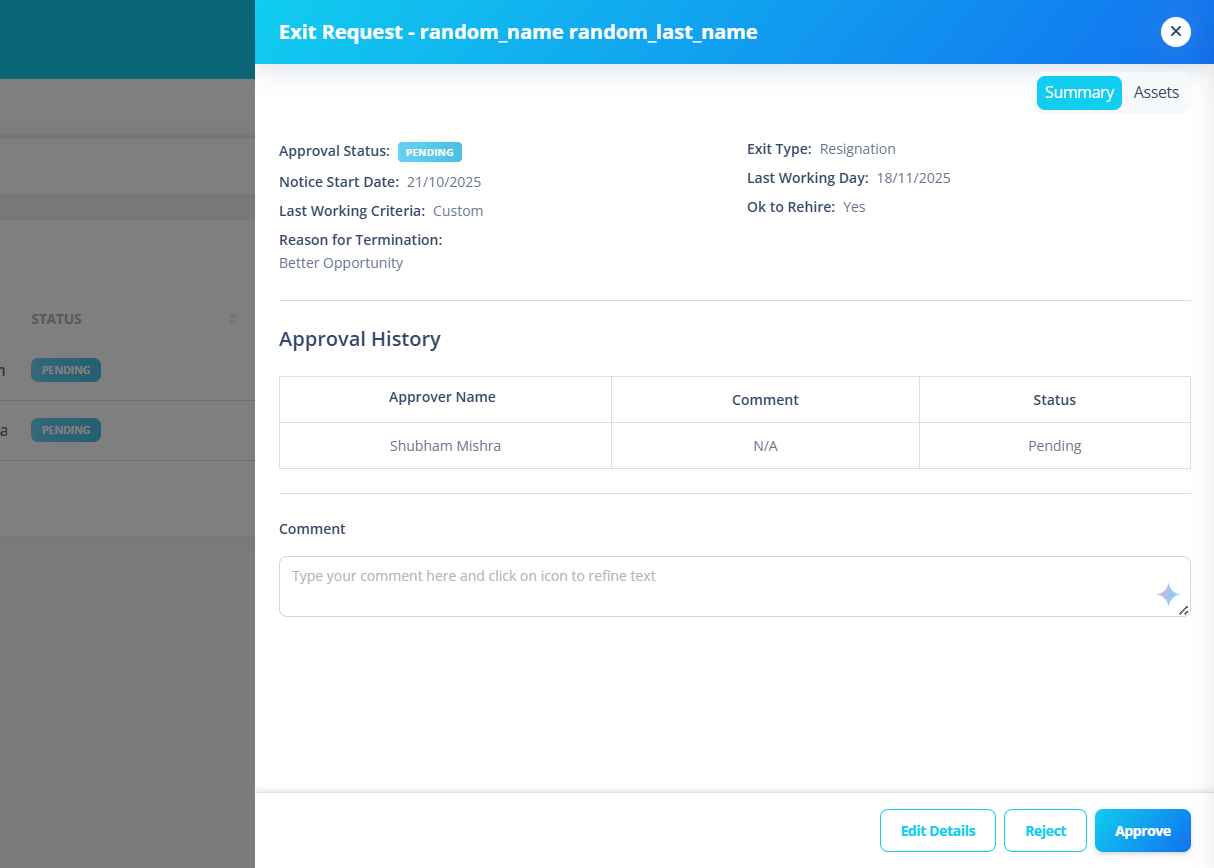
- The Exit Request Panel will open.
You will see two sections:
- Summary
- Assets
Step 2: Review Exit Summary
In the Summary tab, carefully review:
- Exit Type (Resignation / Termination)
- Notice Start Date
- Last Working Day
- Reason for Exit
- Discussion Summary (if provided)
- Rehire Eligibility
- Current Approval Status
Make sure all information is correct before taking action.
Step 3: Add a Comment (Optional but Recommended)
At the bottom of the summary:
- Enter your approval or rejection comment.
- You may use the AI refine option to improve your comment.
This helps maintain proper records.
Step 4: Choose an Action
You will see action buttons at the bottom.
Approve
Click Approve if:
- Details are correct
- You agree with the exit request
What happens next:
- Status changes to Approved
- If multiple approval levels exist, it moves to the next approver
- FNF (Full & Final) date field becomes available
Reject
Click Reject if:
- Information is incorrect
- Exit should not proceed
What happens next:
- Status changes to Rejected
- Exit process stops
- Employee exit must be re-initiated to restart
Step 5: Set Full & Final (FNF) Date
This step appears only after approval.
- Select the Full and Final Date.
- This is mandatory.
- Choose the date when settlement is completed.
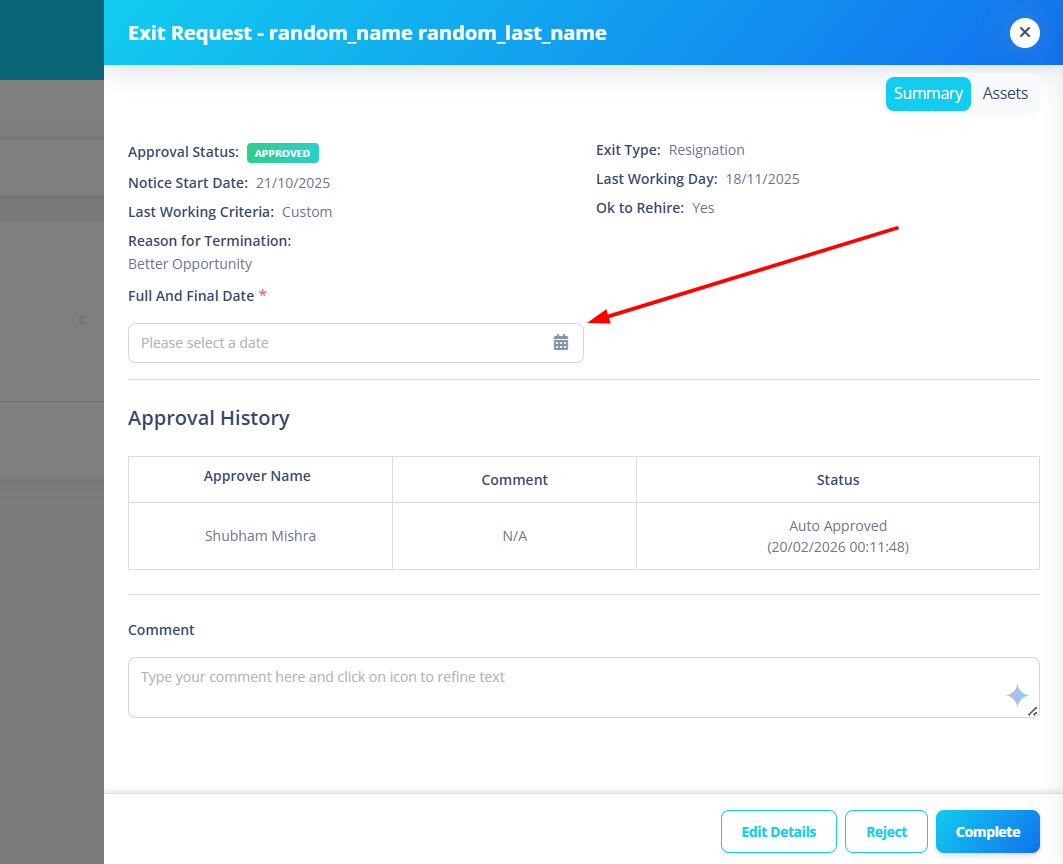
You cannot complete the exit without this date.
Step 6: Manage Employee Assets
- Switch to the Assets tab.
- You will see all assets assigned to the employee.
- Select the assets that have been returned.
- Click Mark as Returned.
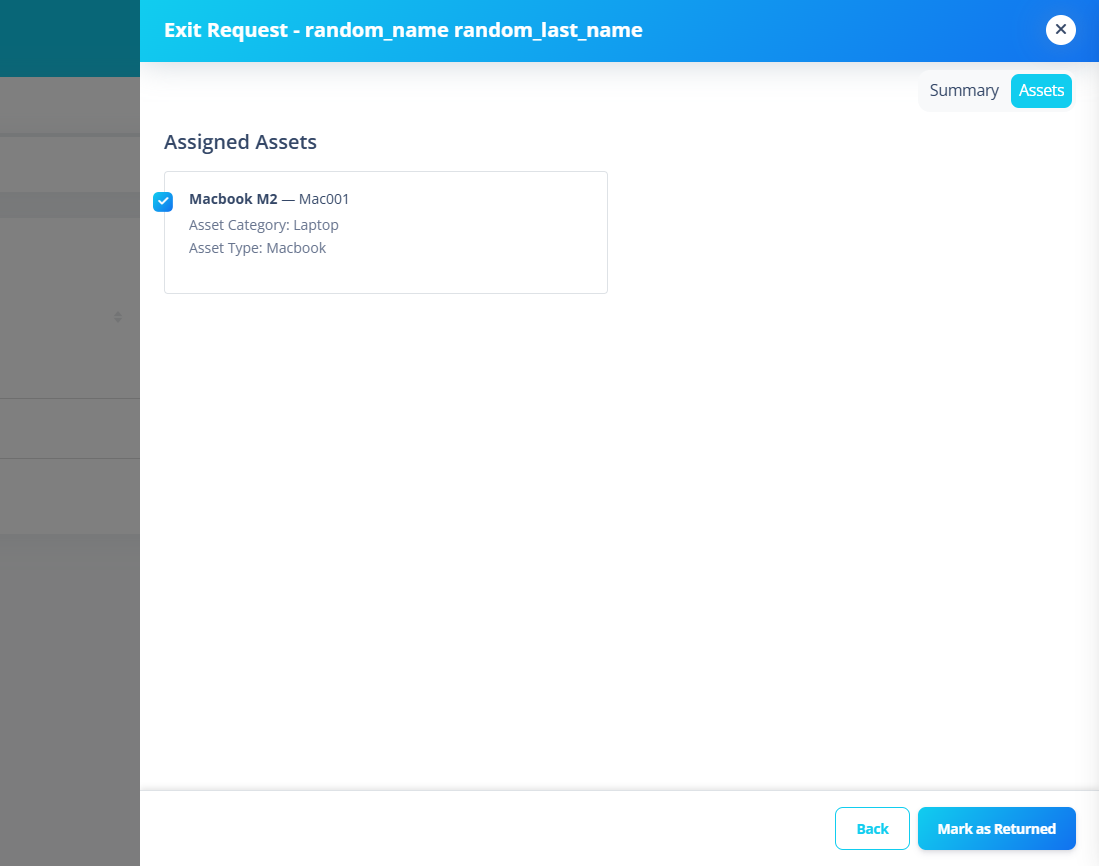
Important:
- All company assets should be returned before completing the exit.
Step 7: Complete the Exit
After:
- Exit is Approved
- FNF Date is selected
- Assets are handled
Click:
Complete
What happens:
- Exit is marked as Completed
- Employee exit process is finalized
- Status changes to Completed
After completion:
- Exit cannot be edited
- Workflow is locked
Exit Status Flow
- Pending
- Approved
- Completed
OR
- Pending
- Rejected
Who Can Do What?
| Role | Action |
|---|---|
| Manager | Approve / Reject |
| HR | Approve / Reject / Manage Assets / Complete |
| Admin | Full Control |
Important Notes for First-Time Users
- Always review details before approving.
- Add comments for audit clarity.
- Do not complete exit before asset clearance.
- FNF date is mandatory for completion.
- Once completed, exit cannot be modified.
Quick Checklist Before Completing
✔ Exit Approved
✔ FNF Date selected
✔ Assets returned
✔ Comments added
If all are checked → Click Complete
Summary
The Exit Request panel helps you:
- Review employee exit details
- Approve or reject the request
- Ensure asset return
- Finalize the employee’s departure properly
Follow each step carefully to ensure a smooth and compliant exit process.