Overtime
The Overtime module allows organizations to:
- Track overtime requests
- Approve or reject requests
- Bulk approve multiple entries
- Filter by status
- Manage role-based approvals
- Monitor approval workflow
This module supports both:
- Employee view
- HR/Admin approval view
Prerequisites
Before using the Overtime module:
Overtime Policy Must Exist
The system must have:
- Overtime rules configured
- Approval workflow enabled
- Overtime enabled for employee
If not configured:
- Overtime requests may not be processed correctly.
Overtime Tab Overview
Leave → Overtime Policy
Overtime Status
Status appears as color badge.
| Status | Meaning |
|---|---|
| Pending | Awaiting approval |
| Approved | Fully approved |
| Rejected | Rejected |
| Partially Approved | One-level approval done |
| Auto Approved | System-approved |
Bulk Approvals
- Select multiple rows.
- Click Approve or Reject.
- Confirmation modal appears.
- System processes bulk approval.
If any selected row is already:
- Approved → Approve button disabled
- Rejected → Reject button disabled
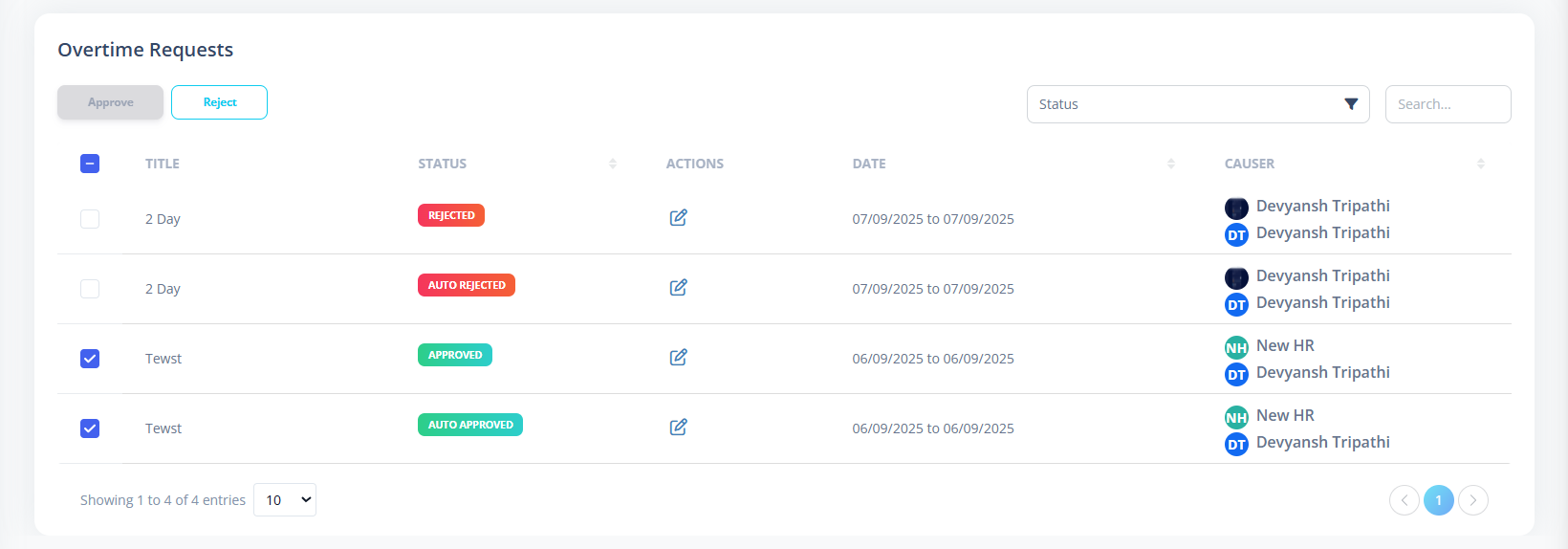
Bulk approval updates:
- Approval status
- Notification counters
- Approval dashboard counts
View Overtime Request
Click:
- Edit icon
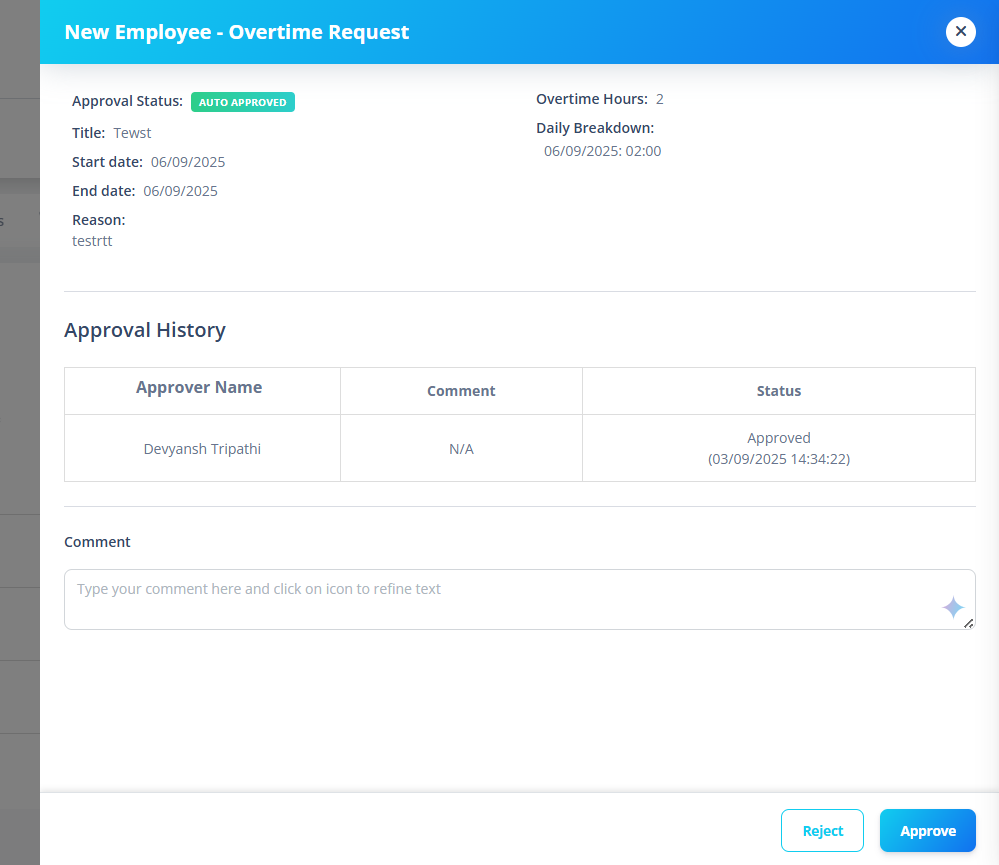
Opens detailed approval panel showing:
- Employee name
- Overtime duration
- Date range
- Reason
- Approval chain
- Status history
Edit Overtime Request
Available when:
- Status = Pending OR Partially Approved
- User has permission
- Approval chain allows modification
Edit icon opens approval action panel.
Overtime Lifecycle
- Employee submits overtime.
- Status = Pending.
- Approver reviews.
- Status transitions:
- Approved
- Rejected
- Partially Approved
- Final status stored permanently.
Bulk Approval Confirmation
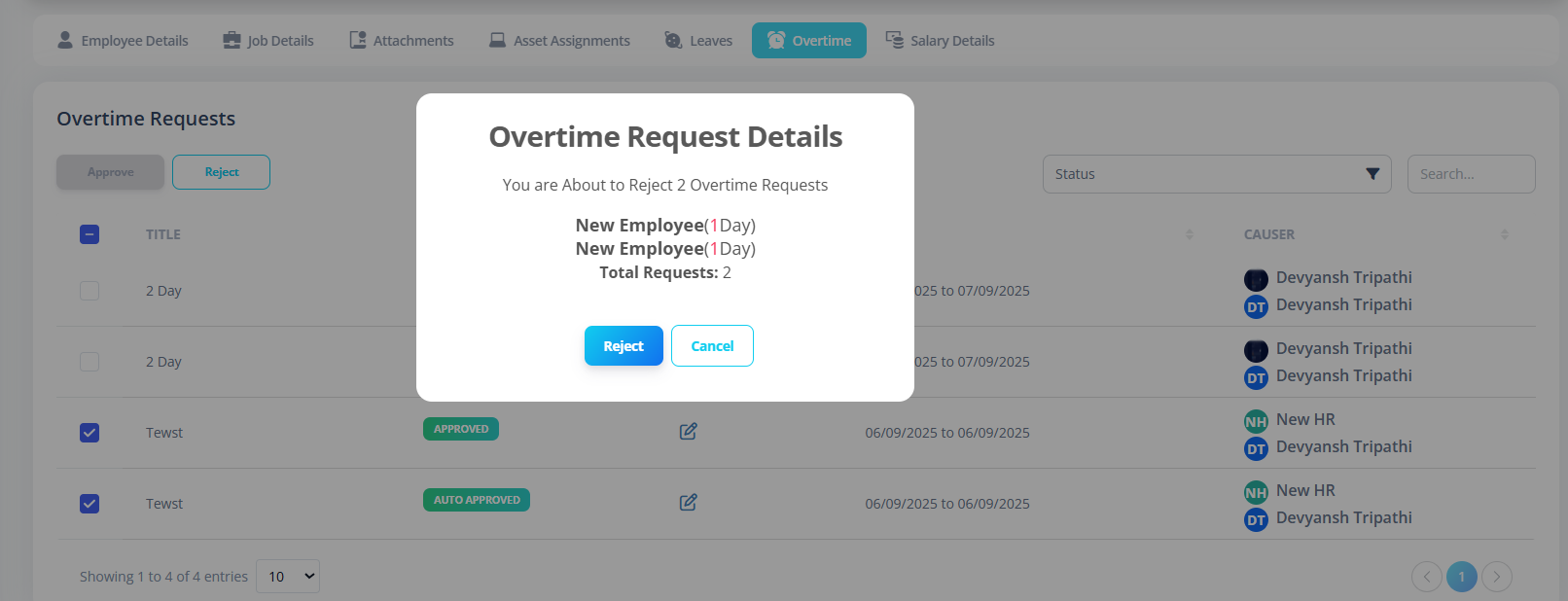
When bulk approving:
- Confirmation dialog appears.
- Shows selected employees.
- Shows number of days.
- Requires explicit confirmation.
First-Time Setup Guide
For new system:
- Configure Overtime Policy.
- Set approval workflow.
- Assign roles (Manager / HR).
- Enable overtime for employee.
- Test approval chain.
Then:
Employee → Overtime → Submit Request.
Best Practices
- Use bulk approval carefully.
- Monitor partially approved states.
- Restrict delete permissions.
- Regularly audit overtime logs.
- Keep approval chain clear.
Summary
The Overtime module provides:
- Structured overtime tracking
- Multi-level approval workflow
- Bulk approval support
- Role-based access control
- Status filtering
- Real-time updates
It ensures controlled and auditable overtime management across the organization.