Notice Periods
Notice Periods in CloudHR define the required duration an employee must serve before exiting the organization.
You can configure duration, attach policy documents, and manage active/inactive status.
Accessing Notice Periods
- Log in to CloudHR.
- Navigate to Employees.
- Click Settings.
- Select Notice Periods.
You will land on the Notice Period Management Page.
Page Layout Overview
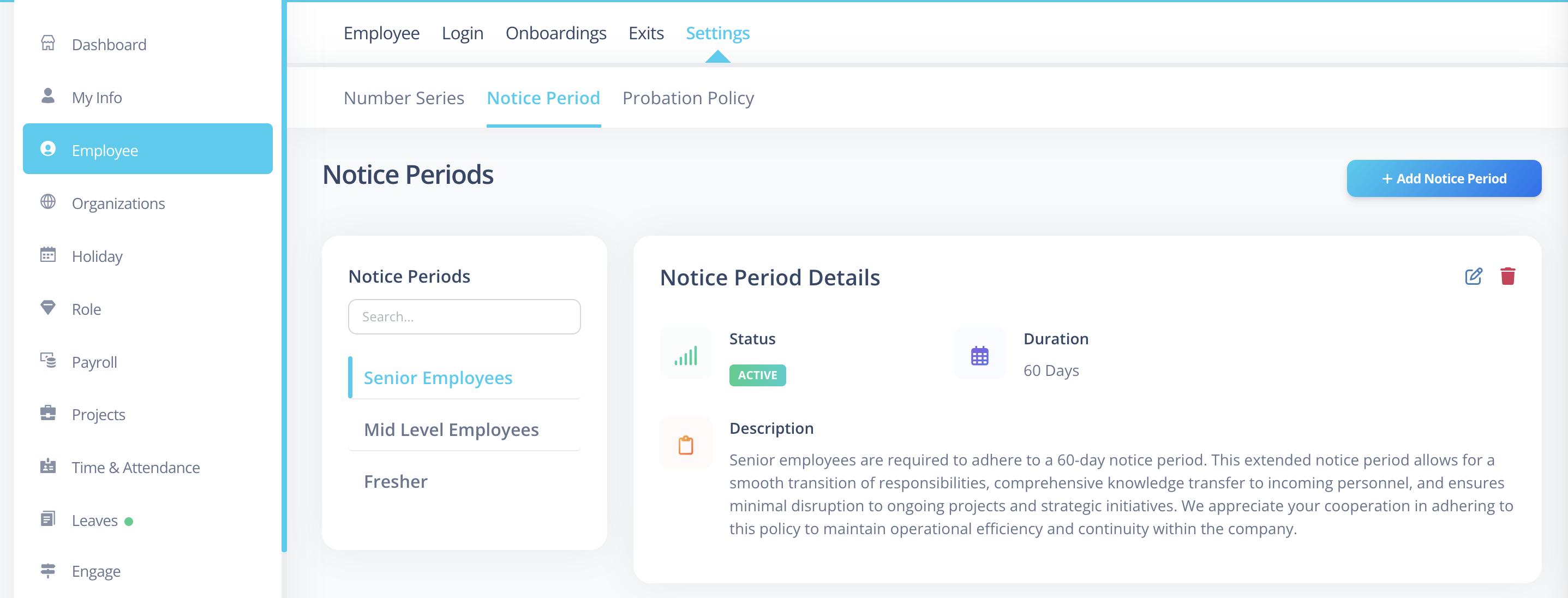
The Notice Period page is divided into two sections:
- Left Panel → List of Notice Periods
- Right Panel → Details of the selected Notice Period
Notice Period Listing (Left Panel)
The left side displays a list of all configured Notice Periods.
Each entry shows:
- Name
- Search box (search by name)
Clicking on a notice period loads its details on the right panel.
Notice Period Details (Right Panel)
When a notice period is selected, its full details appear on the right.
At the top-right corner, you will see:
- Edit
- Delete
Creating a Notice Period
Click the Add Notice Period button.
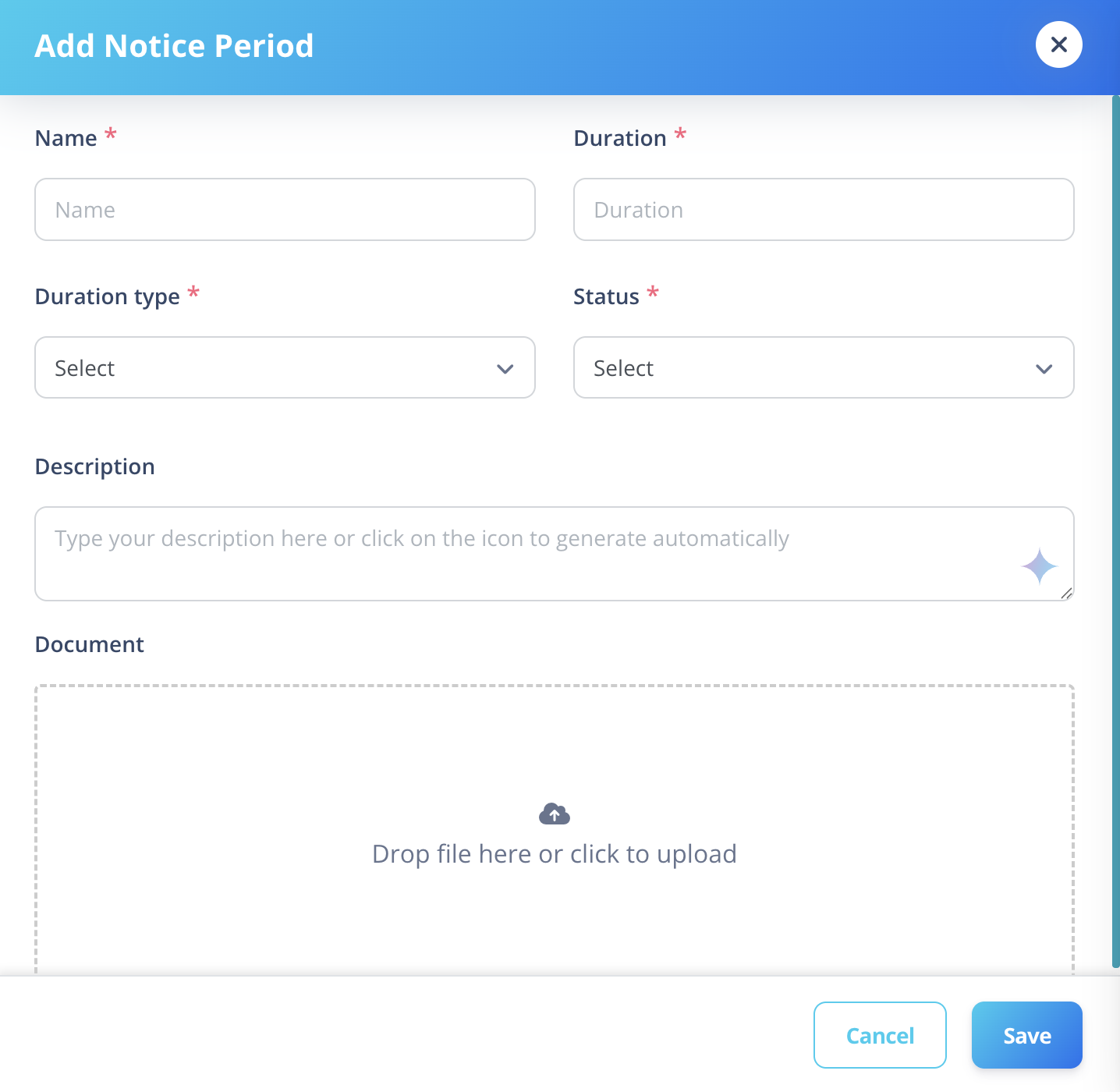
You will be able to configure the following fields:
Name
- Required field
- Must be unique
- Example:
Standard Notice - 30 Days
Duration And Duration Type
- Duration is a numeric value and duration type is a dropdown.
- These combined defines the length of the notice period
Example:
- 4 Weeks
- 30 Days
- 1 Month
4️⃣ Status
- Active → Can be assigned to employees
- Inactive → Cannot be assigned
5️⃣ Description
- Optional notes or explanation about the notice period.
6️⃣ Notice Period Document (File Attachment)
You can upload a supporting document such as:
- Word document
- Text file
This can include:
- Policy terms
- Legal documentation
- Contractual guidelines
Editing a Notice Period
Click the icon in the top-right corner of the details panel.
You can update:
- Name
- Duration
- Duration Type
- Status
- Description
- Attached Document
Deleting a Notice Period
Click the icon in the top-right corner.
You can delete a notice period if it is not actively assigned where system restrictions apply.
Best Practices
- Use clear naming conventions (e.g., 30 Days Standard, 60 Days Senior Level).
- Attach official policy documents for reference.
- Avoid editing duration after assigning to active employees.
- Keep inactive policies instead of deleting when historical reference is required.