Onboarding Tasks
Onboarding Tasks are individual activities that new employees must complete as part of an onboarding plan.
Each onboarding plan can contain multiple tasks such as:
- Submit documents
- Complete compliance training
- Collect laptop
- Setup email
- Attend orientation session
Where to Find Onboarding Tasks
- Go to:
Employees → Onboardings - Select an onboarding plan.(You should already have a Onboarding Plan)
- Scroll down to the Onboarding Tasks section.
You will see:
- A list of tasks
- Add Task button
Step 1: Add a New Onboarding Task
Click:
+ Add Onboarding Task
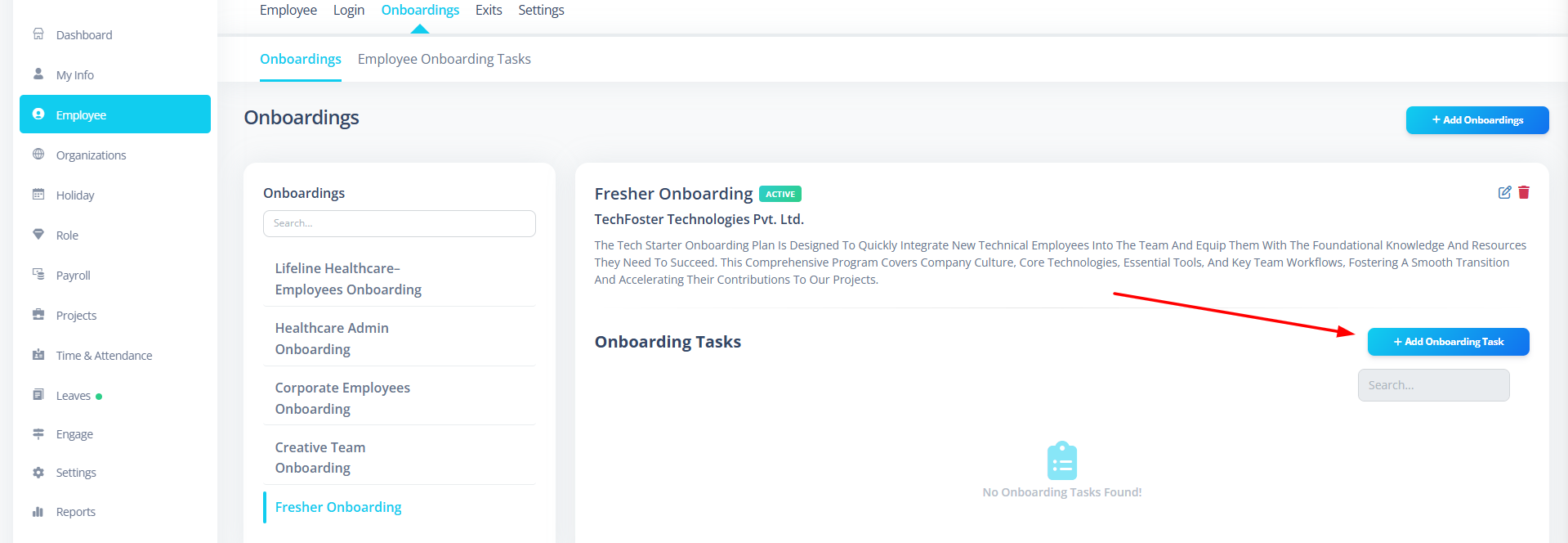
A side panel will open.
Step 2: Fill Task Details
1️⃣ Task Name (Required)
Enter a clear task title.
Examples:
- Submit ID Proof
- Complete Security Training
- Collect Office Access Card
Keep it short and meaningful.
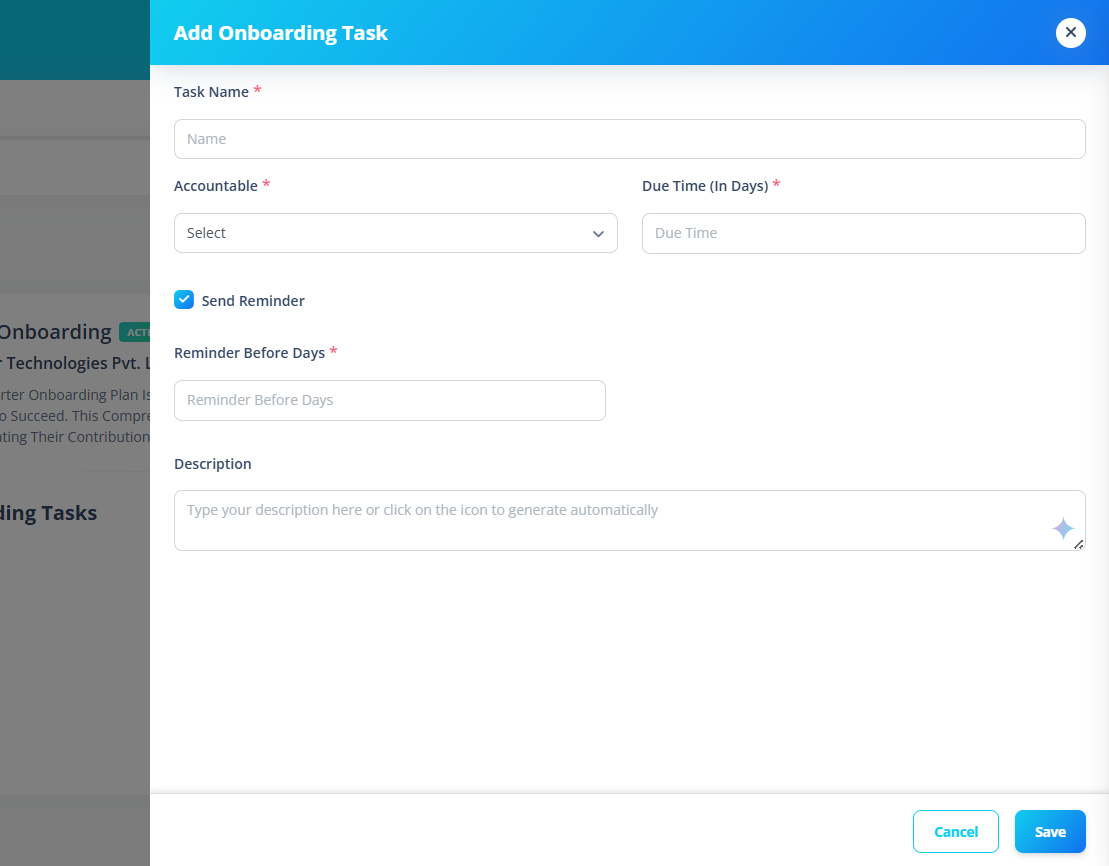
2️⃣ Accountable Person (Required)
Select the employee responsible for completing this task.
This could be:
- The new employee
- HR
- IT team member
- Manager
The selected person will be responsible for the task.
3️⃣ Due Time (Required)
Enter the number of days within which the task must be completed.
Example:
- 3 → Task due within 3 days of onboarding start
- 7 → Task due within 7 days
This defines the deadline.
4️⃣ Send Reminder (Optional)
Enable the checkbox if you want automatic reminders.
If enabled:
You must enter:
Reminder Before Days (Required if reminder enabled)
Example:
- Due Time = 7 days
- Reminder Before Days = 2
This means: Reminder will be sent 2 days before the task is due.
Important: Reminder days cannot be greater than due time.
5️⃣ Description (Optional)
Explain the task in detail.
Example:
- Upload scanned copy of government ID.
- Complete internal security training module.
- Meet IT for device allocation.
You may:
- Write manually
- Use AI to generate a description
Step 3: Save the Task
Click:
Save
If all required fields are filled correctly:
- Task is created
- It appears in the task list
- It becomes part of the onboarding plan
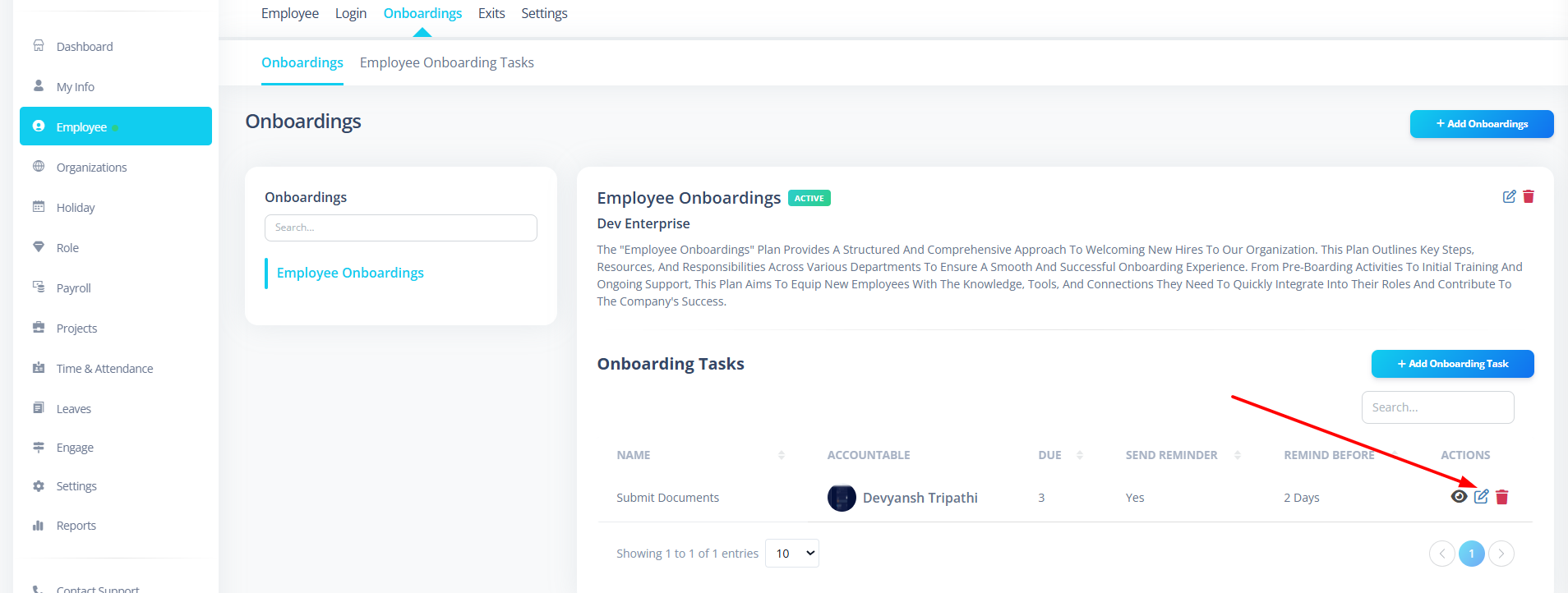
Viewing Tasks
In the task list, you can see:
- Task Name
- Accountable Person
- Due Time (in days)
- Whether Reminder is enabled
- Reminder days (if applicable)
Click on the task name or eye icon to view details.
Edit a Task
- Click the Edit icon
- Update fields
- Click Save
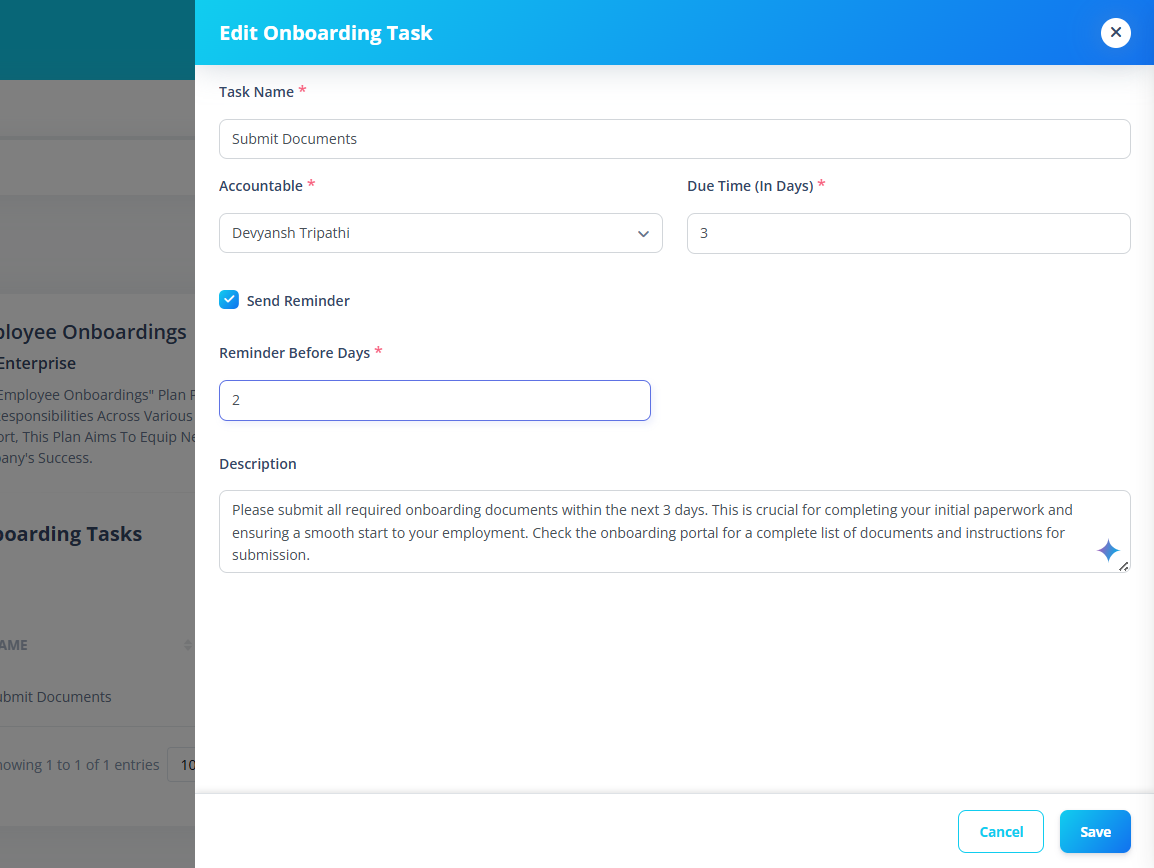
You can modify:
- Name
- Accountable person
- Due time
- Reminder settings
- Description
Delete a Task
- Click the Delete icon
- Confirm deletion
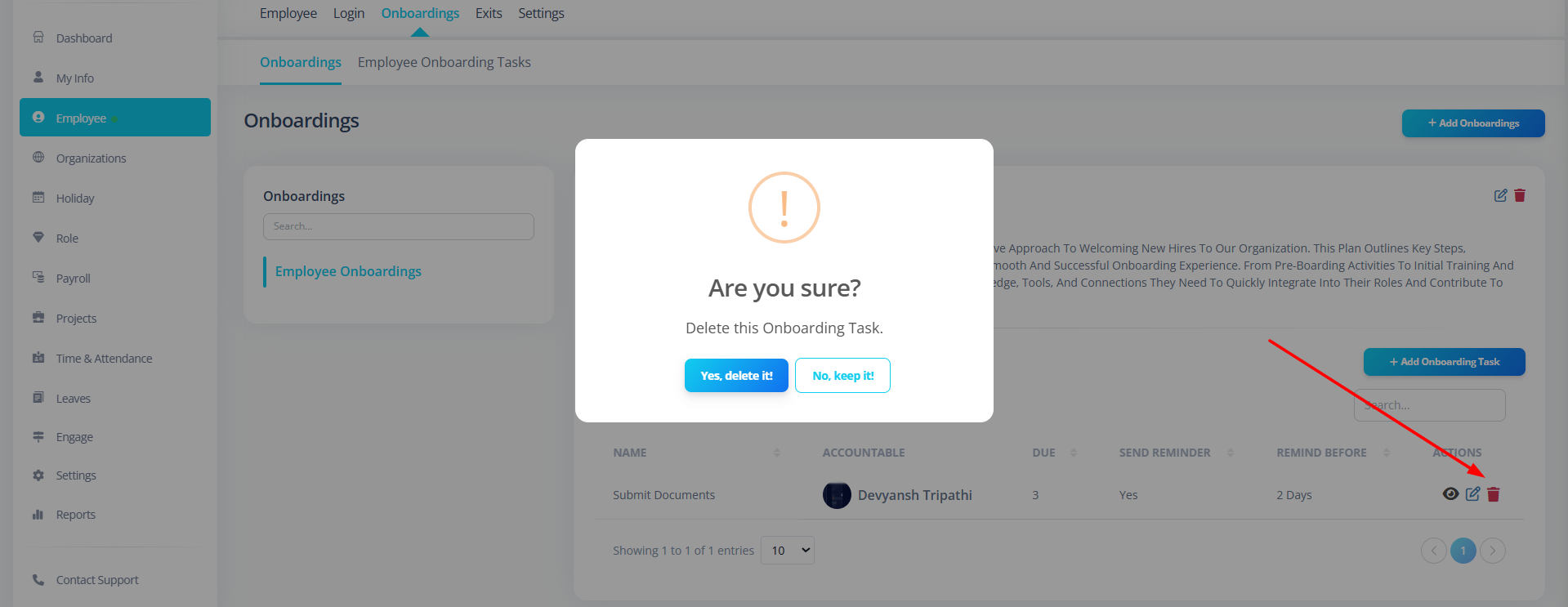
Once deleted:
- Task is permanently removed
- It will no longer be assigned
Important Rules for First-Time Users
- Every task must have a due time.
- If reminder is enabled, reminder days are mandatory.
- Reminder days must be less than or equal to due time.
- Assign the correct accountable person.
- Keep task names clear and specific.
Example Onboarding Plan with Tasks
Onboarding Plan:
Software Developer Onboarding
Tasks:
- Submit Documents (Due: 2 days)
- Collect Laptop (Due: 1 day)
- Complete Security Training (Due: 5 days, Reminder: 1 day before)
- Attend Team Introduction (Due: 3 days)
This ensures a structured onboarding process.
Summary
Onboarding Tasks allow you to:
- Break onboarding into actionable steps
- Assign responsibility
- Set deadlines
- Enable reminders
- Track structured progress
By organizing onboarding into tasks, you ensure every new employee completes all required steps smoothly.