Request Regularization
Regularization allows employees to request corrections for attendance marked as Irregular or incorrectly logged.
It ensures accurate attendance records while maintaining controlled review and validation.
What is Regularization?
Regularization is a controlled process that allows employees to:
- Correct attendance entries
- Fix missed check-ins or check-outs
- Remove penalties due to shift violations
- Submit justification for irregular attendance
Requests are evaluated based on:
- Shift configuration
- Regularization settings
- Configured approval rules
Regularization Settings
Regularization behavior is configured from:
Attendance → Regularization → Config
These settings define:
- Whether regularization is allowed
- Request limits
- Time restrictions
- Partial day handling
- Whether approval is required
How to Configure Regularization
- Open Attendance
- Navigate to Regularization
- Configure the options described below
- Click Save
Core Toggles
| Setting | Description |
|---|---|
| Attendance Adjustment Allowed | Allows employees to directly edit their logged time entries |
| Attendance Regularization | Allows employees to raise regularization requests under defined conditions |
| Partial Day Allowed | Allows late arrival, early exit, or mid-shift regularization |
| Required Approval | Enables approval workflow for regularization requests |
Conditional Configuration Rules
Regularization settings follow a conditional validation model.
Fields become mandatory only when their related toggle is enabled.
Request Limit & Period
If enabled:
The following fields become required:
- Request Period (Week / Month)
- Request Limit (minimum value: 1)
This defines:
“An employee can regularize X times in a Week or Month.”
Maximum Request Period
If enabled:
- Maximum Request Period becomes required
- Minimum value = 1
Defines how many days after the attendance date a request can be raised.
Example:
If set to 3, the employee must submit the request within 3 days of the attendance date.
Last Date to Regularize (Monthly Cutoff)
If enabled:
- Last Request Date becomes required
- Must be a valid calendar date
Defines the final date within a month to regularize attendance.
Example:
If set to 29, attendance for the current month cannot be regularized after the 29th.
Approval Handling
If Required Approval is enabled, regularization requests will follow the configured approval workflow.
Approval strategy configuration and handling are shared with Leave and Overtime approvals.
For detailed explanation, refer to:
Approval Strategy Handling
Summary of Validation Logic
- No field is universally mandatory.
- Fields become required based on enabled toggles.
- Request limits are enforced strictly.
- Approval rules apply only when approval is enabled.
How Employees Raise a Regularization Request
Employees can raise requests from:
Attendance → List Attendance
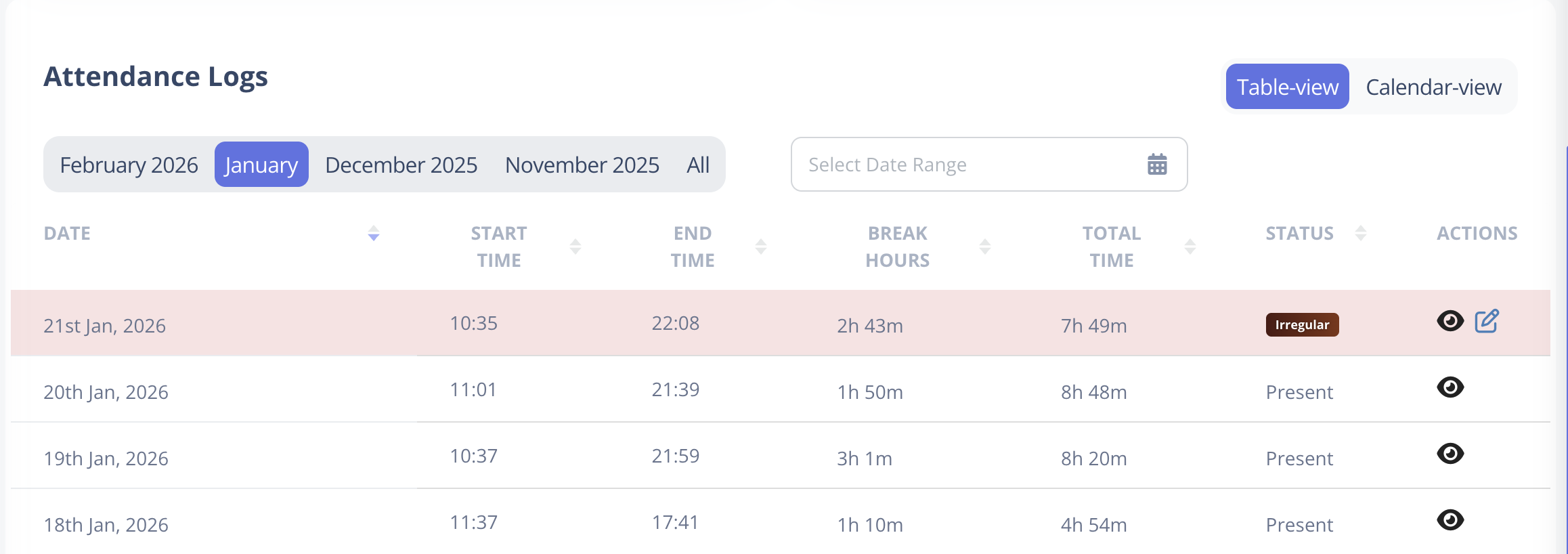
If attendance status is Irregular, an Edit icon ( ) appears in the Actions column.
Clicking it opens the Regularization form.
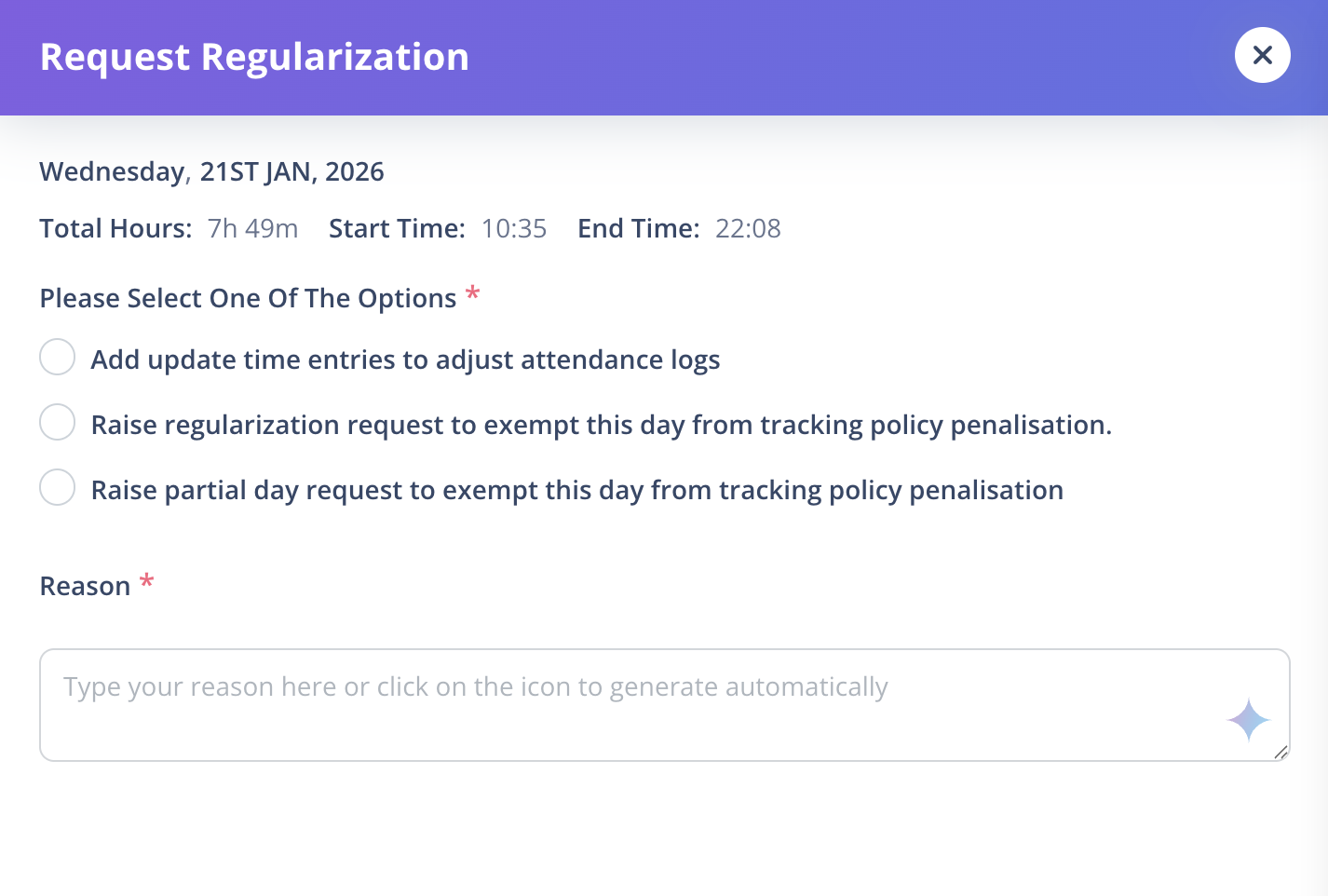
Status Flow
- Employee submits request
- Request is routed through the configured approval workflow (if enabled)
- After approval:
- Status changes from Irregular → Regularized
- If rejected:
- Status remains Irregular
Important Rules
- Regularization is evaluated after attendance sync.
- Shift rules still apply during review.
- Request limits and time restrictions are strictly enforced.
- Policies must align with organizational approval configuration.