Pay Groups
A Pay Group defines a set of payroll rules that apply to a group of employees. Employees in the same Pay Group share the same pay cycle, pay frequency, LOP rules, payout schedule, and component set.
Every employee must be assigned to a Pay Group before payroll can be processed.
What is a Pay Group?
A Pay Group is a payroll configuration unit that determines:
- Pay frequency and pay cycle period
- Attendance cutoff rules
- Salary payout schedule
- Loss of Pay (LOP) calculation method
- Whether holidays and weekly offs are included in payable days
- Payroll approval workflow
- The set of salary components available to employees in this group
Employees assigned to the same Pay Group follow the same payroll rules.
Before You Create a Pay Group
Make sure the following are already configured:
- Legal Entity (Organization)
- Salary components (Earnings and Deductions) — go to Payroll → Settings → Components and create the components you need before setting up a Pay Group
How to Create a Pay Group
- Navigate to Payroll → Settings → Pay Groups.
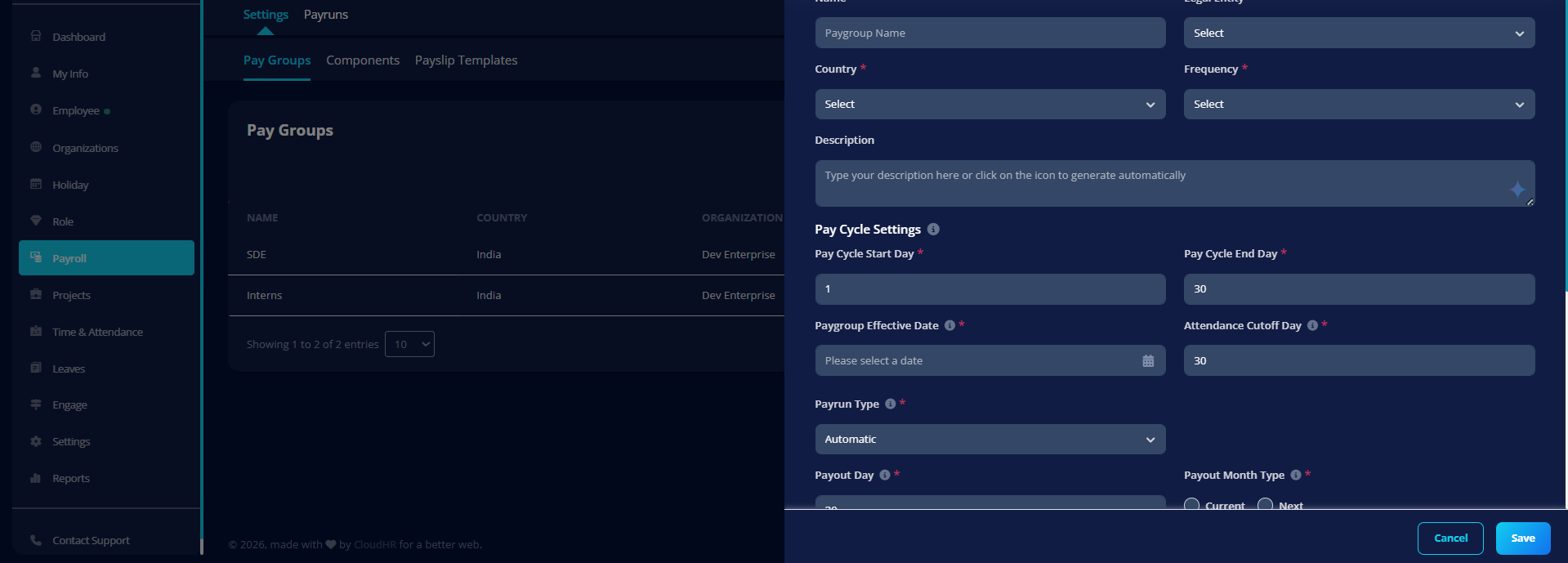
- Click Add Pay Group. A side panel opens.
- Fill in all required details (see field reference below).
- Click Save.
General Information
Required Fields
| Field | Description |
|---|---|
| Name | Unique Pay Group name within the same Legal Entity |
| Legal Entity | Organization this Pay Group belongs to |
| Country | Country where payroll rules apply |
| Frequency | Payroll cycle (Monthly) |
Optional Field
| Field | Description |
|---|---|
| Description | Internal description for this Pay Group |
Pay Cycle Settings
Pay cycle defines the salary calculation period.
Example:
If pay cycle is 1 → 30, salary will be calculated from 1st to 30th.
| Field | Description |
|---|---|
| Pay Cycle Start Day | First day of payroll calculation cycle |
| Pay Cycle End Day | Last day of payroll calculation cycle |
| Effective Date | Date from which this pay group becomes active |
| Attendance Cutoff Day | Last day attendance will be considered for payroll |
Example
If:
- Pay cycle = 1 to 30
- Attendance cutoff = 30
Then salary for April will consider attendance from April 1–30.
Payroll Run Settings
Controls when and how payroll is executed.
| Field | Description |
|---|---|
| Payrun Type | Manual or Automatic payroll processing |
| Approval Required | Whether payroll needs approval before finalization |
Payrun Types
Automatic
- Payroll runs automatically each cycle
- Requires payout configuration
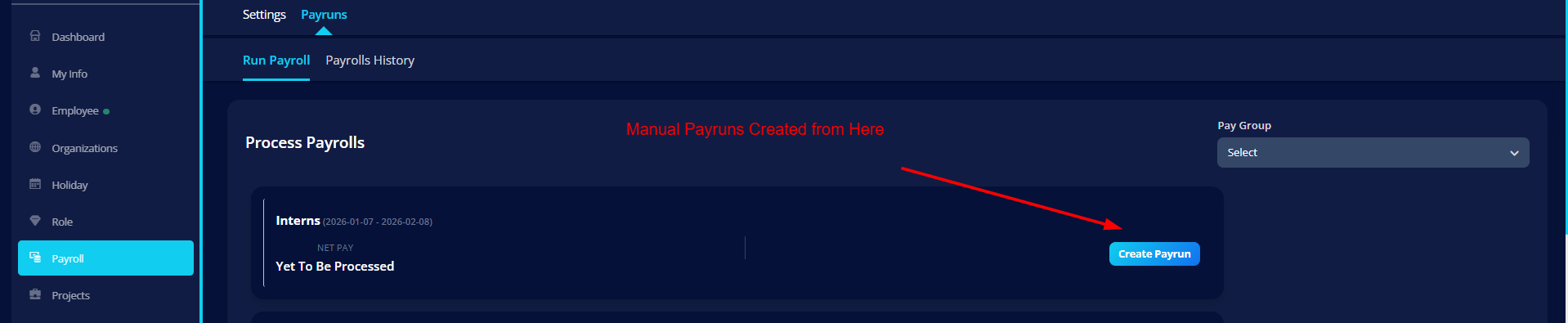
Manual
- Payroll must be triggered manually by admin
Field Reference
General Information
| Field | Required | Description |
|---|---|---|
| Name | Yes | A clear name for this Pay Group. This name will appear throughout the payroll screens. |
| Legal Entity | Yes | The company entity this Pay Group belongs to |
| Country | Yes | The country this Pay Group operates in. This determines which statutory deductions (e.g., PF, ESI, TDS) are available. |
| Pay Frequency | Yes | How often employees in this group are paid (Monthly, Bi-weekly, etc.) |
| Description | No | A description of this Pay Group's purpose |
Pay Cycle Settings
The pay cycle defines the start and end of each salary period.
| Field | Required | Description |
|---|---|---|
| Pay Cycle Start Day | Yes | First day of the payroll period (1–31) |
| Pay Cycle End Day | Yes | Last day of the payroll period (1–31) |
| Paygroup Effective Date | Yes | Date from which this Pay Group is active and begins generating pay run cycles |
| Attendance Cutoff Day | Yes | Deadline for attendance data to be finalized before payroll is processed |
If your pay cycle runs from the 26th of one month to the 25th of the next, set Pay Cycle Start Day to 26 and Pay Cycle End Day to 25. The system handles month-boundary logic automatically.
Example: If pay cycle = 1 to 31 and Attendance Cutoff = 1, salary for April will consider all attendance records finalized by the 1st of May.
Payrun Type
Controls when and how payroll runs are executed.
| Option | Description |
|---|---|
| Manual | You initiate each pay run yourself, giving full control over timing |
| Automatic | Pay runs are scheduled and created by the system on the configured payout day |
Automatic Payrun — Additional Fields
Visible only when Payrun Type is set to Automatic.
| Field | Required | Description |
|---|---|---|
| Payout Day | Yes | Day of the month on which salaries are disbursed (1–31) |
| Payout Month Type | Yes | Current — salary for March is paid in March. Next — salary for March is paid in April. |
Example: If pay cycle = Jan 1–31, payout day = 5, payout month = Next — salary will be paid on 5th February.
Payable Days Configuration
Defines how the number of payable days per period is calculated.
| Option | Description |
|---|---|
| Actual Days | Based on the real number of calendar days in the pay period |
| Fixed Days | Always uses a fixed number (e.g., 26 days), regardless of the month |
If Fixed Days is selected, enter the Fixed Payable Days value (must be between 20 and 31).
Example: Monthly salary ÷ 26 × payable days worked.
Use Fixed payable days for simplicity — it removes month-length variability and makes salary predictable for both employees and administrators.
Paid Days Settings
These determine whether non-working days count as payable days.
| Setting | Description |
|---|---|
| Weekly Offs Paid | When ON, weekly off days are treated as paid days and do not affect proration |
| Holidays Paid | When ON, declared public holidays are treated as paid days |
LOP (Loss of Pay) Calculation
LOP determines the per-day deduction formula when an employee has unpaid absences.
| Field | Description |
|---|---|
| LOP Calculation Type | Defines how per-day salary is calculated for LOP deductions (Calendar Days, Working Days, or Fixed Days) |
Approval Required
When set to Yes, each pay run under this Pay Group must go through a Review and Approval step before it can be finalized. This adds a control layer useful for large or sensitive payrolls.
Pay Group Detail Page
After creating a Pay Group, click its name in the list to open the detail page. This page shows a summary card at the top and two tabs:
| Tab | Contents |
|---|---|
| Basic Information | All configured fields: Pay Cycle, Effective Date, Payable Days Type, Attendance Cutoff, Payout Day, Approval Required, Weekly Off Paid, Holidays Paid, LOP Calculation Type |
| Salary Components | The component library for this Pay Group, split into Earnings, Benefits, Deductions, and Reimbursements sub-tabs |
Assigning Employees to a Pay Group
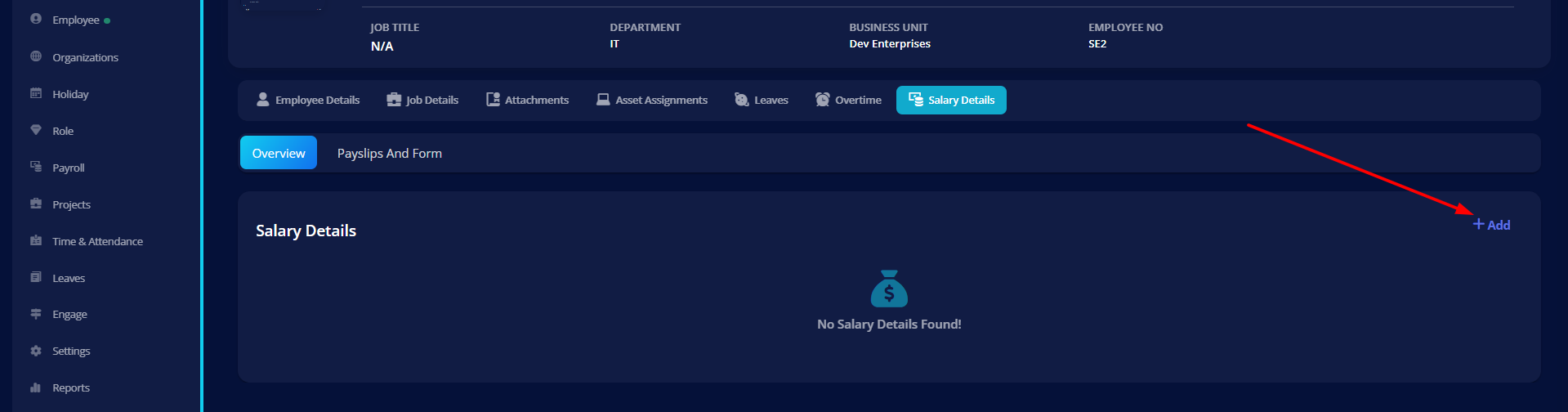
Employees are not assigned directly from the Pay Group screen. Instead, assign an employee to a Pay Group from their individual Salary Details page.
- Go to Employees and open the employee's profile.
- Navigate to Salary Details.
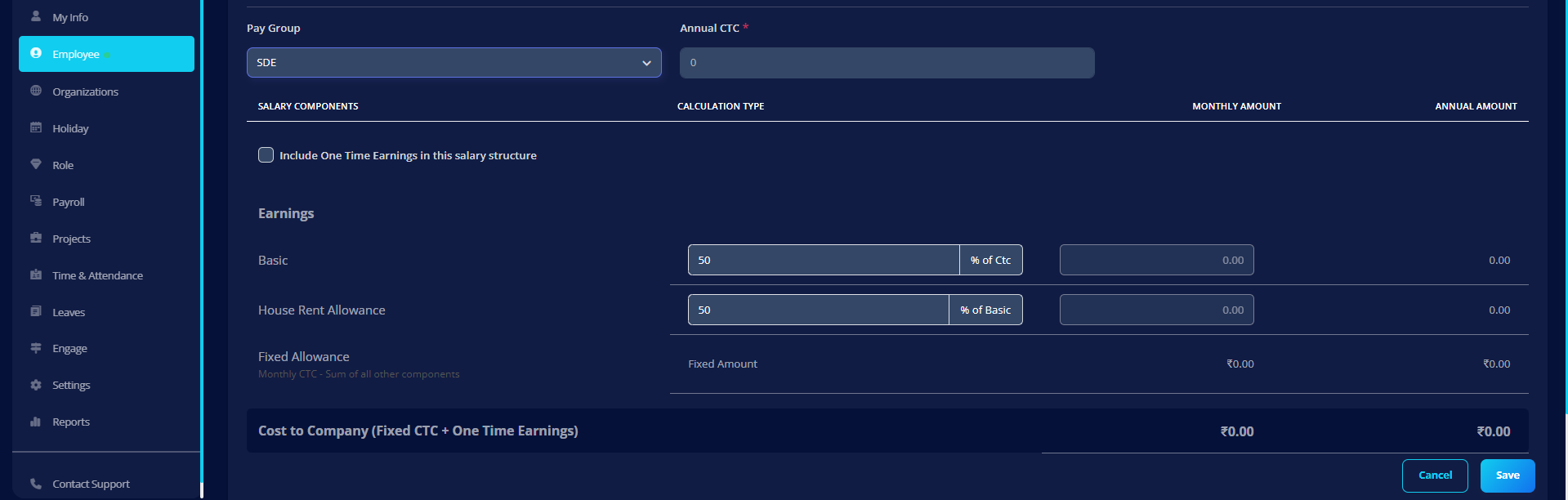
- In the Pay Group dropdown, select the desired Pay Group.
- Enter the employee's Annual CTC.
- Review the auto-generated component breakdown and click Save.
Editing a Pay Group
- Go to Payroll → Settings → Pay Groups.
- Click the icon in the Actions column.
- The edit form opens with all current values pre-filled.
- Make your changes and click Save.
Changing the Pay Cycle Start/End Day, Pay Frequency, or Payable Days Type on an active Pay Group after employees have already been included in a draft pay run may cause incorrect calculations. Make structural changes only between pay run cycles, before a new pay run is created.
Deleting a Pay Group
- Go to Payroll → Settings → Pay Groups.
- Click the icon in the Actions column.
- Confirm the deletion in the dialog.
A Pay Group that has employees assigned to it or has associated pay runs cannot be safely deleted. Reassign all employees to another Pay Group before attempting deletion.
Important Rules
- Pay Group name must be unique within the same Legal Entity.
- Pay cycle end day must be greater than or equal to start day.
- Automatic payrun type requires Payout Day and Payout Month Type.
- Fixed Payable Days is required if Payable Days Type is set to Fixed.
- Every employee must belong to a Pay Group to run payroll.
When to Create Multiple Pay Groups
Create separate Pay Groups when you have:
- Different countries (each with their own statutory rules)
- Different payroll frequencies (monthly vs. weekly)
- Different payout days or cycles
- Separate legal entities
- Contract vs. full-time payroll
Best Practices
- Create separate Pay Groups per country to ensure correct statutory compliance.
- Use descriptive names such as India Monthly — Full Time or UAE Payroll — Contract.
- Always include Special Allowance as the last earning component so the sum of all components always equals the employee's CTC.
- Set the Attendance Cutoff Day carefully — it should allow enough time for all attendance to be recorded before payroll is run.
- Do not change the pay cycle configuration after payroll has started for a period.
- Test payroll with one employee before running for the full organization.
Related Setup
After creating Pay Groups:
- Assign salary structure to employees
- Payroll will be run based on the payrun type.